> ## Documentation Index
> Fetch the complete documentation index at: https://synthetiq.com/docs/llms.txt
> Use this file to discover all available pages before exploring further.

# Your first app

> Build a working web application from a chat message — describe what you need, review the plan, and open the finished app.

Build a working web application from a chat message. In this tutorial, you describe an app to Synthetiq, review the plan, and open the finished result.

## Prerequisites

* Synthetiq installed, signed in, and your Claude API key saved (see [Set Up Synthetiq and Set Your API Key](/quickstart/setup-and-api-key))

## Steps

<Steps>
  <Step title="Open the chat panel">
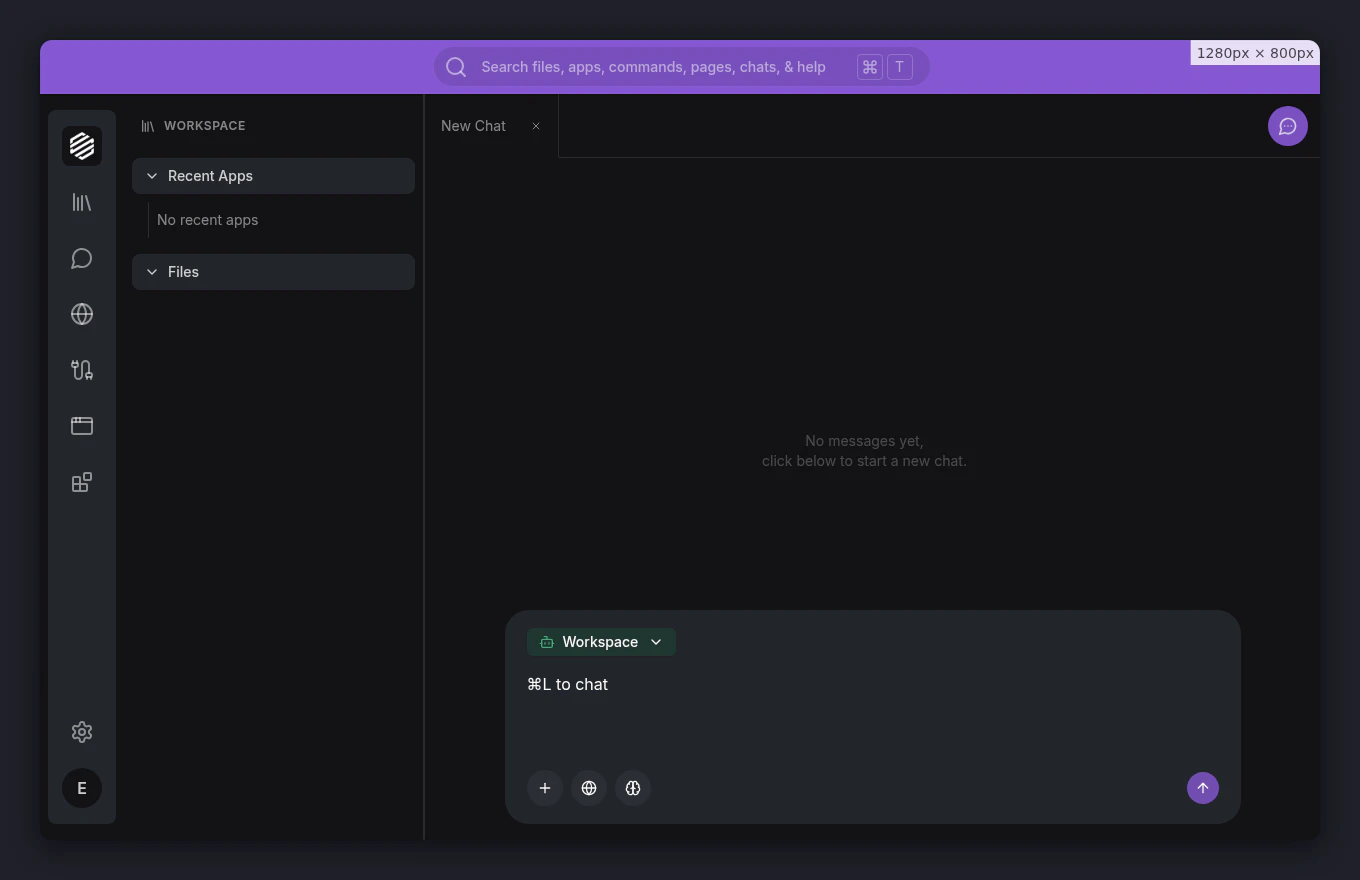
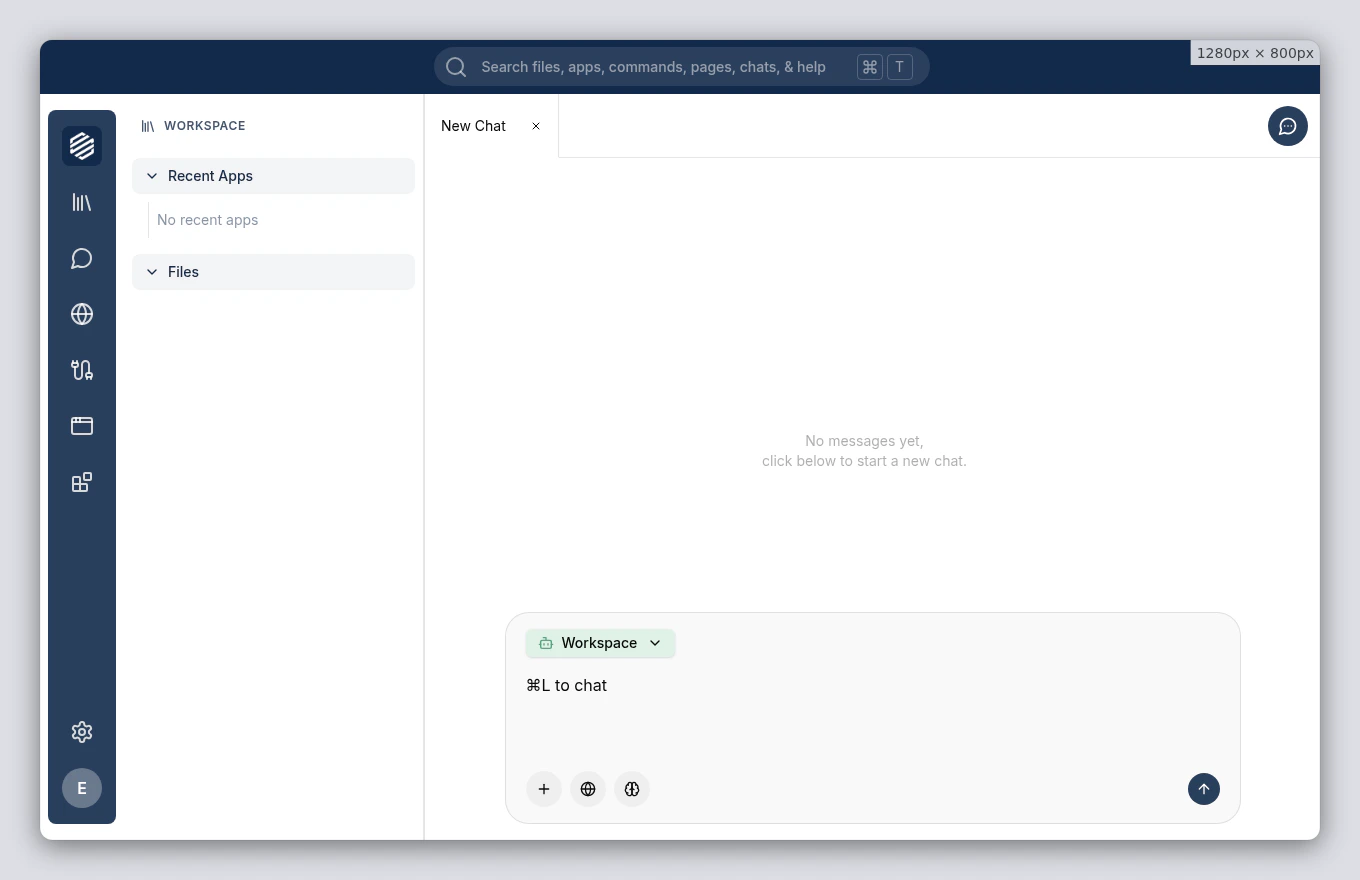
    Click the **chat icon** in the left menu, or press **⌘]**, to open the chat panel.
    <img src="https://mintcdn.com/synthetiq/RNJQjOGIp-QHg-Gg/images/tutorials/app-writer/step-01-chat-panel-light.png?fit=max&auto=format&n=RNJQjOGIp-QHg-Gg&q=85&s=ce802461d573d02ed6d51bcccb43c371" className="block dark:hidden" alt="Chat panel open on the right side of the workspace" width="1360" height="880" data-path="images/tutorials/app-writer/step-01-chat-panel-light.png" />

    <img src="https://mintcdn.com/synthetiq/RNJQjOGIp-QHg-Gg/images/tutorials/app-writer/step-01-chat-panel-dark.png?fit=max&auto=format&n=RNJQjOGIp-QHg-Gg&q=85&s=e2affc4a26af417ea9c616d1b26c0202" className="hidden dark:block" alt="Chat panel open on the right side of the workspace" width="1360" height="880" data-path="images/tutorials/app-writer/step-01-chat-panel-dark.png" />
  </Step>

  <Step title="Describe the app you want">
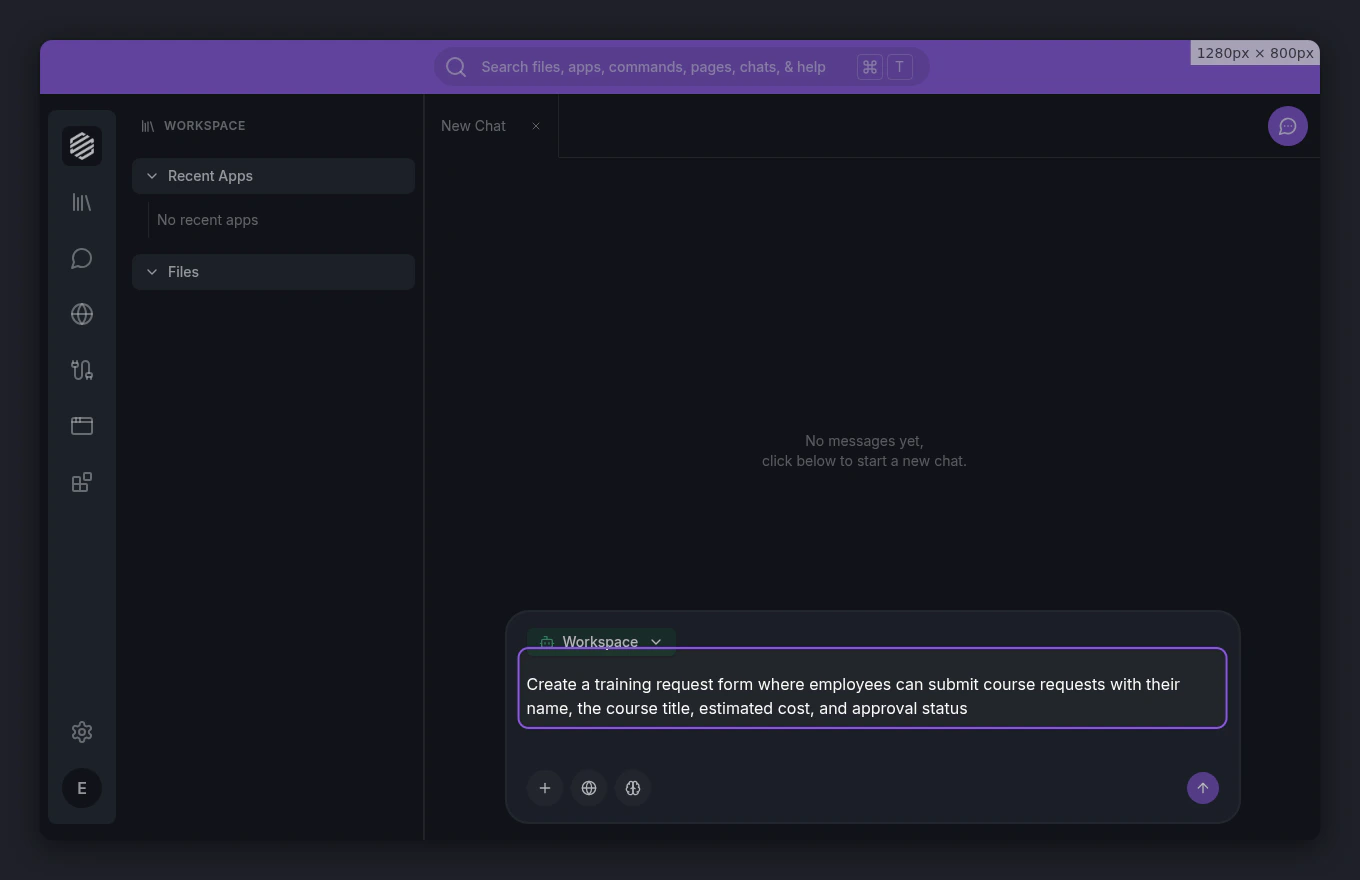
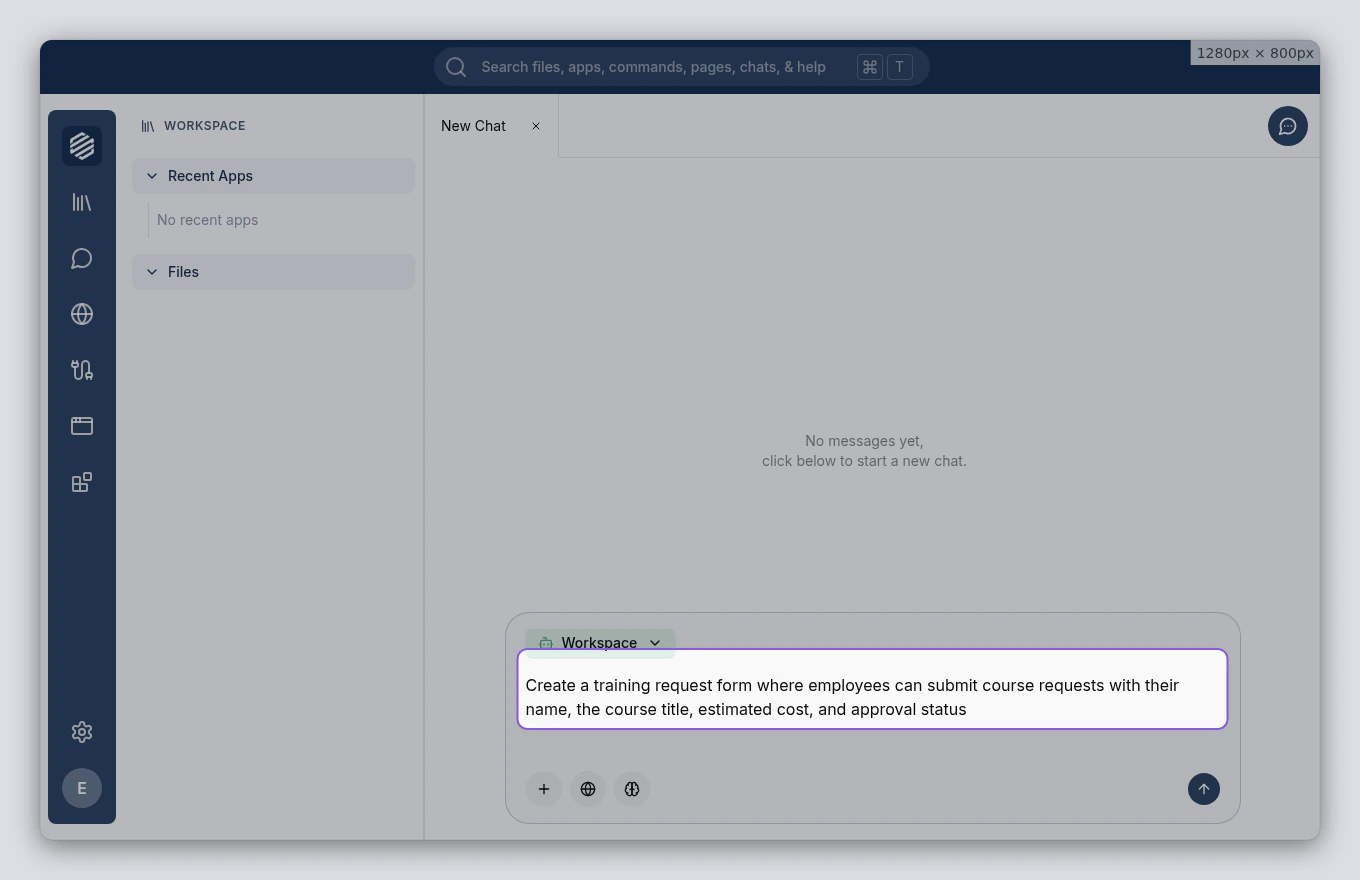
    Type a description of your app into the chat. Be specific about the features you need.

    For this tutorial, type:

    > Create a training request form where employees can submit course requests with their name, the course title, estimated cost, and approval status

    Press **Enter** to send your message.
    <img src="https://mintcdn.com/synthetiq/RNJQjOGIp-QHg-Gg/images/tutorials/app-writer/step-02-describe-app-light.png?fit=max&auto=format&n=RNJQjOGIp-QHg-Gg&q=85&s=d1dde6e8bb6b0068465c20a597b26032" className="block dark:hidden" alt="App description typed into the chat input" width="1360" height="880" data-path="images/tutorials/app-writer/step-02-describe-app-light.png" />

    <img src="https://mintcdn.com/synthetiq/RNJQjOGIp-QHg-Gg/images/tutorials/app-writer/step-02-describe-app-dark.png?fit=max&auto=format&n=RNJQjOGIp-QHg-Gg&q=85&s=e516a8bdafb97f09c30bc5dea8871962" className="hidden dark:block" alt="App description typed into the chat input" width="1360" height="880" data-path="images/tutorials/app-writer/step-02-describe-app-dark.png" />
  </Step>

  <Step title="Wait for the agent to switch modes">
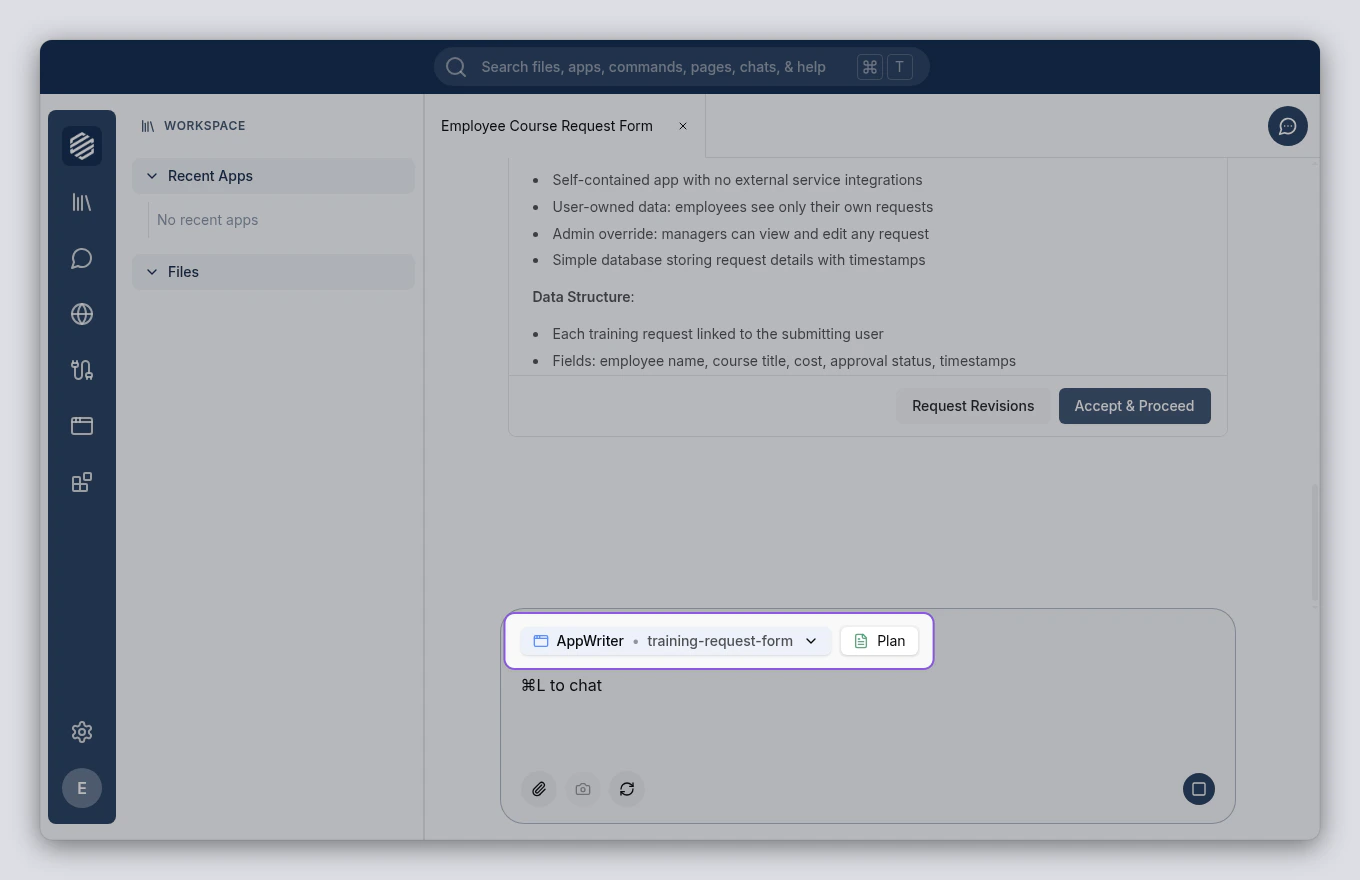
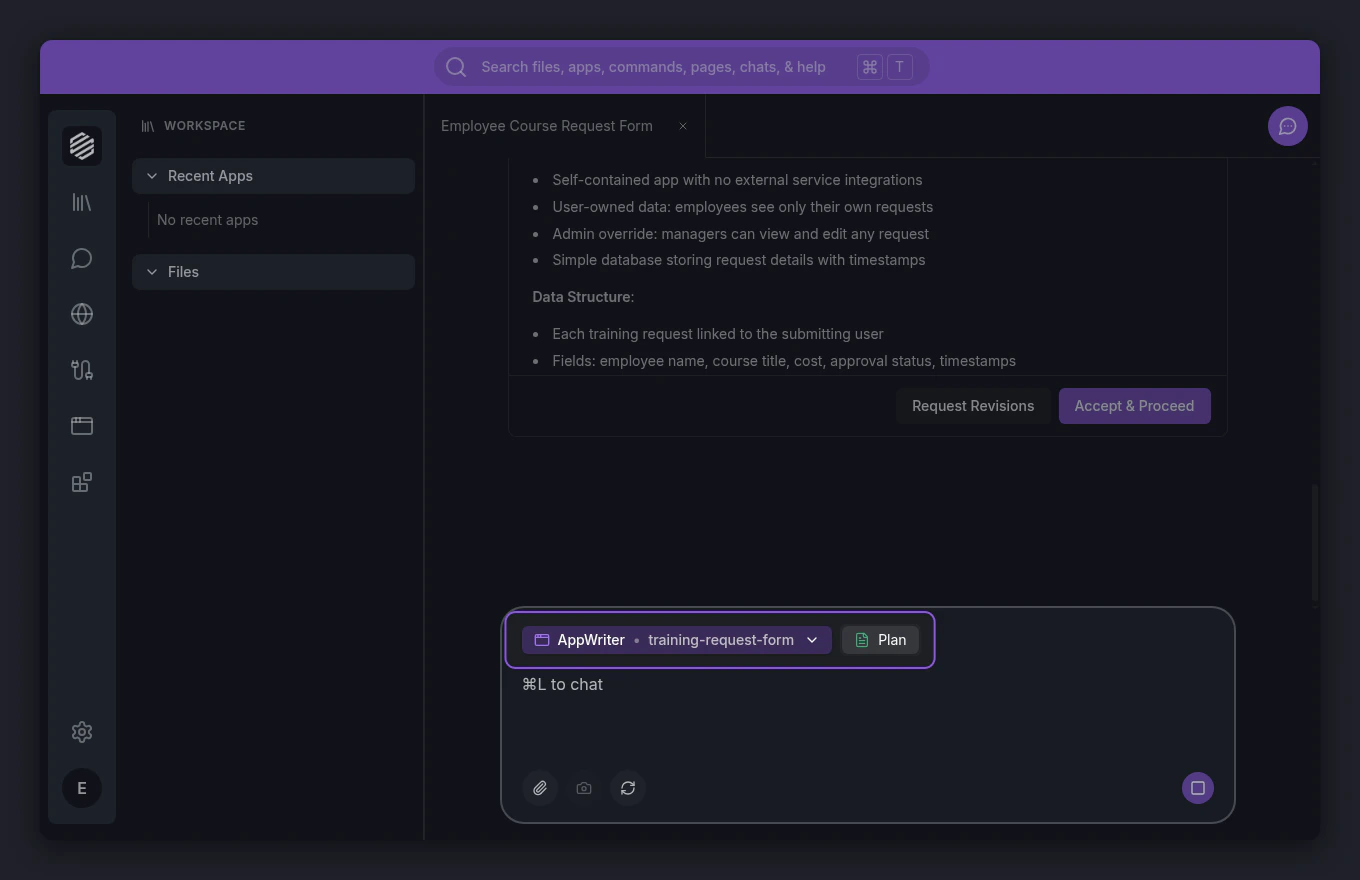
    The Workspace agent recognizes that you want to build an app and hands off to the **AppWriter** agent. A mode-switch indicator appears in the chat showing the transition.
    <img src="https://mintcdn.com/synthetiq/RNJQjOGIp-QHg-Gg/images/tutorials/app-writer/step-03-mode-switch-light.png?fit=max&auto=format&n=RNJQjOGIp-QHg-Gg&q=85&s=4c78cc3089a9f75812b34f4ee97f4019" className="block dark:hidden" alt="Mode switch indicator showing Workspace to AppWriter" width="1360" height="880" data-path="images/tutorials/app-writer/step-03-mode-switch-light.png" />

    <img src="https://mintcdn.com/synthetiq/RNJQjOGIp-QHg-Gg/images/tutorials/app-writer/step-03-mode-switch-dark.png?fit=max&auto=format&n=RNJQjOGIp-QHg-Gg&q=85&s=343aa509718685b7eb2d9d363dfd4233" className="hidden dark:block" alt="Mode switch indicator showing Workspace to AppWriter" width="1360" height="880" data-path="images/tutorials/app-writer/step-03-mode-switch-dark.png" />
  </Step>

  <Step title="Review the plan">
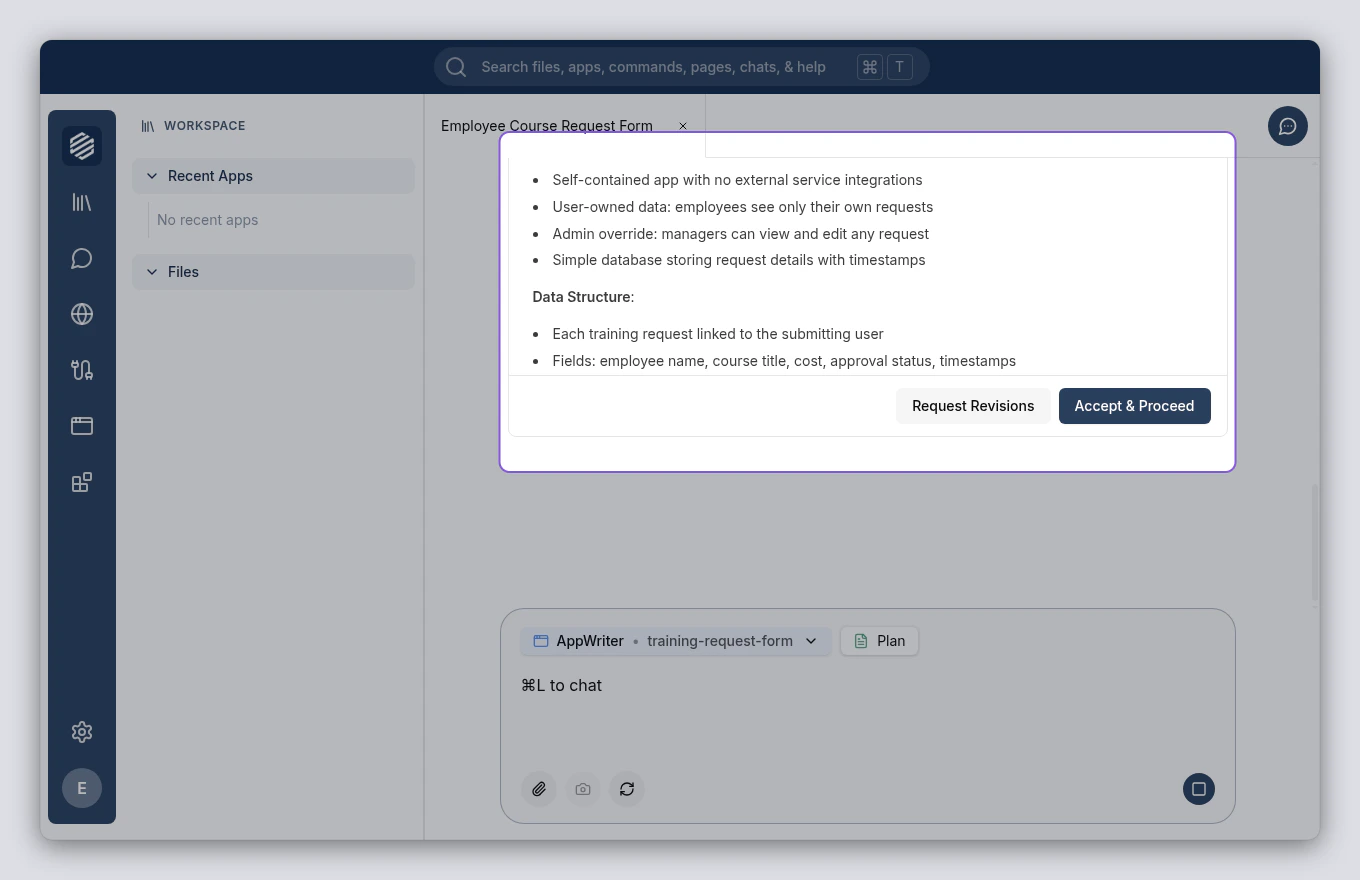
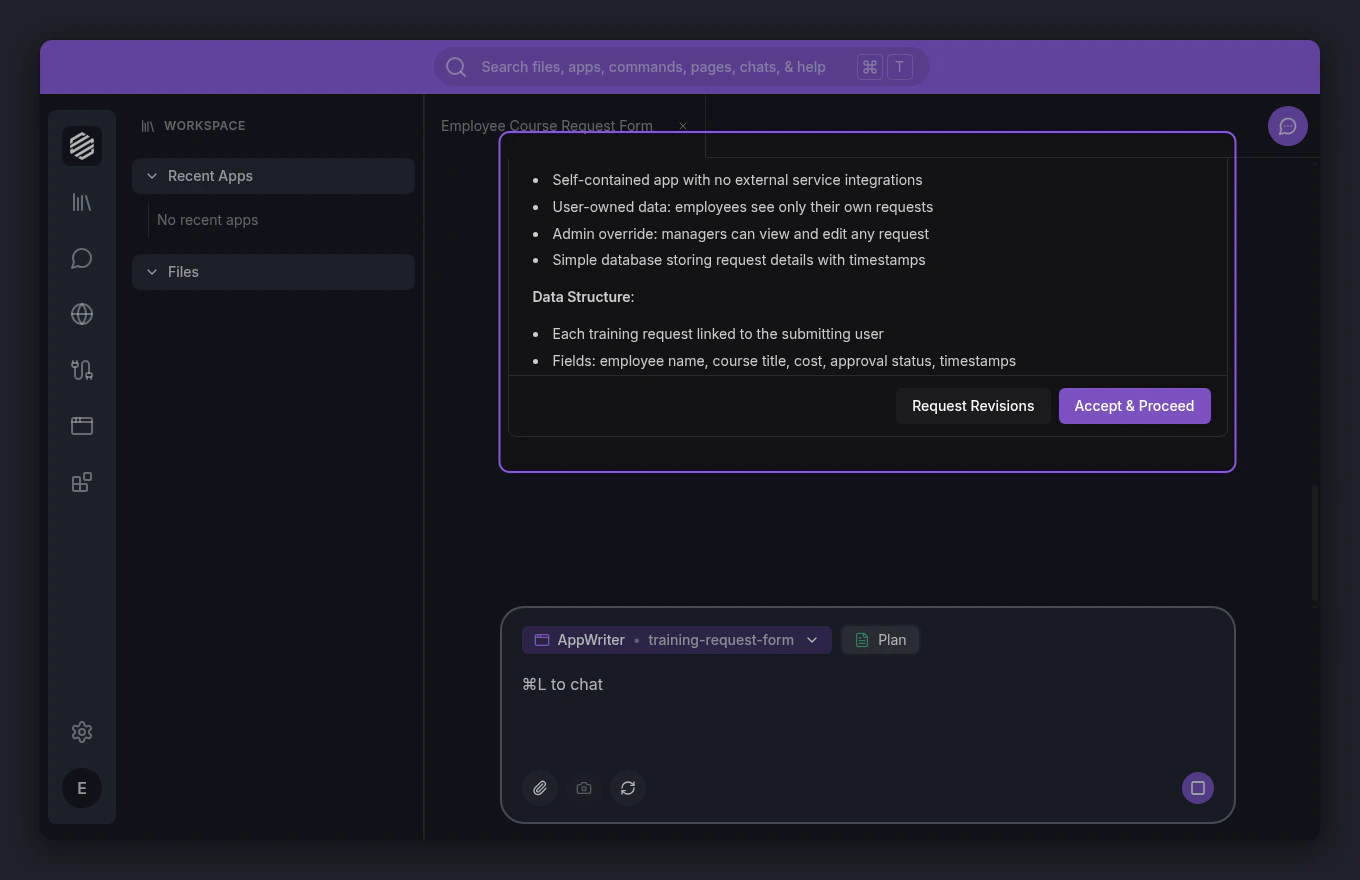
    The AppWriter agent presents a plan for your app. The plan card covers the app's features, data model, and pages. Read through it to make sure it matches what you had in mind.
    <img src="https://mintcdn.com/synthetiq/RNJQjOGIp-QHg-Gg/images/tutorials/app-writer/step-04-review-plan-light.png?fit=max&auto=format&n=RNJQjOGIp-QHg-Gg&q=85&s=4fdb0744dce70b52a688bd24d5085dc2" className="block dark:hidden" alt="Plan approval card with app details and action buttons" width="1360" height="880" data-path="images/tutorials/app-writer/step-04-review-plan-light.png" />

    <img src="https://mintcdn.com/synthetiq/RNJQjOGIp-QHg-Gg/images/tutorials/app-writer/step-04-review-plan-dark.png?fit=max&auto=format&n=RNJQjOGIp-QHg-Gg&q=85&s=41d3689e8ebd37f8772e8bdd2972b251" className="hidden dark:block" alt="Plan approval card with app details and action buttons" width="1360" height="880" data-path="images/tutorials/app-writer/step-04-review-plan-dark.png" />
  </Step>

  <Step title="Accept the plan">
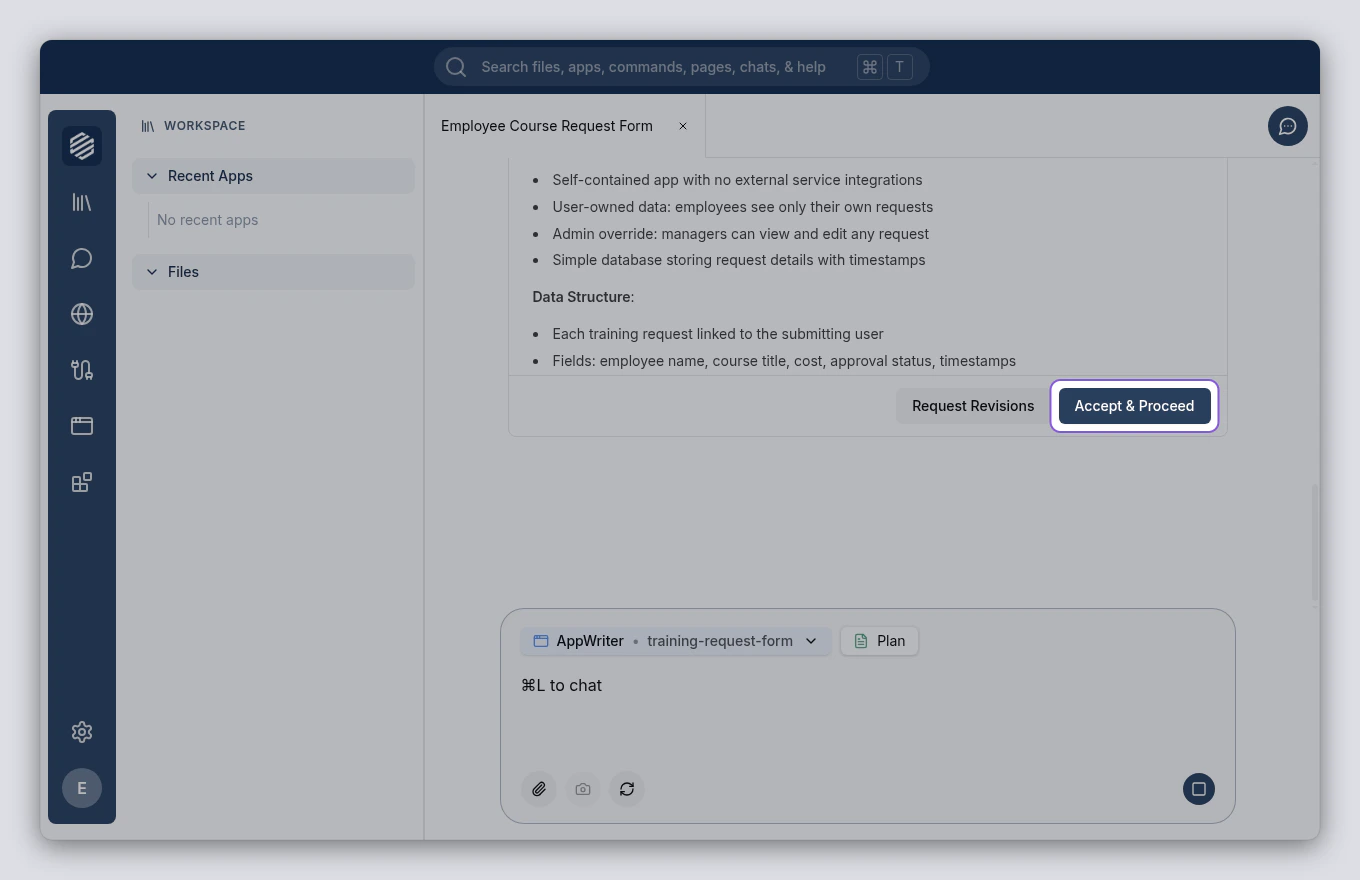
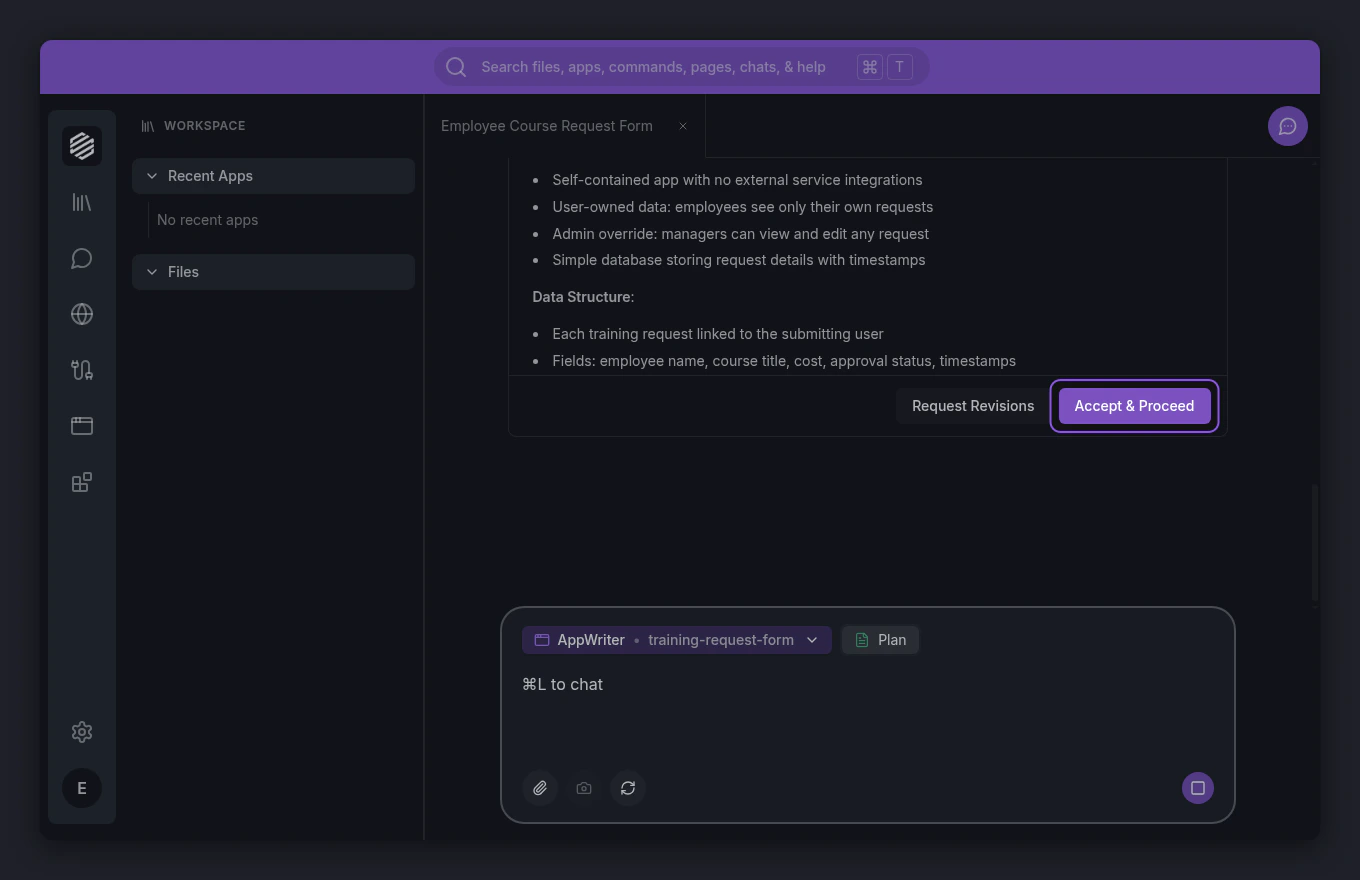
    If the plan looks good, click **Accept & Proceed** at the bottom of the plan card. The AppWriter agent begins building your app.

    If something needs changing, click **Request Revisions** instead and describe what you want adjusted.
    <img src="https://mintcdn.com/synthetiq/RNJQjOGIp-QHg-Gg/images/tutorials/app-writer/step-05-accept-plan-light.png?fit=max&auto=format&n=RNJQjOGIp-QHg-Gg&q=85&s=2571958da308dc8a92642eb52e180866" className="block dark:hidden" alt="Accept and Proceed button highlighted on the plan card" width="1360" height="880" data-path="images/tutorials/app-writer/step-05-accept-plan-light.png" />

    <img src="https://mintcdn.com/synthetiq/RNJQjOGIp-QHg-Gg/images/tutorials/app-writer/step-05-accept-plan-dark.png?fit=max&auto=format&n=RNJQjOGIp-QHg-Gg&q=85&s=82d8aa6b6060352232e609a56d2e40de" className="hidden dark:block" alt="Accept and Proceed button highlighted on the plan card" width="1360" height="880" data-path="images/tutorials/app-writer/step-05-accept-plan-dark.png" />
  </Step>

  <Step title="Wait for the build to finish">
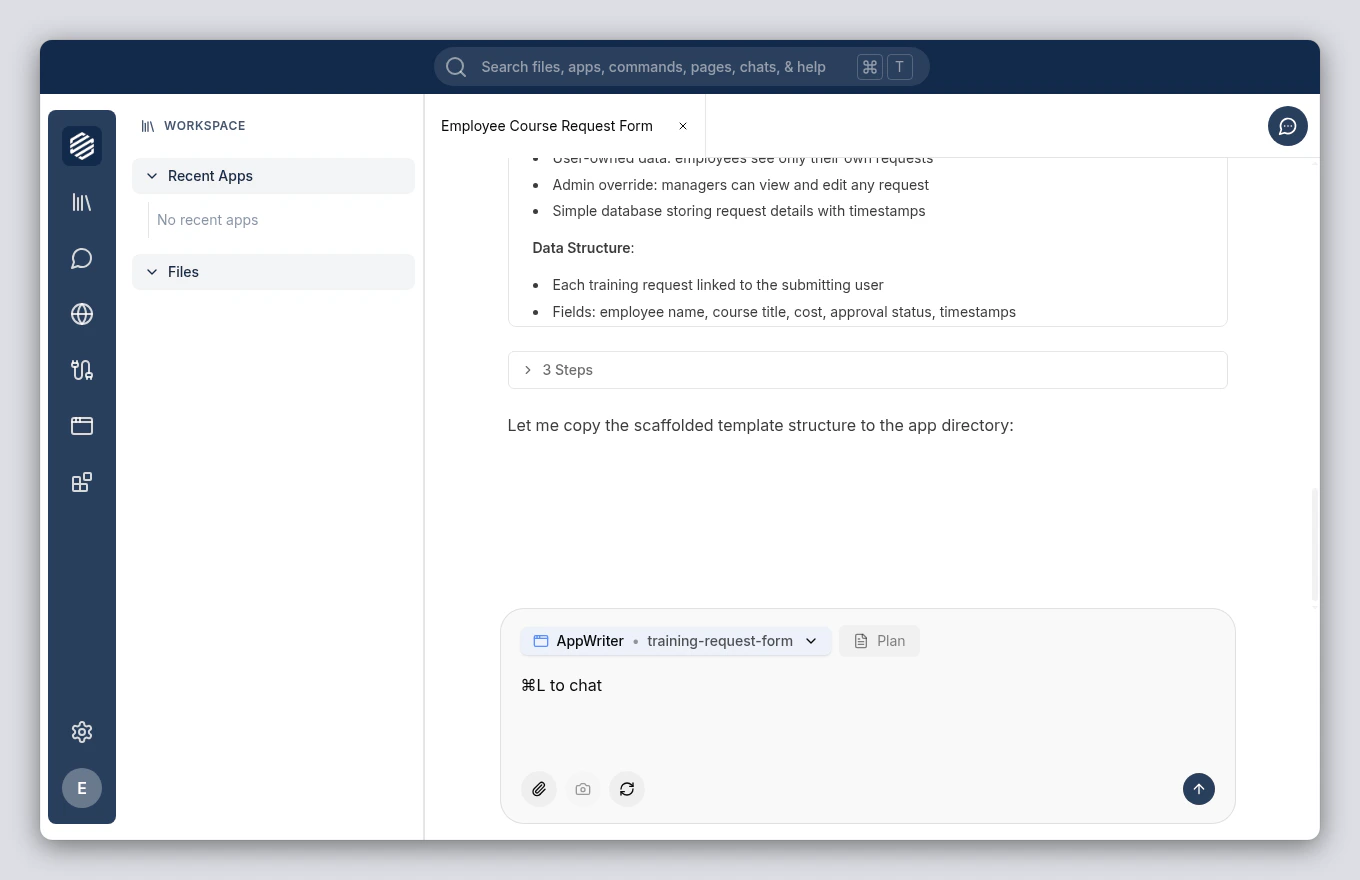
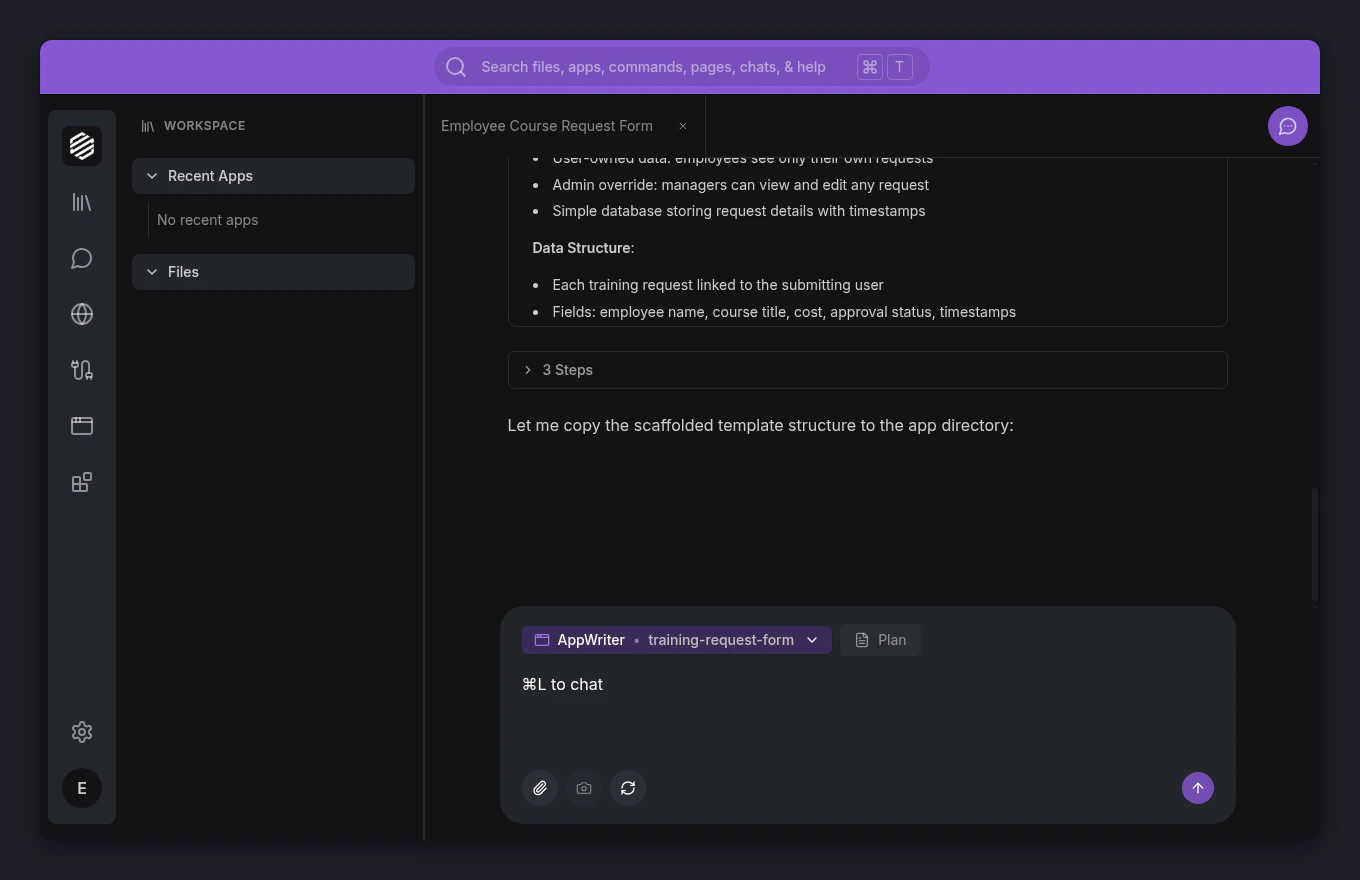
    The AppWriter agent creates your app's frontend, backend, and database. You can watch progress as tool calls appear in the chat. This takes a minute or two depending on the complexity of your app.
    <img src="https://mintcdn.com/synthetiq/RNJQjOGIp-QHg-Gg/images/tutorials/app-writer/step-06-building-light.png?fit=max&auto=format&n=RNJQjOGIp-QHg-Gg&q=85&s=143c5ab5e0e7ed50aec2fe197e70a2d4" className="block dark:hidden" alt="Tool call progress visible in the chat during the build" width="1360" height="880" data-path="images/tutorials/app-writer/step-06-building-light.png" />

    <img src="https://mintcdn.com/synthetiq/RNJQjOGIp-QHg-Gg/images/tutorials/app-writer/step-06-building-dark.png?fit=max&auto=format&n=RNJQjOGIp-QHg-Gg&q=85&s=b68aaa6afee25a1d52fe9e3dacda466b" className="hidden dark:block" alt="Tool call progress visible in the chat during the build" width="1360" height="880" data-path="images/tutorials/app-writer/step-06-building-dark.png" />
  </Step>

  <Step title="Open your new app">
    When the build finishes, the agent provides a link to your app. Click the link to open it in a new tab.
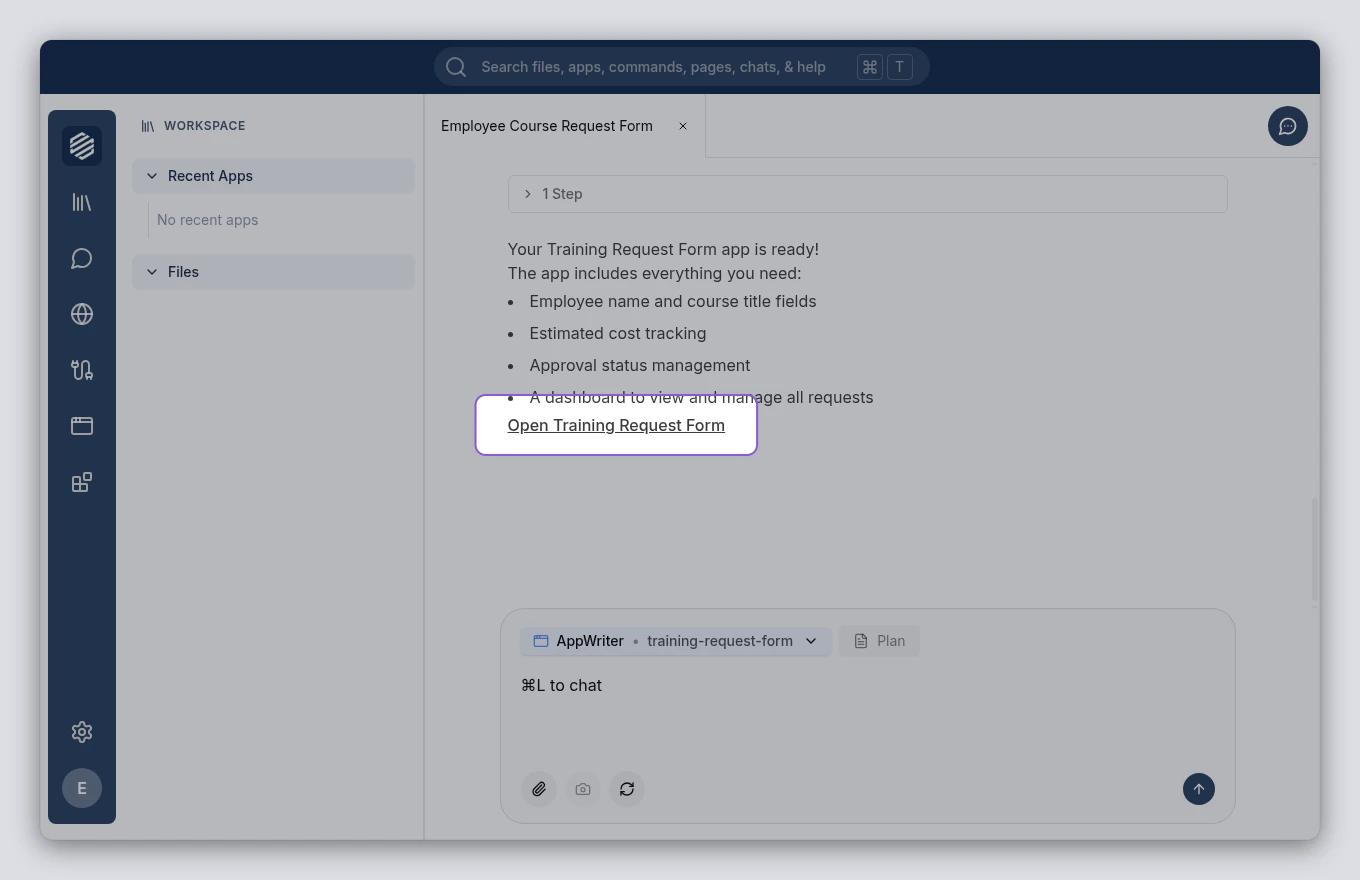
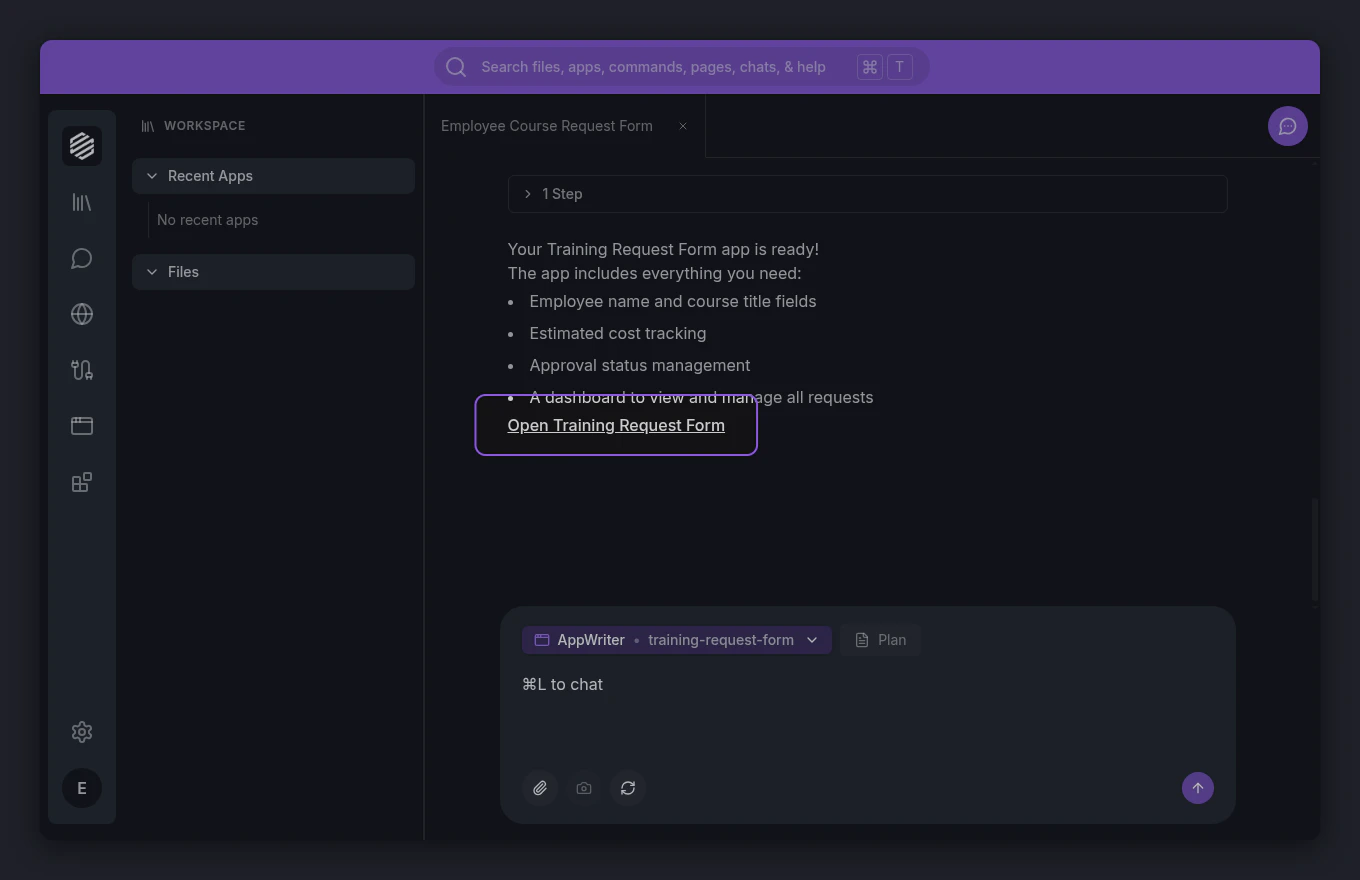
    <img src="https://mintcdn.com/synthetiq/RNJQjOGIp-QHg-Gg/images/tutorials/app-writer/step-07-finished-app-light.png?fit=max&auto=format&n=RNJQjOGIp-QHg-Gg&q=85&s=aa9ccb6c2f07c61ddd66575f0e92f4f0" className="block dark:hidden" alt="Finished training request form app" width="1360" height="880" data-path="images/tutorials/app-writer/step-07-finished-app-light.png" />

    <img src="https://mintcdn.com/synthetiq/RNJQjOGIp-QHg-Gg/images/tutorials/app-writer/step-07-finished-app-dark.png?fit=max&auto=format&n=RNJQjOGIp-QHg-Gg&q=85&s=9576211dc5203f6dd8abef62cc40303c" className="hidden dark:block" alt="Finished training request form app" width="1360" height="880" data-path="images/tutorials/app-writer/step-07-finished-app-dark.png" />
  </Step>
</Steps>

<Tip>
  You can always ask the agent to make changes after the app is built. Just describe what you want in the chat — for example, "Add a manager approval workflow to the training request form."
</Tip>