> ## Documentation Index
> Fetch the complete documentation index at: https://synthetiq.com/docs/llms.txt
> Use this file to discover all available pages before exploring further.

# Discover and install apps

> Find and install apps, services, and extensions from the Discover store

The Discover store lets you browse and install apps, services, and extensions — from your organization, shared by collaborators, or published by Synthetiq.

## Prerequisites

* A Synthetiq workspace
* At least one AI API key configured (see [Setup and API Key](/quickstart/setup-and-api-key))

<Steps>
  <Step title="Open the Discover store">
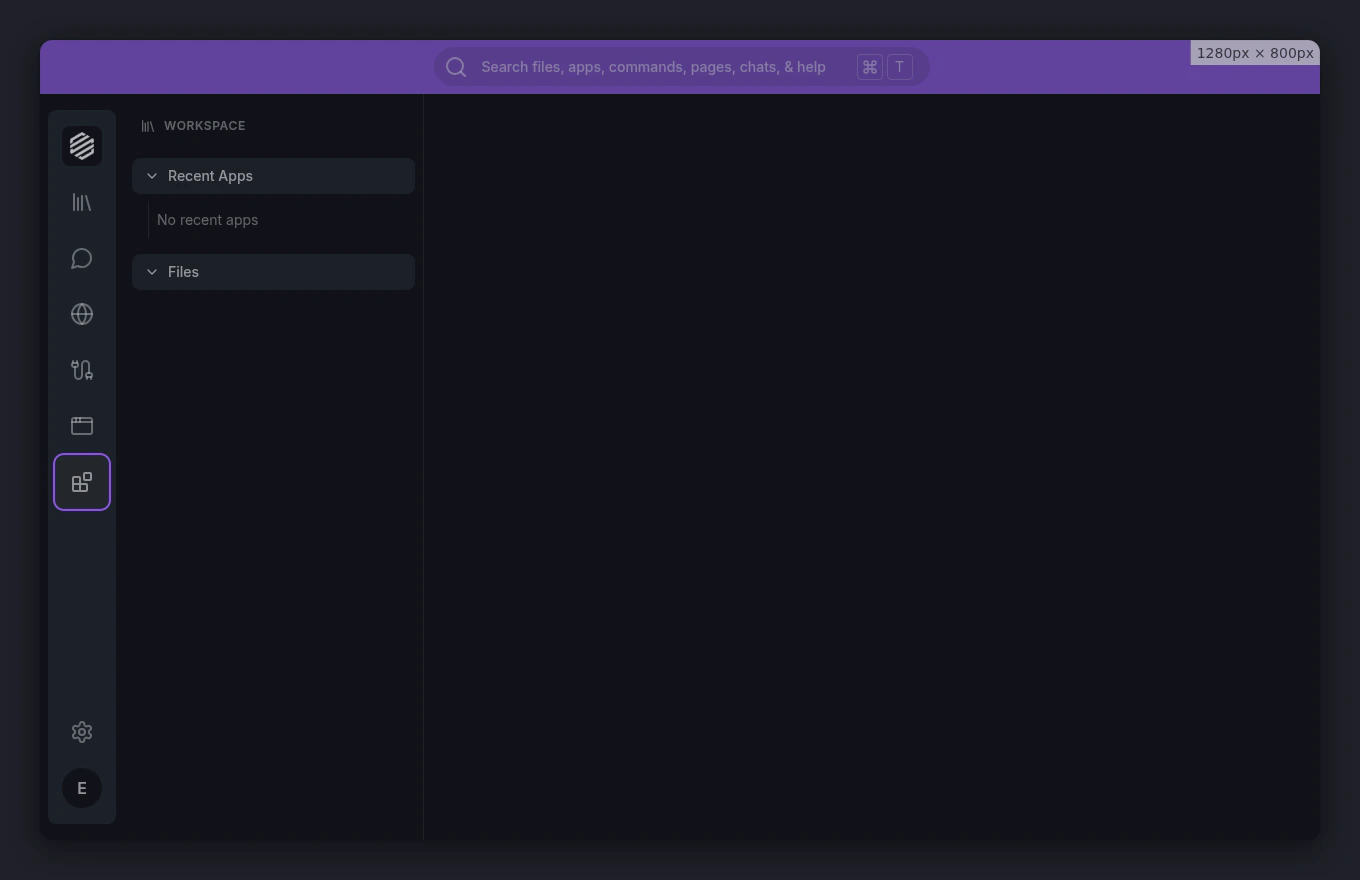
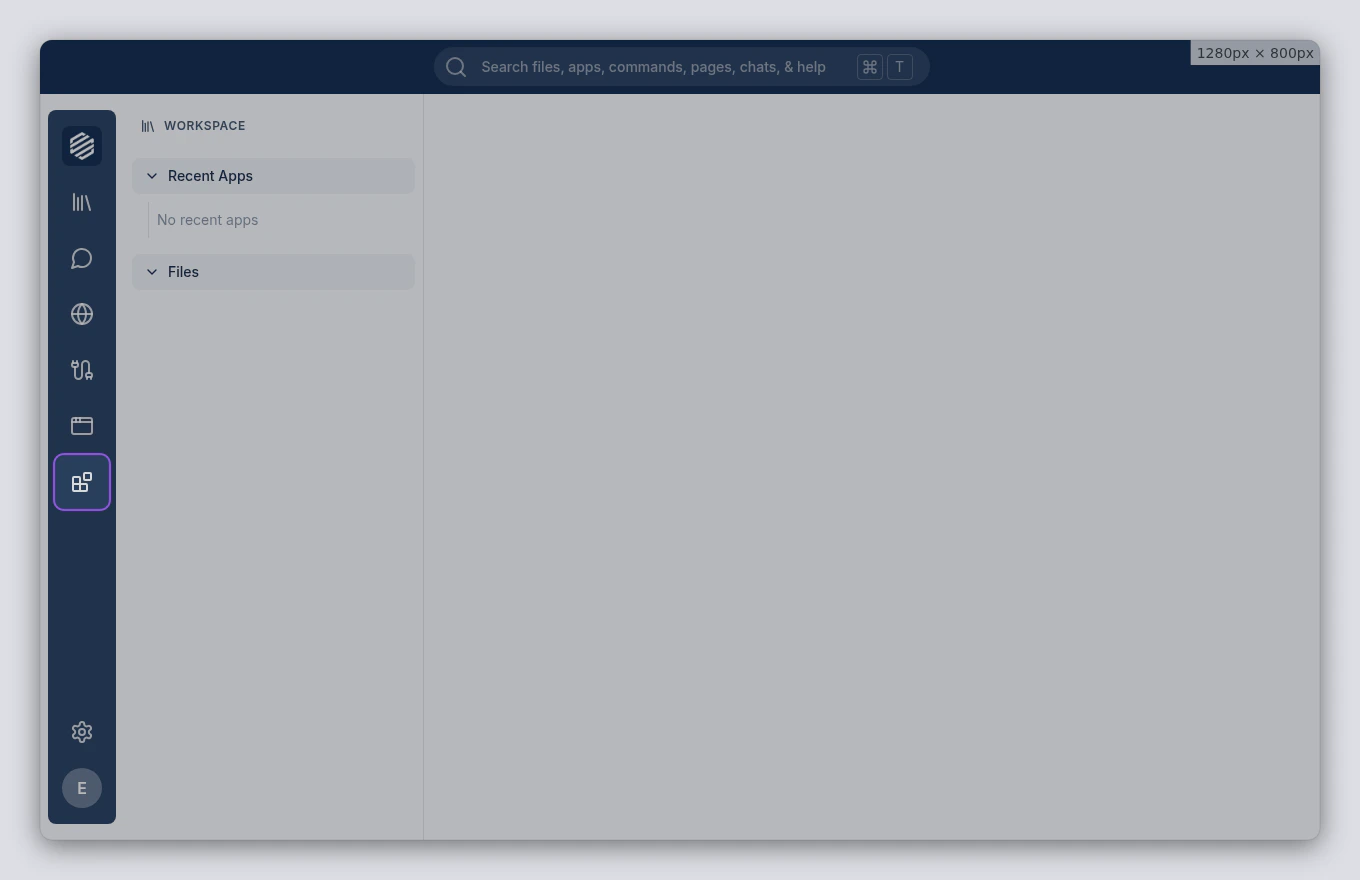
    Click the **Discover** icon in the left sidebar. The store opens as an overlay panel.
    <img src="https://mintcdn.com/synthetiq/RNJQjOGIp-QHg-Gg/images/tutorials/installing-apps/step-01-discover-icon-light.png?fit=max&auto=format&n=RNJQjOGIp-QHg-Gg&q=85&s=b9c1fa907b582842393cb8852c7dfa0b" className="block dark:hidden" alt="The Synthetiq workspace with the Discover icon highlighted in the left sidebar" width="1360" height="880" data-path="images/tutorials/installing-apps/step-01-discover-icon-light.png" />

    <img src="https://mintcdn.com/synthetiq/RNJQjOGIp-QHg-Gg/images/tutorials/installing-apps/step-01-discover-icon-dark.png?fit=max&auto=format&n=RNJQjOGIp-QHg-Gg&q=85&s=40334029e5a825a0abdd6d45d6db2d71" className="hidden dark:block" alt="The Synthetiq workspace with the Discover icon highlighted in the left sidebar" width="1360" height="880" data-path="images/tutorials/installing-apps/step-01-discover-icon-dark.png" />
  </Step>

  <Step title="Browse apps from your organization">
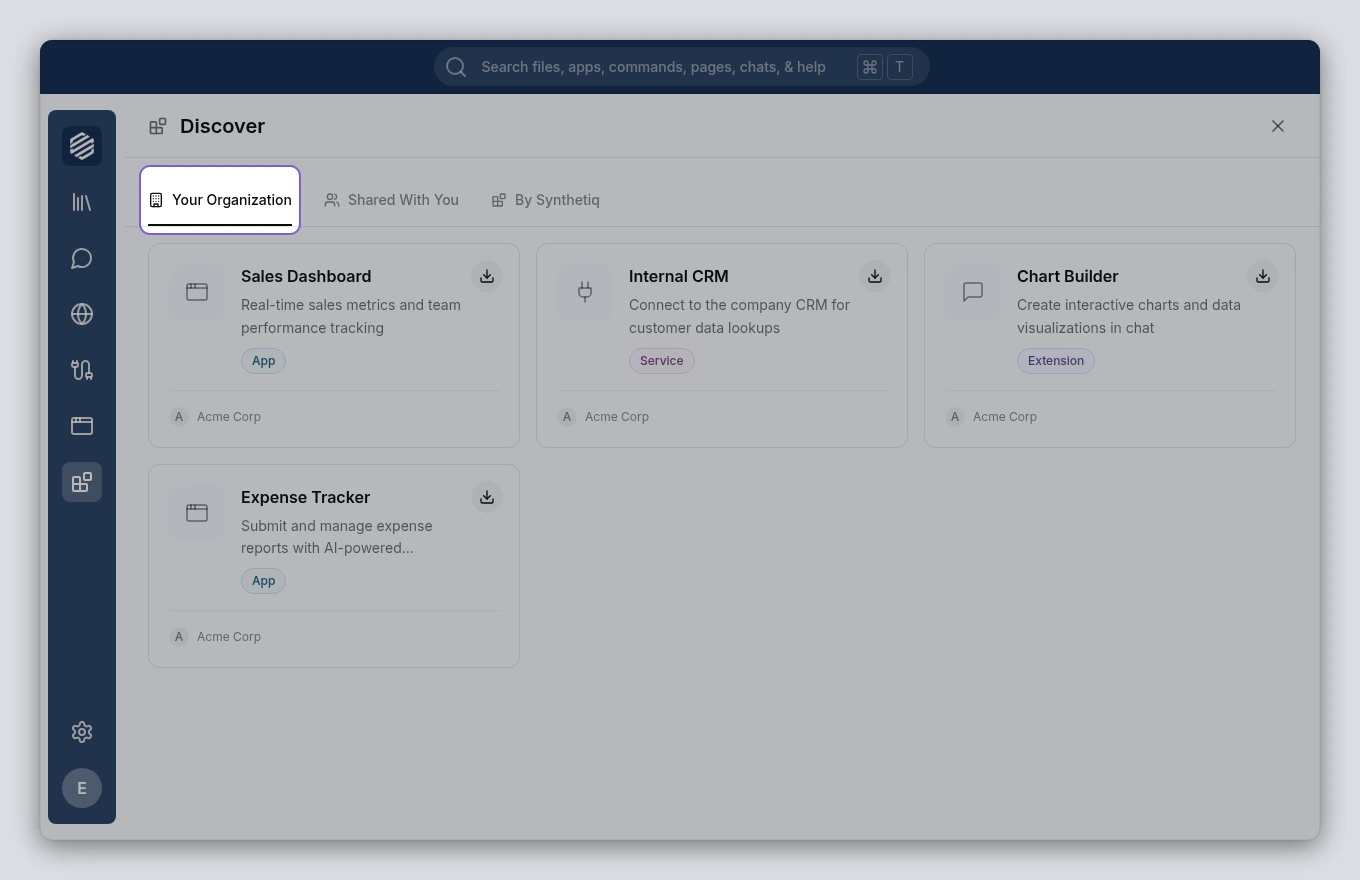
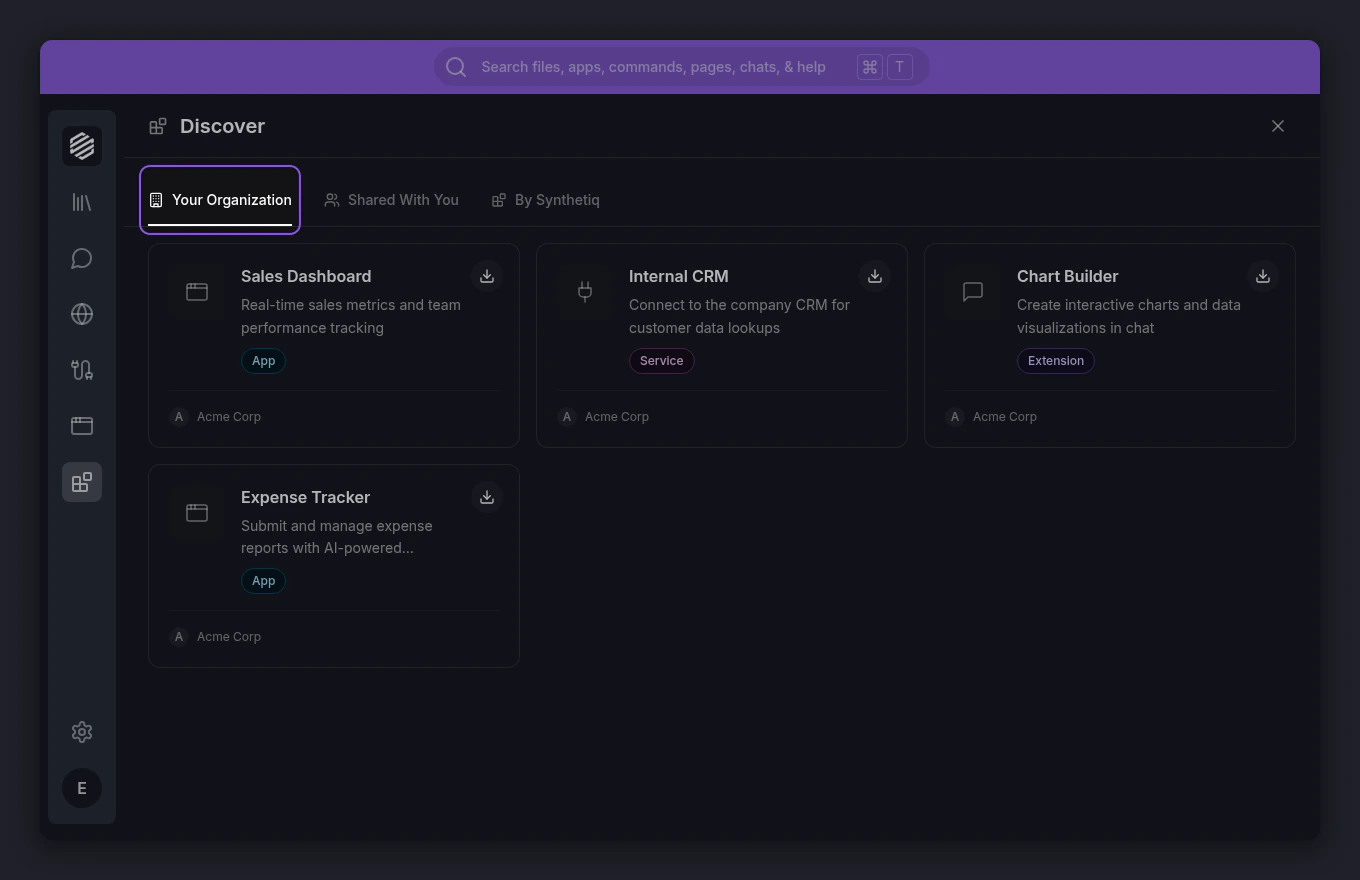
    The **Your Organization** tab shows apps, services, and extensions published by your team. Each card displays the name, description, type, and install status.
    <img src="https://mintcdn.com/synthetiq/RNJQjOGIp-QHg-Gg/images/tutorials/installing-apps/step-02-org-tab-light.png?fit=max&auto=format&n=RNJQjOGIp-QHg-Gg&q=85&s=603238534a3d77993d4837e26d1ea135" className="block dark:hidden" alt="The Discover panel showing the Your Organization tab with app and service cards" width="1360" height="880" data-path="images/tutorials/installing-apps/step-02-org-tab-light.png" />

    <img src="https://mintcdn.com/synthetiq/RNJQjOGIp-QHg-Gg/images/tutorials/installing-apps/step-02-org-tab-dark.png?fit=max&auto=format&n=RNJQjOGIp-QHg-Gg&q=85&s=46a133b61fe5bca5b4e68653b123f016" className="hidden dark:block" alt="The Discover panel showing the Your Organization tab with app and service cards" width="1360" height="880" data-path="images/tutorials/installing-apps/step-02-org-tab-dark.png" />

    <Note>
      If you're using a personal workspace (not part of an organization), this tab won't appear. You'll still see **Shared With You** and **By Synthetiq**.
    </Note>
  </Step>

  <Step title="Browse apps shared with you">
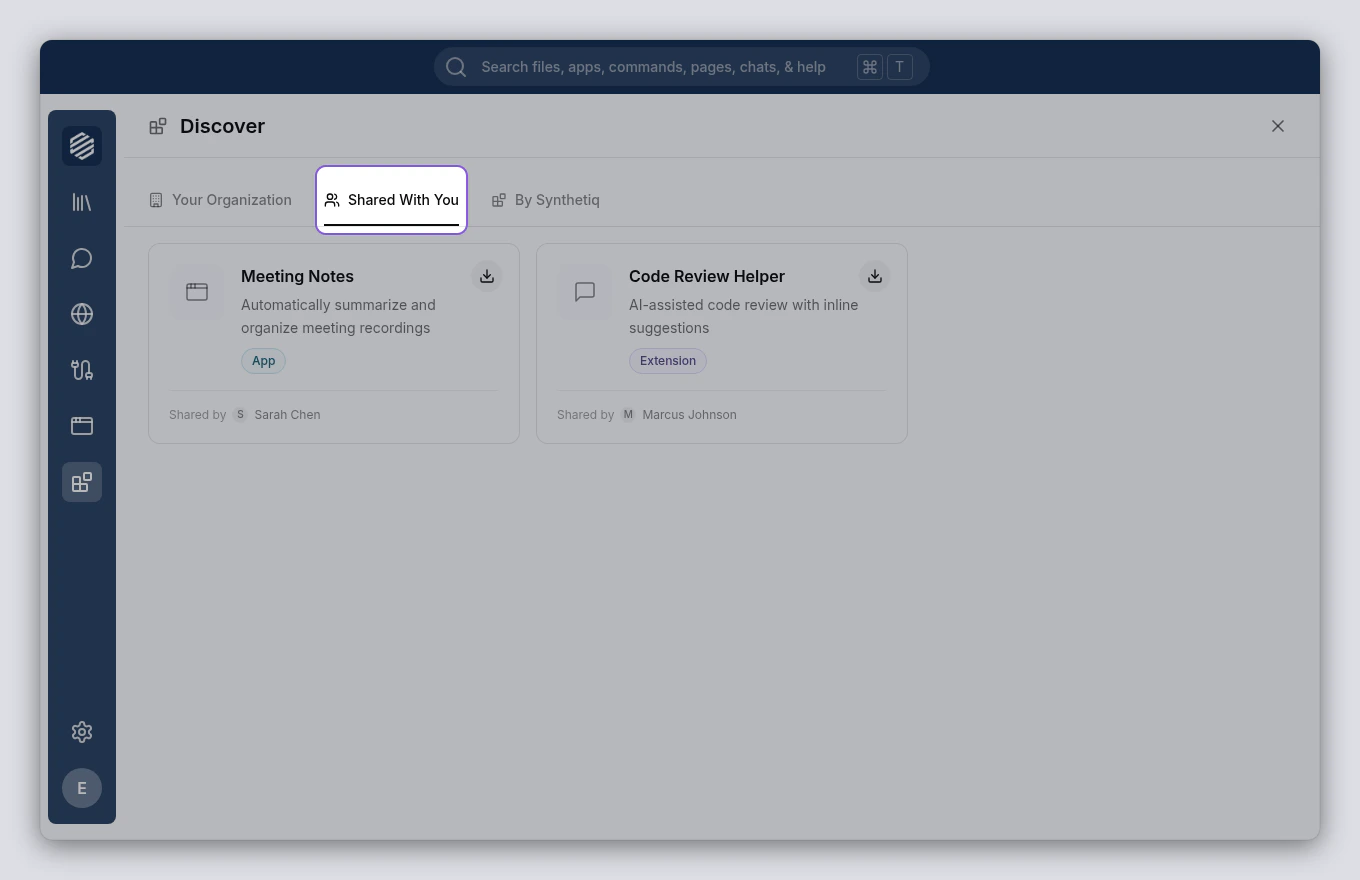
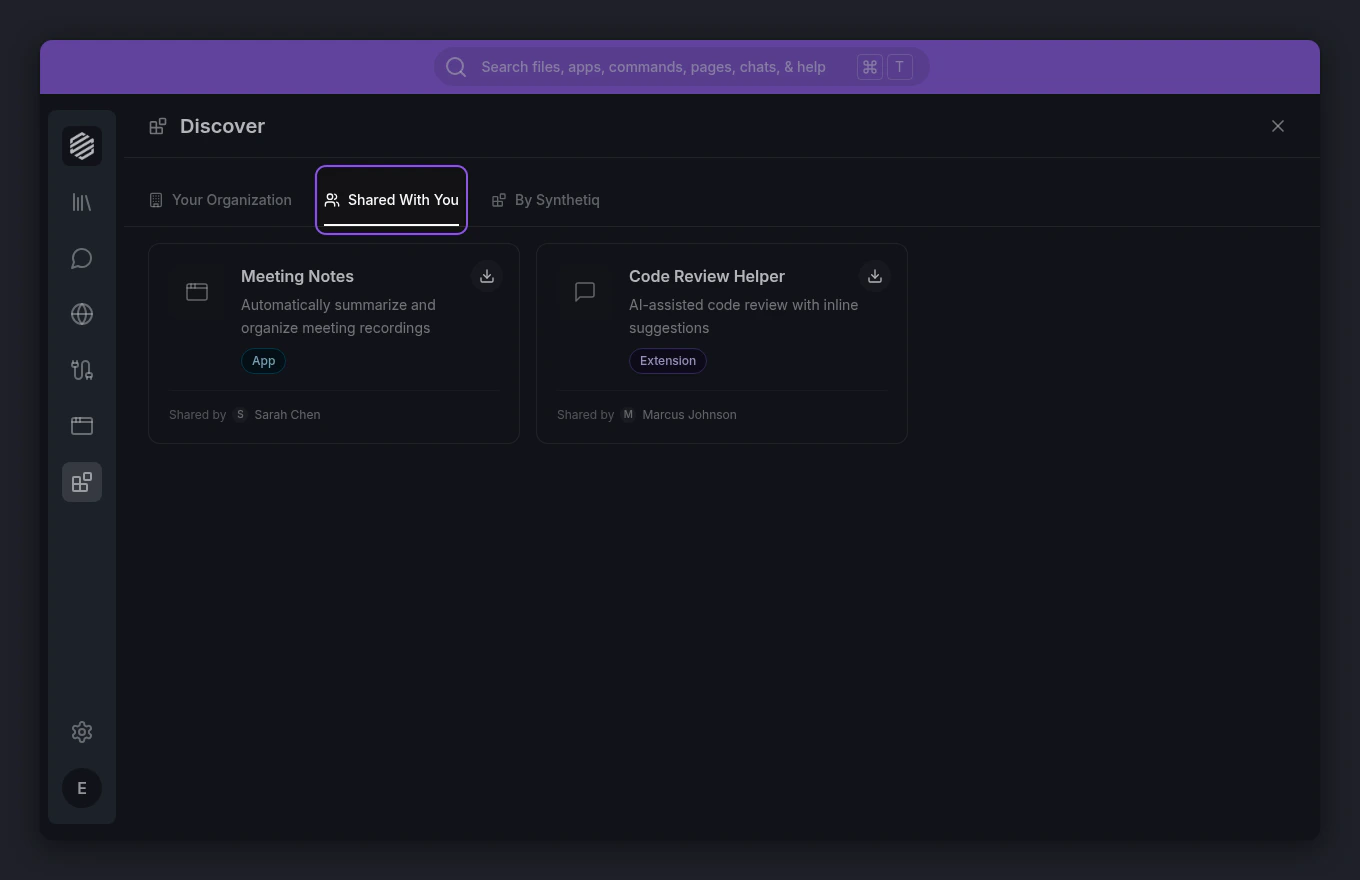
    Click the **Shared With You** tab to see items that collaborators have shared with you directly. Each card shows who shared it and when.
    <img src="https://mintcdn.com/synthetiq/RNJQjOGIp-QHg-Gg/images/tutorials/installing-apps/step-03-shared-tab-light.png?fit=max&auto=format&n=RNJQjOGIp-QHg-Gg&q=85&s=3501e1b3ffc0787cf4d307a50b69eb30" className="block dark:hidden" alt="The Discover panel showing the Shared With You tab with cards showing shared-by attribution" width="1360" height="880" data-path="images/tutorials/installing-apps/step-03-shared-tab-light.png" />

    <img src="https://mintcdn.com/synthetiq/RNJQjOGIp-QHg-Gg/images/tutorials/installing-apps/step-03-shared-tab-dark.png?fit=max&auto=format&n=RNJQjOGIp-QHg-Gg&q=85&s=59fa5a6a0bd5b5fa2dfa34803e8e39c3" className="hidden dark:block" alt="The Discover panel showing the Shared With You tab with cards showing shared-by attribution" width="1360" height="880" data-path="images/tutorials/installing-apps/step-03-shared-tab-dark.png" />
  </Step>

  <Step title="Browse apps by Synthetiq">
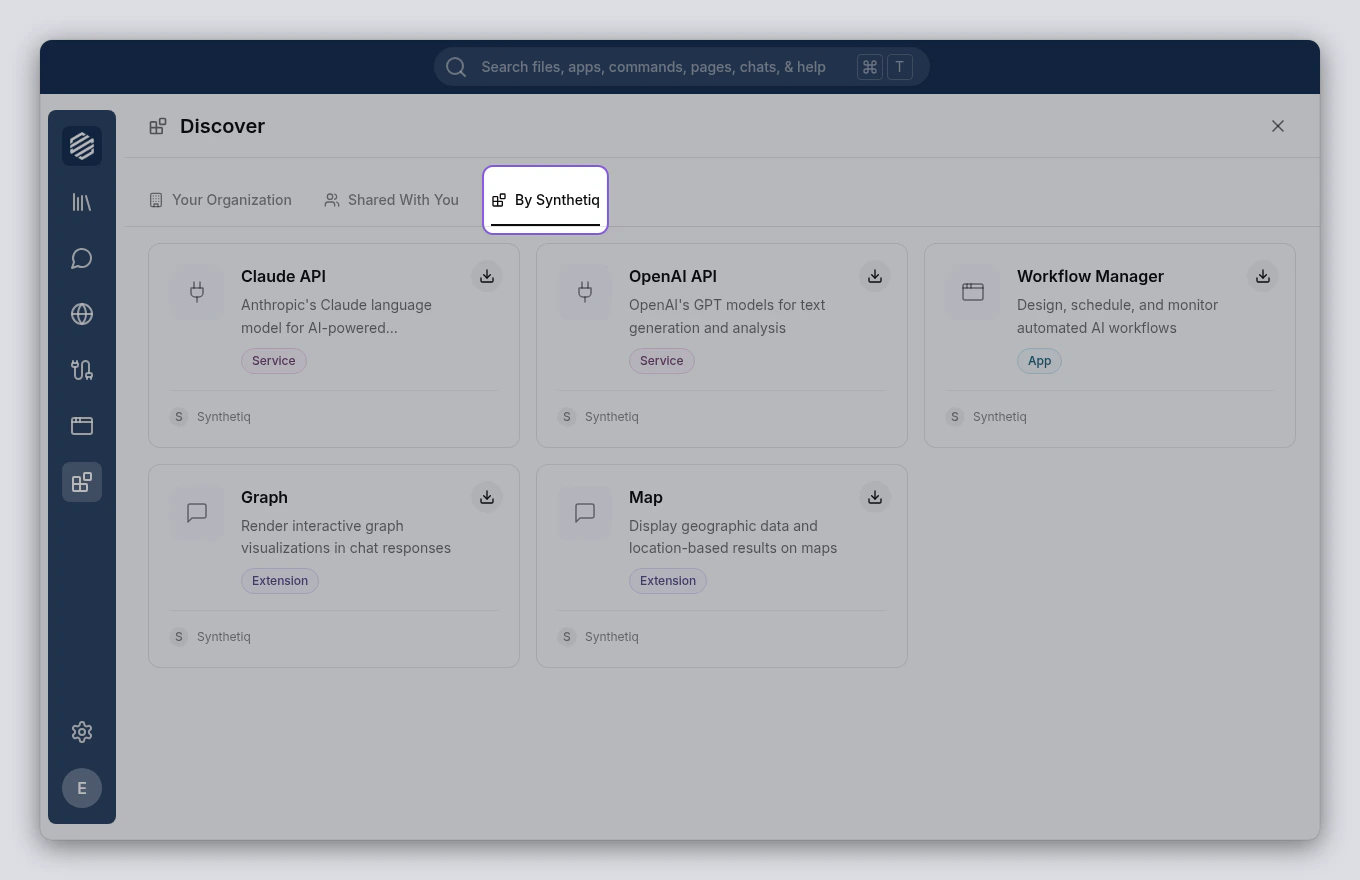
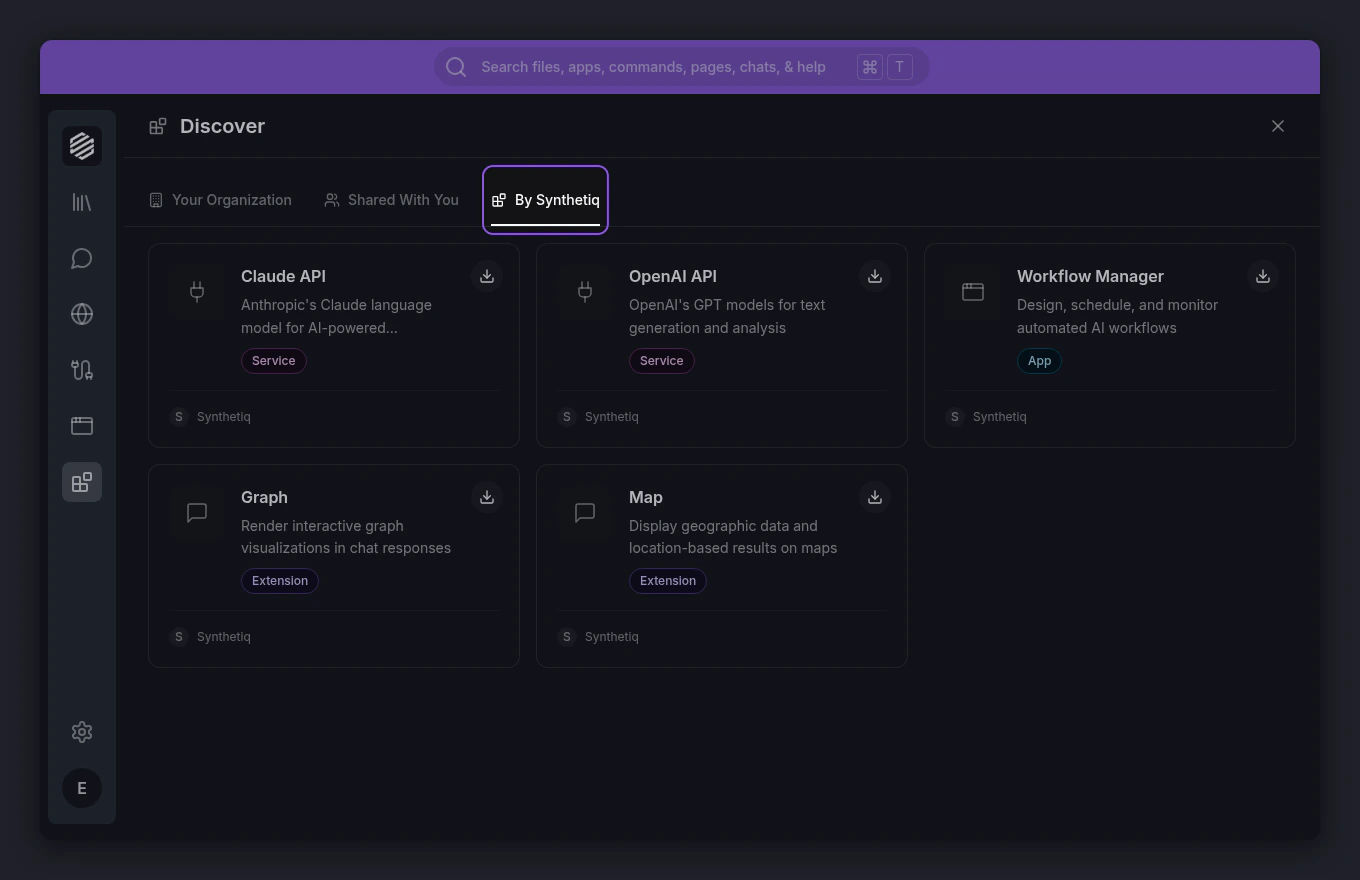
    Click the **By Synthetiq** tab to see official apps, services, and extensions provided by Synthetiq. These include AI services like Claude API and OpenAI API, plus tools like Workflow Manager.
    <img src="https://mintcdn.com/synthetiq/RNJQjOGIp-QHg-Gg/images/tutorials/installing-apps/step-04-synthetiq-tab-light.png?fit=max&auto=format&n=RNJQjOGIp-QHg-Gg&q=85&s=9bd9718321221a04f143a4bd49a86d8d" className="block dark:hidden" alt="The Discover panel showing the By Synthetiq tab with official Synthetiq offerings" width="1360" height="880" data-path="images/tutorials/installing-apps/step-04-synthetiq-tab-light.png" />

    <img src="https://mintcdn.com/synthetiq/RNJQjOGIp-QHg-Gg/images/tutorials/installing-apps/step-04-synthetiq-tab-dark.png?fit=max&auto=format&n=RNJQjOGIp-QHg-Gg&q=85&s=7bab8fb4bf87b704d239d60fe71a0f2e" className="hidden dark:block" alt="The Discover panel showing the By Synthetiq tab with official Synthetiq offerings" width="1360" height="880" data-path="images/tutorials/installing-apps/step-04-synthetiq-tab-dark.png" />
  </Step>

  <Step title="Install an app">
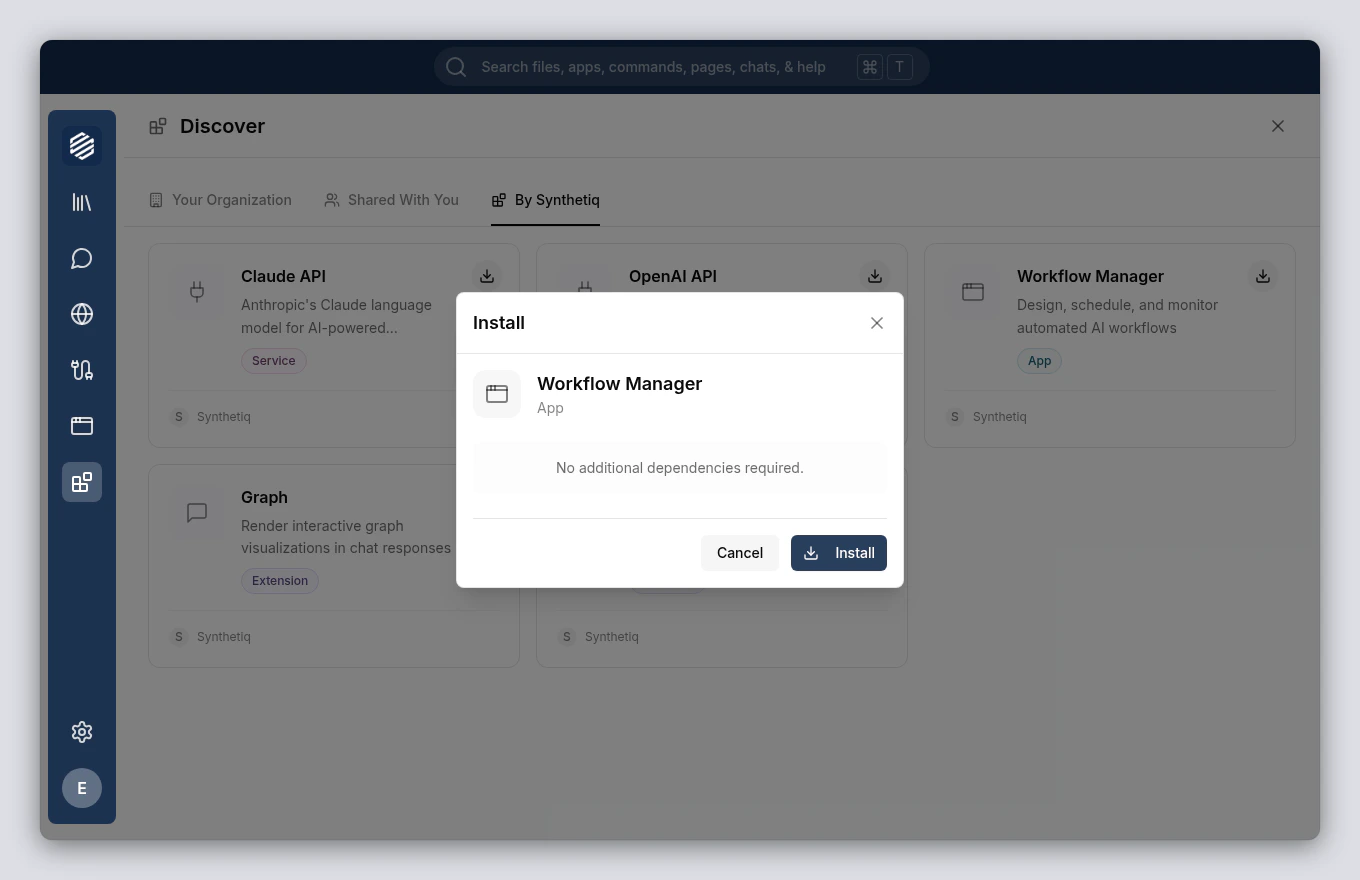
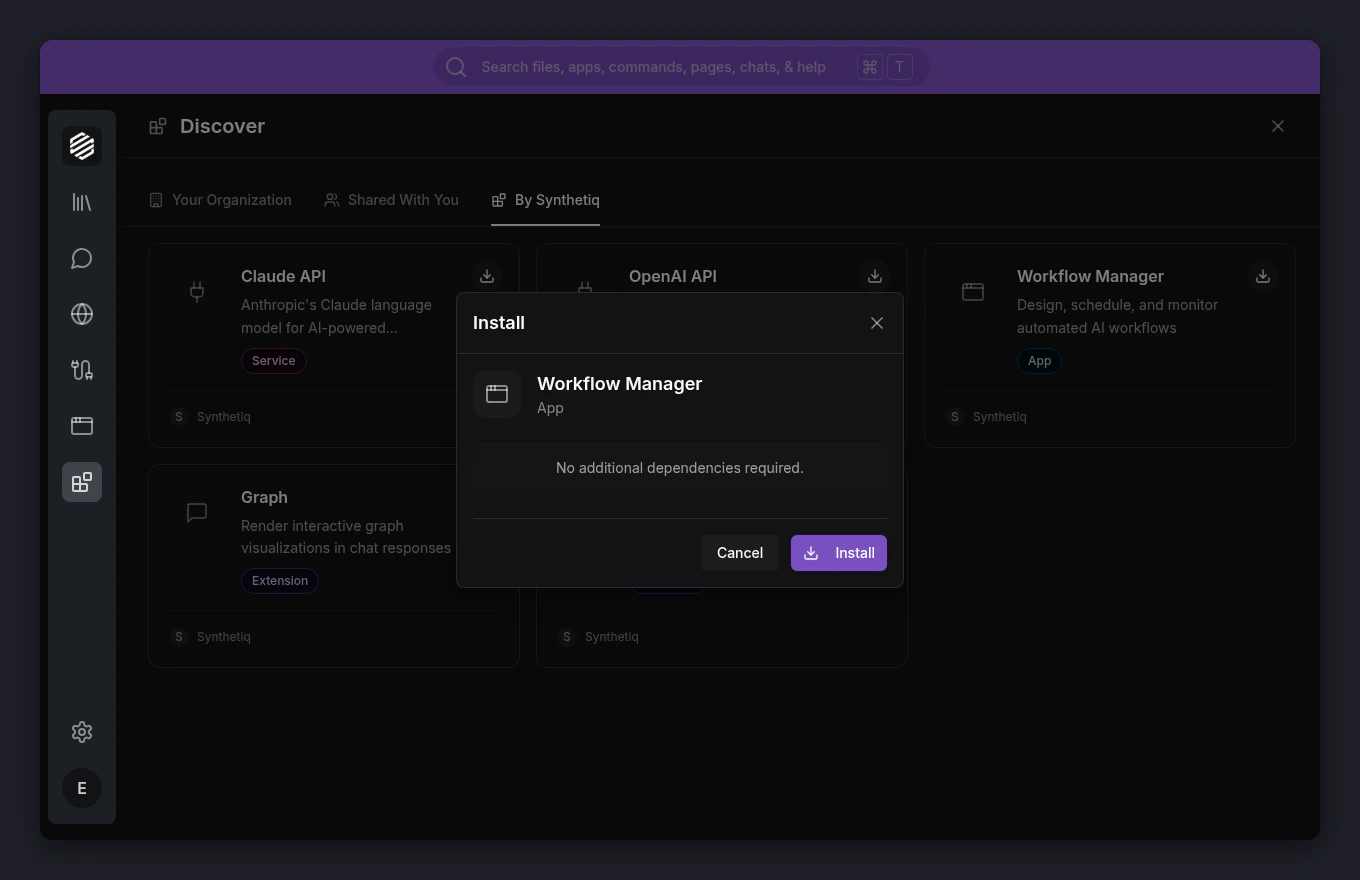
    Find the app you want and click the **Install** button (download icon) on its card. A confirmation dialog shows what will be installed, including any dependencies.
    <img src="https://mintcdn.com/synthetiq/RNJQjOGIp-QHg-Gg/images/tutorials/installing-apps/step-06-install-modal-light.png?fit=max&auto=format&n=RNJQjOGIp-QHg-Gg&q=85&s=b1532a12d866d6a424c4fc6aa0049cbc" className="block dark:hidden" alt="The Install modal showing the app name, type, and Dependencies section" width="1360" height="880" data-path="images/tutorials/installing-apps/step-06-install-modal-light.png" />

    <img src="https://mintcdn.com/synthetiq/RNJQjOGIp-QHg-Gg/images/tutorials/installing-apps/step-06-install-modal-dark.png?fit=max&auto=format&n=RNJQjOGIp-QHg-Gg&q=85&s=1f8204ef22dd12308bea13d17d4ede1b" className="hidden dark:block" alt="The Install modal showing the app name, type, and Dependencies section" width="1360" height="880" data-path="images/tutorials/installing-apps/step-06-install-modal-dark.png" />
  </Step>

  <Step title="Confirm and wait for installation">
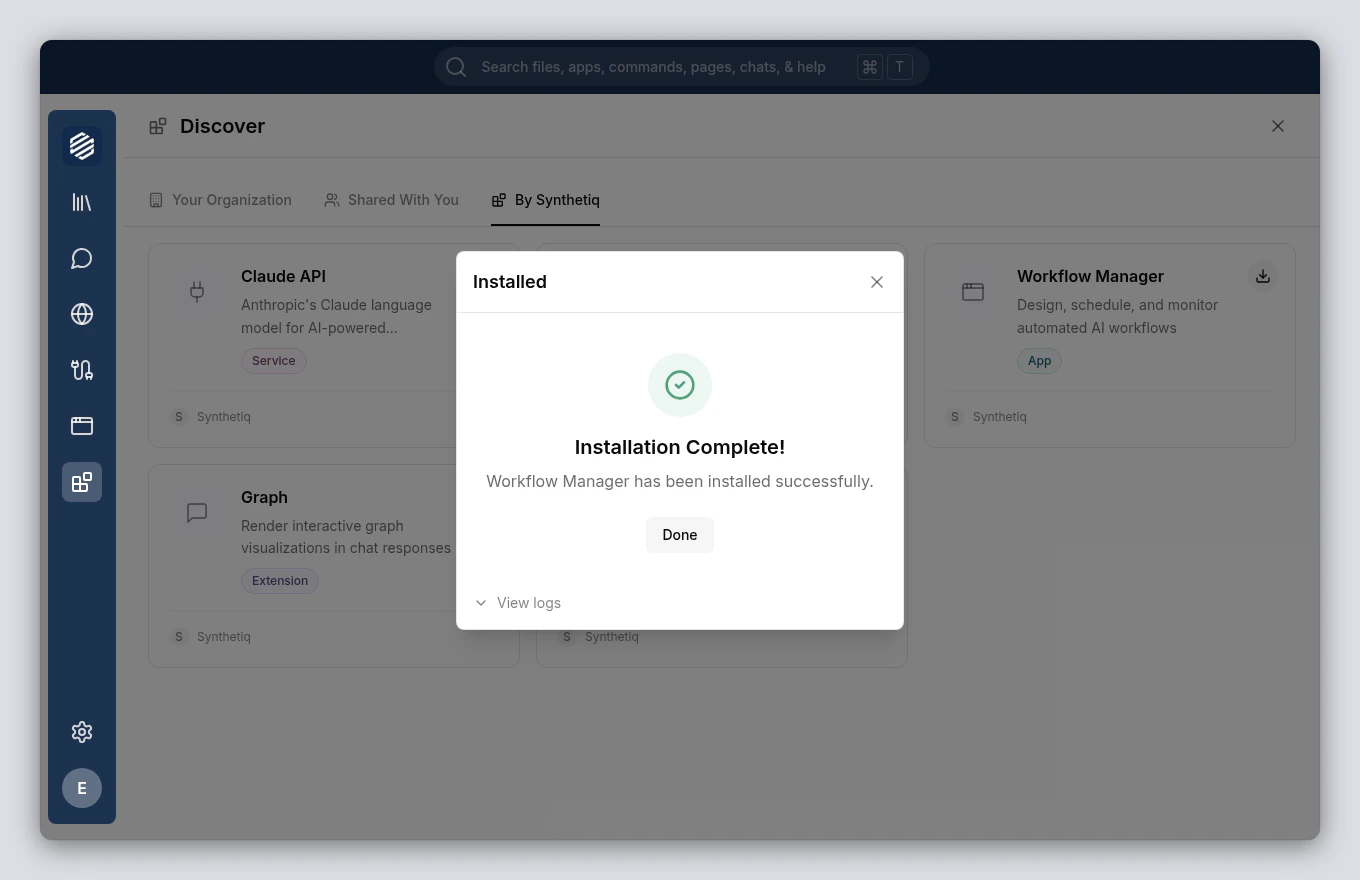
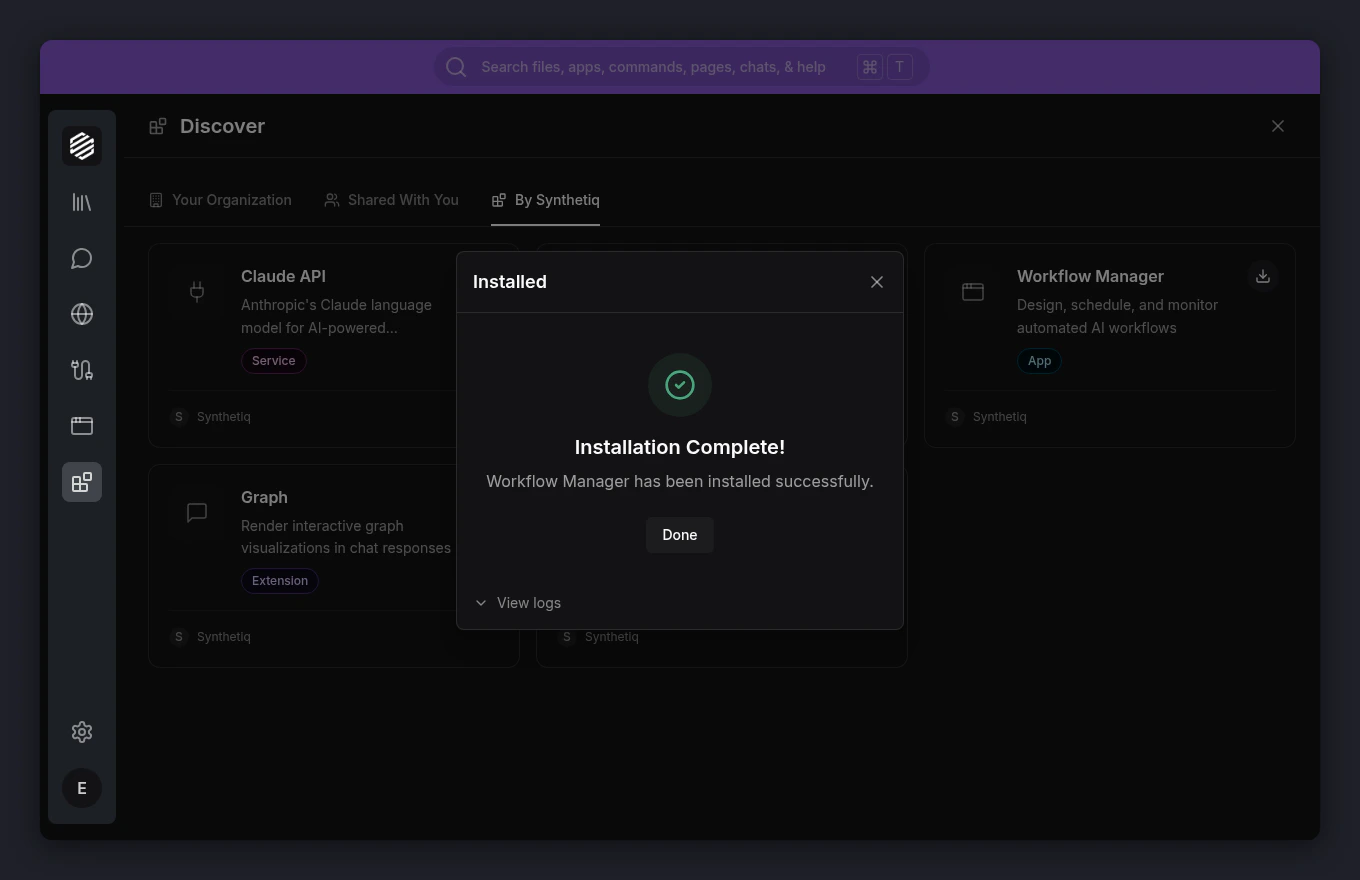
    Click **Install** to begin. A progress panel shows each step as it completes. When finished, you'll see an "Installation Complete!" message.
    <img src="https://mintcdn.com/synthetiq/RNJQjOGIp-QHg-Gg/images/tutorials/installing-apps/step-08-success-light.png?fit=max&auto=format&n=RNJQjOGIp-QHg-Gg&q=85&s=6fd3d5aa7177797ba4dc3ec42775961a" className="block dark:hidden" alt="The Install modal showing the success state with a green checkmark" width="1360" height="880" data-path="images/tutorials/installing-apps/step-08-success-light.png" />

    <img src="https://mintcdn.com/synthetiq/RNJQjOGIp-QHg-Gg/images/tutorials/installing-apps/step-08-success-dark.png?fit=max&auto=format&n=RNJQjOGIp-QHg-Gg&q=85&s=a90a6bc53ee66a4793c465cc9184c672" className="hidden dark:block" alt="The Install modal showing the success state with a green checkmark" width="1360" height="880" data-path="images/tutorials/installing-apps/step-08-success-dark.png" />
  </Step>

  <Step title="Click Done">
    Click **Done** to close the modal. The app's card now shows an **Installed** badge, and you can start using it right away.
  </Step>
</Steps>

<Tip>
  You can install multiple items at once by clicking cards to select them, then clicking the **Install / Update** button in the action bar at the bottom.
</Tip>