> ## Documentation Index
> Fetch the complete documentation index at: https://synthetiq.com/docs/llms.txt
> Use this file to discover all available pages before exploring further.

# Your first service

> Connect Synthetiq to an external system from a chat message — describe the service you need, review the plan, and configure the connection.

Connect Synthetiq to an external system from a chat message. In this tutorial, you describe a Snowflake data warehouse connection to Synthetiq, review the plan, and view the finished service.

## Prerequisites

* Synthetiq installed, signed in, and your Claude API key saved (see [Set Up Synthetiq and Set Your API Key](/quickstart/setup-and-api-key))
* Access credentials for the external system you want to connect (for this tutorial, a Snowflake account identifier, username, and password)

## Steps

<Steps>
  <Step title="Open the chat panel">
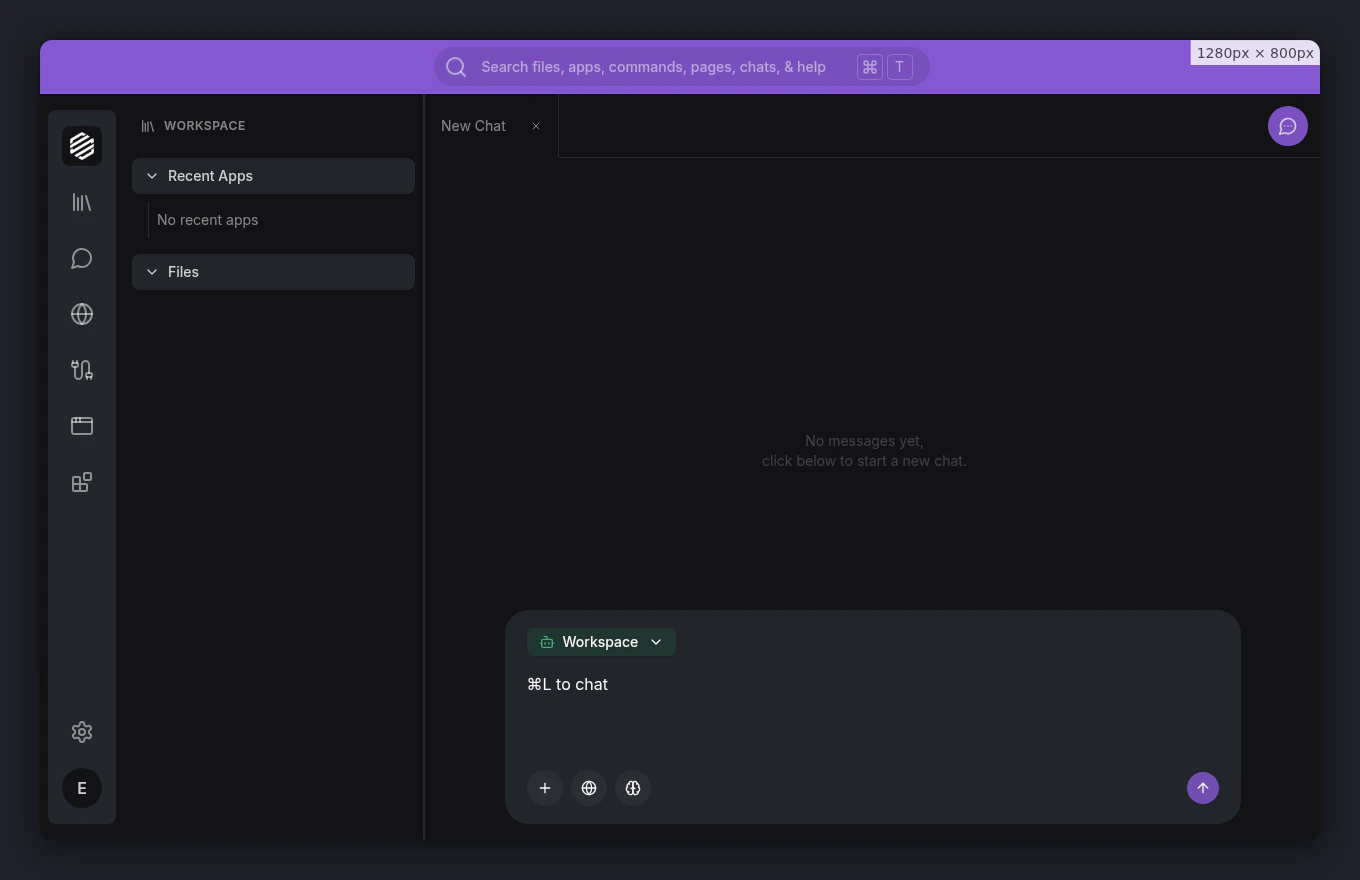
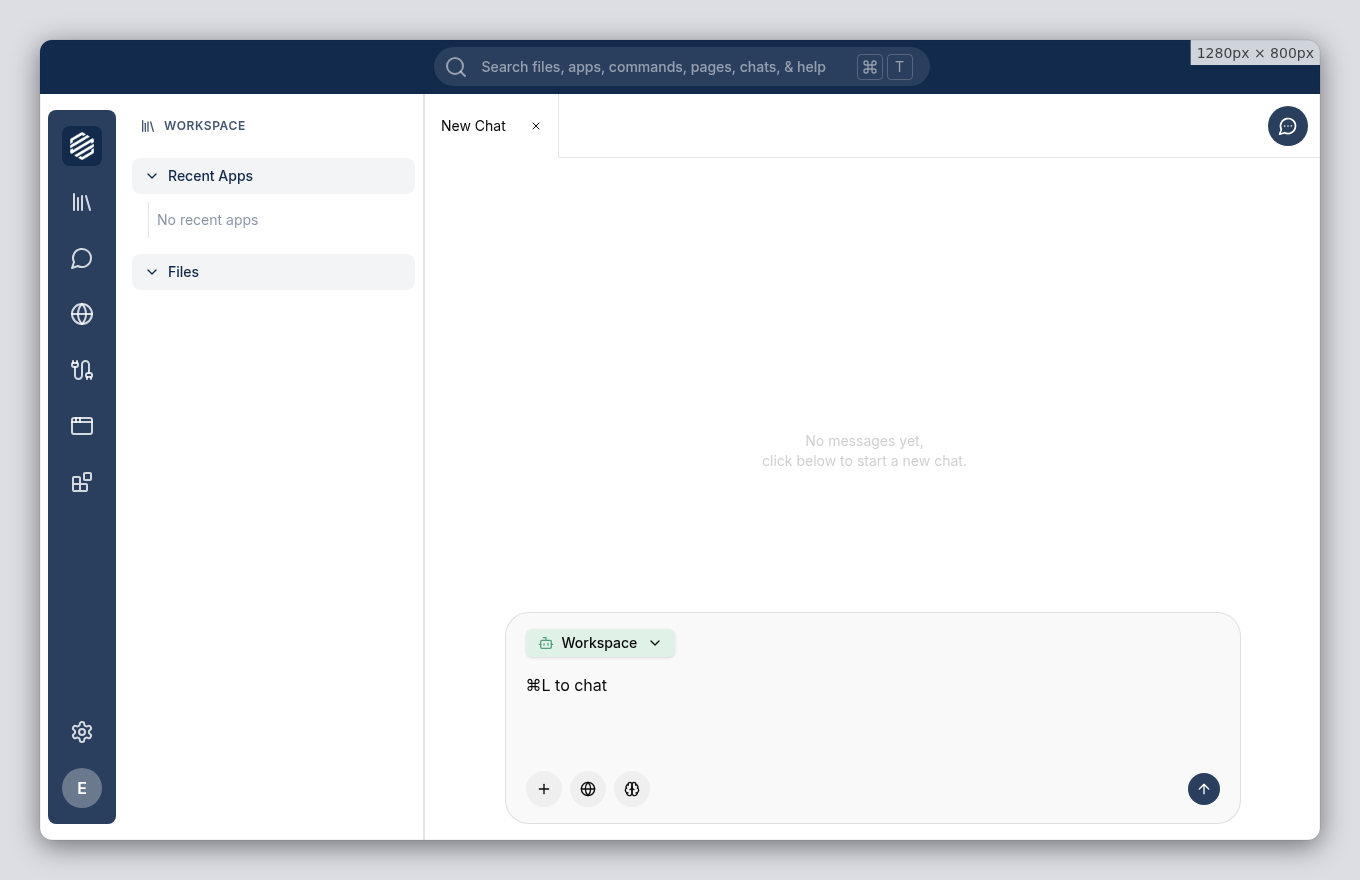
    Click the **chat icon** in the left menu, or press **⌘]**, to open the chat panel.
    <img src="https://mintcdn.com/synthetiq/RNJQjOGIp-QHg-Gg/images/tutorials/service-writer/step-01-chat-panel-light.png?fit=max&auto=format&n=RNJQjOGIp-QHg-Gg&q=85&s=24446bb451020569343503130b7589ea" className="block dark:hidden" alt="Chat panel open on the right side of the workspace" width="1360" height="880" data-path="images/tutorials/service-writer/step-01-chat-panel-light.png" />

    <img src="https://mintcdn.com/synthetiq/RNJQjOGIp-QHg-Gg/images/tutorials/service-writer/step-01-chat-panel-dark.png?fit=max&auto=format&n=RNJQjOGIp-QHg-Gg&q=85&s=4471a9dedde51e6febcd837bd24abdc9" className="hidden dark:block" alt="Chat panel open on the right side of the workspace" width="1360" height="880" data-path="images/tutorials/service-writer/step-01-chat-panel-dark.png" />
  </Step>

  <Step title="Describe the service you want">
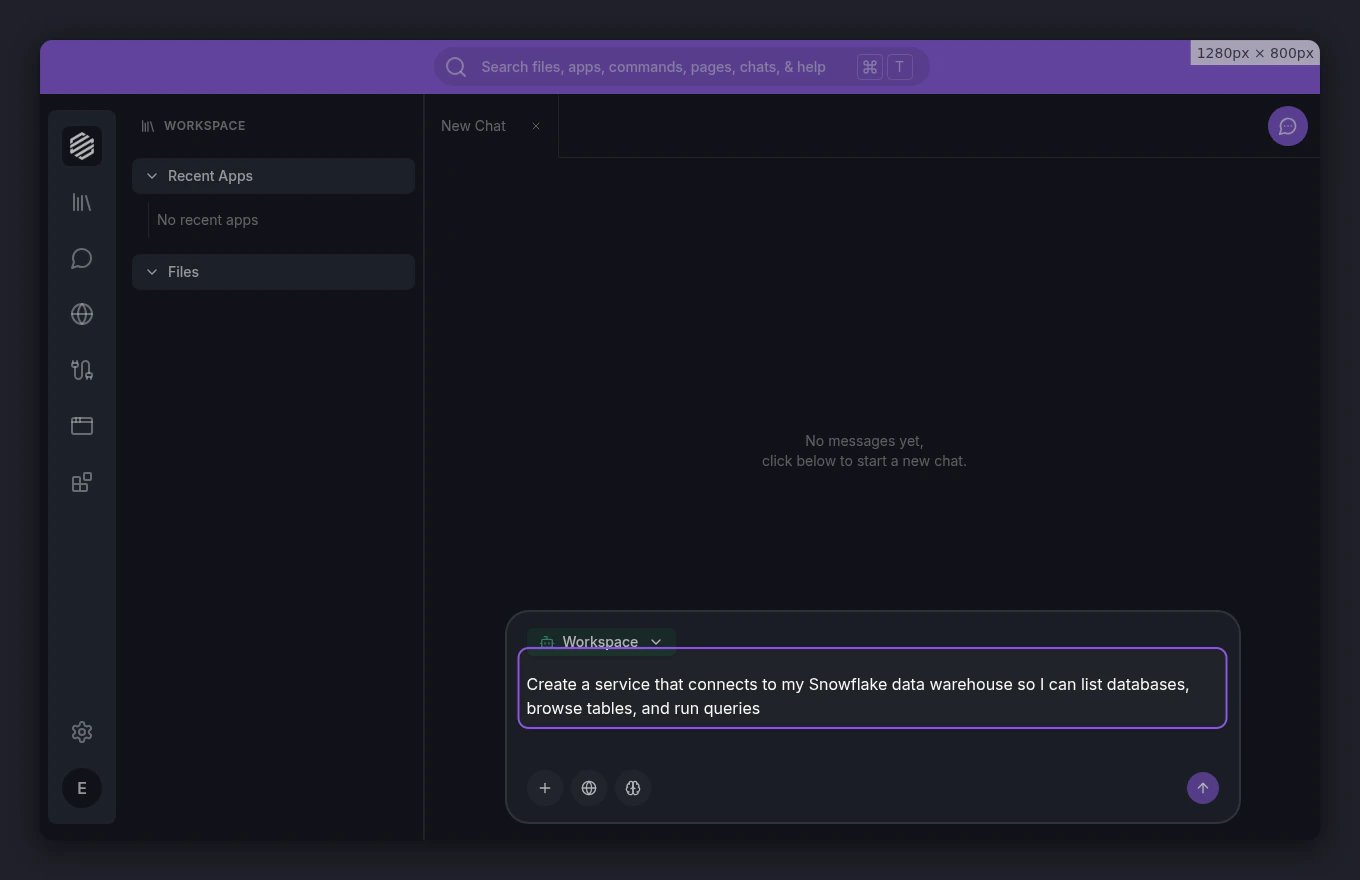
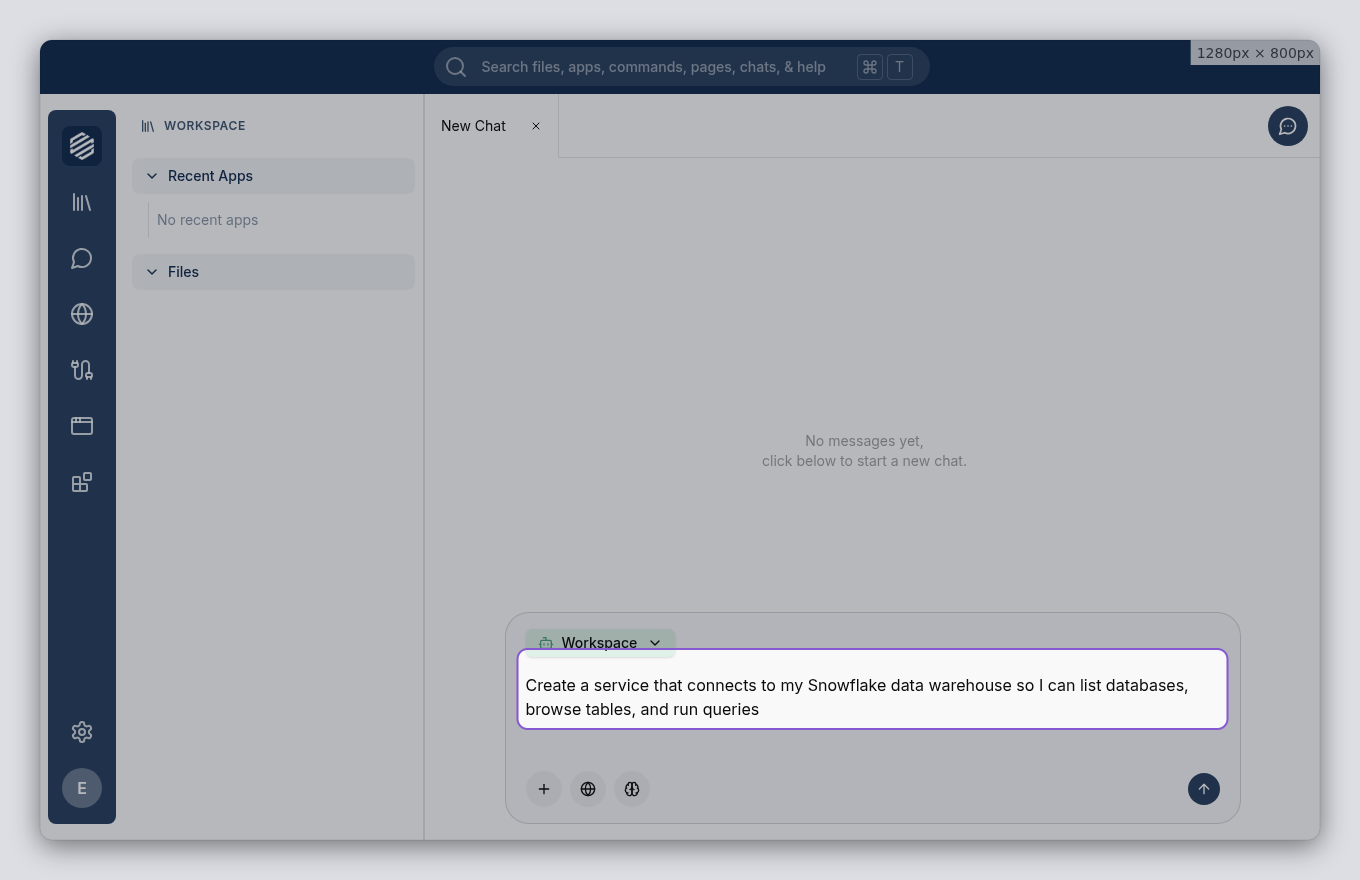
    Type a description of your service into the chat. Include the system you want to connect to and what you need it to do.

    For this tutorial, type:

    > Create a service that connects to my Snowflake data warehouse so I can list databases, browse tables, and run queries

    Press **Enter** to send your message.
    <img src="https://mintcdn.com/synthetiq/RNJQjOGIp-QHg-Gg/images/tutorials/service-writer/step-02-describe-service-light.png?fit=max&auto=format&n=RNJQjOGIp-QHg-Gg&q=85&s=5c79a109ae5aa1dfe8b40dfa498e6aa0" className="block dark:hidden" alt="Service description typed into the chat input" width="1360" height="880" data-path="images/tutorials/service-writer/step-02-describe-service-light.png" />

    <img src="https://mintcdn.com/synthetiq/RNJQjOGIp-QHg-Gg/images/tutorials/service-writer/step-02-describe-service-dark.png?fit=max&auto=format&n=RNJQjOGIp-QHg-Gg&q=85&s=e99df9de73e9369c3dc687703530390a" className="hidden dark:block" alt="Service description typed into the chat input" width="1360" height="880" data-path="images/tutorials/service-writer/step-02-describe-service-dark.png" />
  </Step>

  <Step title="Wait for the agent to switch modes">
    The Workspace agent recognizes that you want to build a service and hands off to the **ServiceWriter** agent. A mode-switch indicator appears in the chat showing the transition.
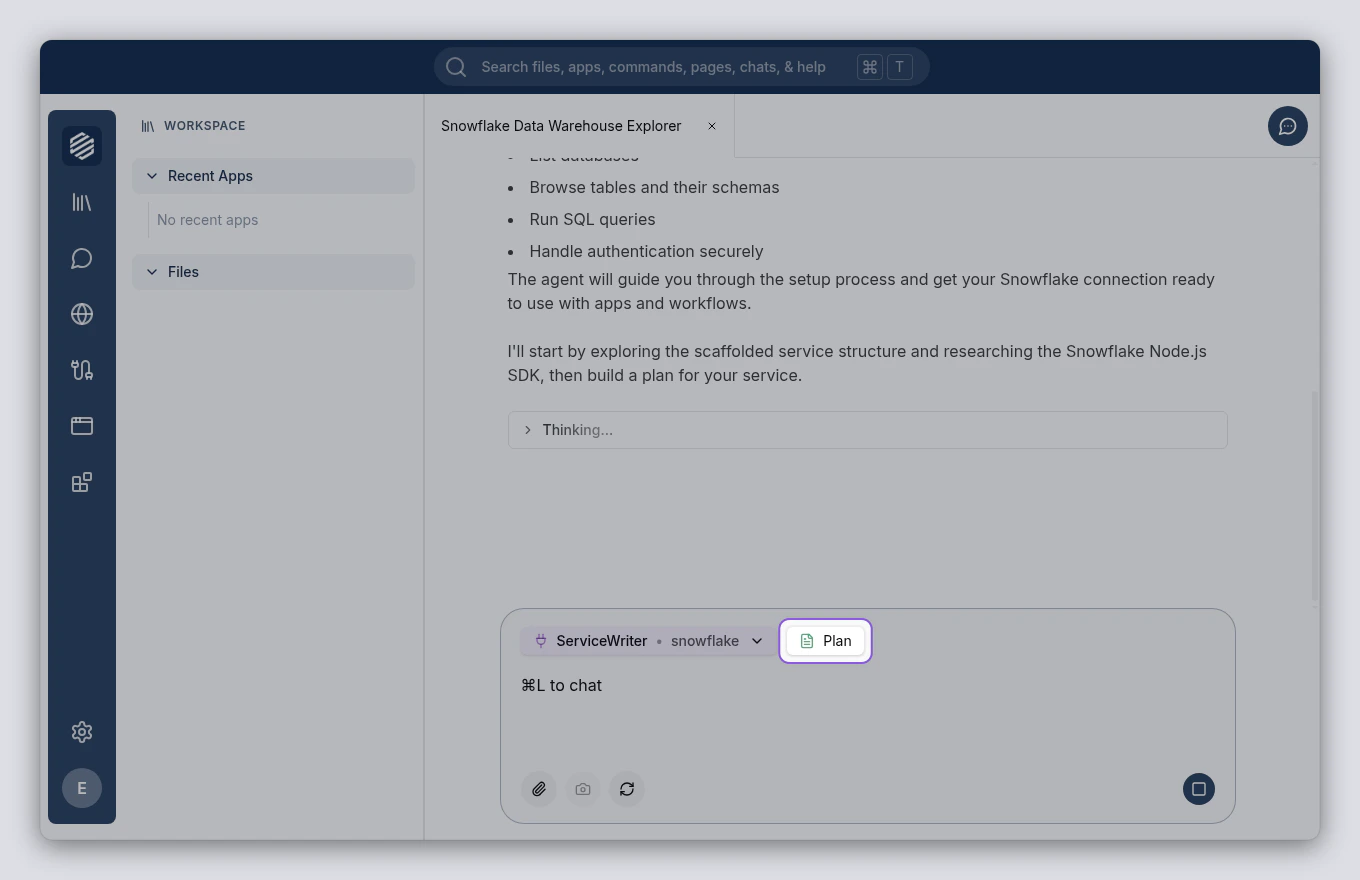
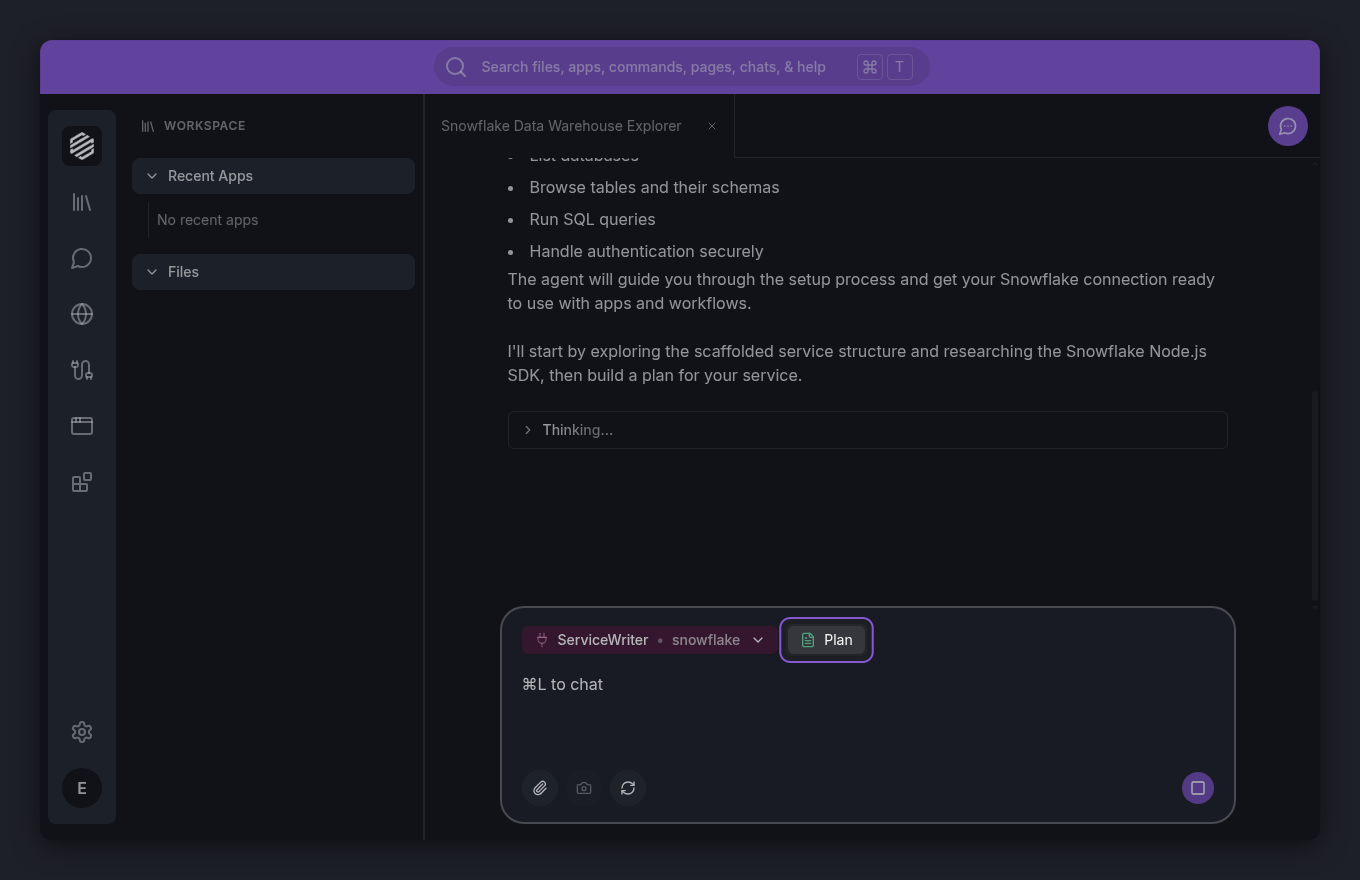
    <img src="https://mintcdn.com/synthetiq/RNJQjOGIp-QHg-Gg/images/tutorials/service-writer/step-03-mode-switch-light.png?fit=max&auto=format&n=RNJQjOGIp-QHg-Gg&q=85&s=6f343984127fd9868898cdf650a9e2be" className="block dark:hidden" alt="Mode switch indicator showing Workspace to ServiceWriter" width="1360" height="880" data-path="images/tutorials/service-writer/step-03-mode-switch-light.png" />

    <img src="https://mintcdn.com/synthetiq/RNJQjOGIp-QHg-Gg/images/tutorials/service-writer/step-03-mode-switch-dark.png?fit=max&auto=format&n=RNJQjOGIp-QHg-Gg&q=85&s=bce488756acf90c4b719f1715bdbed8f" className="hidden dark:block" alt="Mode switch indicator showing Workspace to ServiceWriter" width="1360" height="880" data-path="images/tutorials/service-writer/step-03-mode-switch-dark.png" />
  </Step>

  <Step title="Review the plan">
    The ServiceWriter agent presents a plan for your service. The plan card covers the service's tools, authentication method, and connection settings. Read through it to make sure it matches what you had in mind.
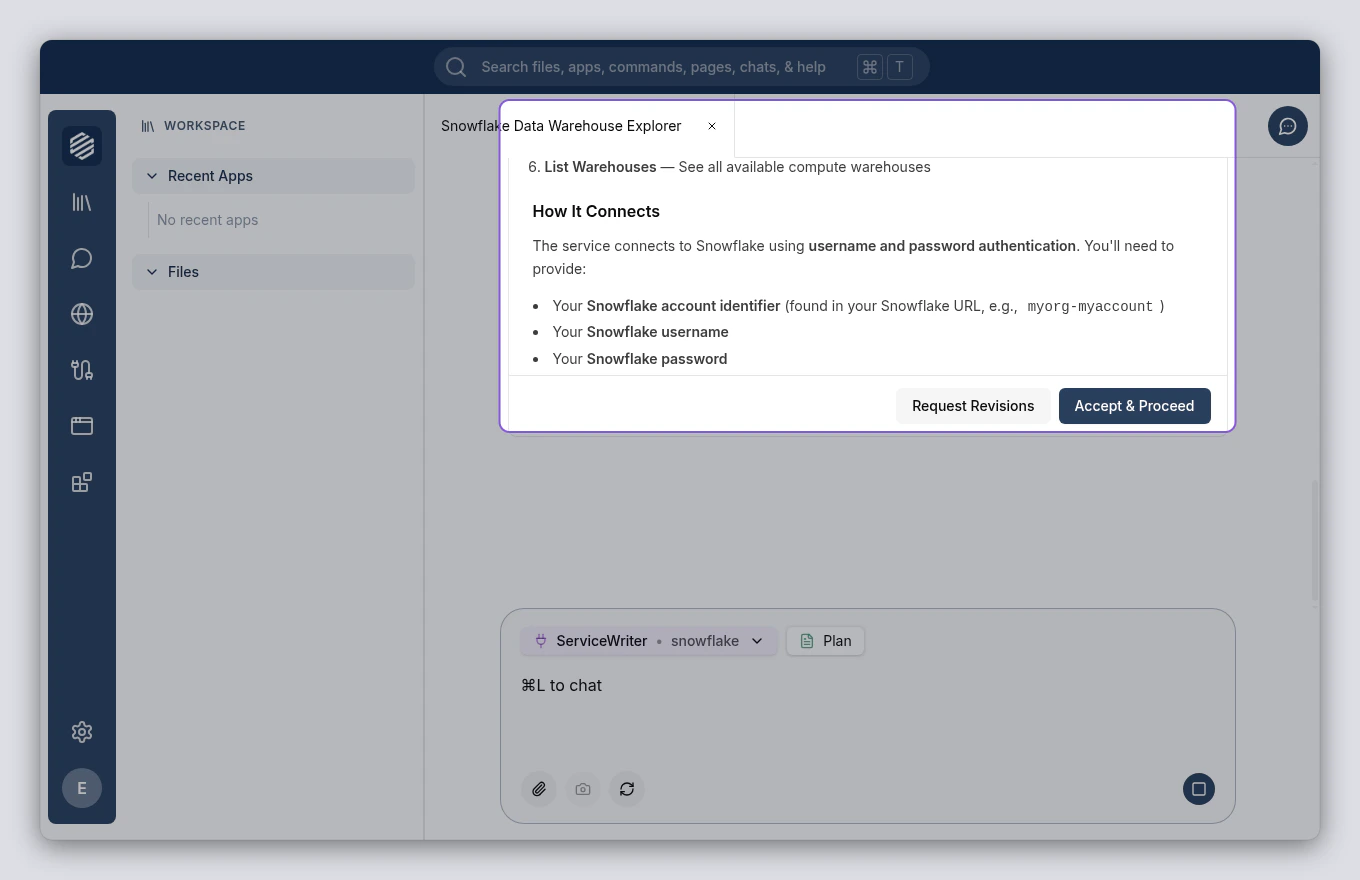
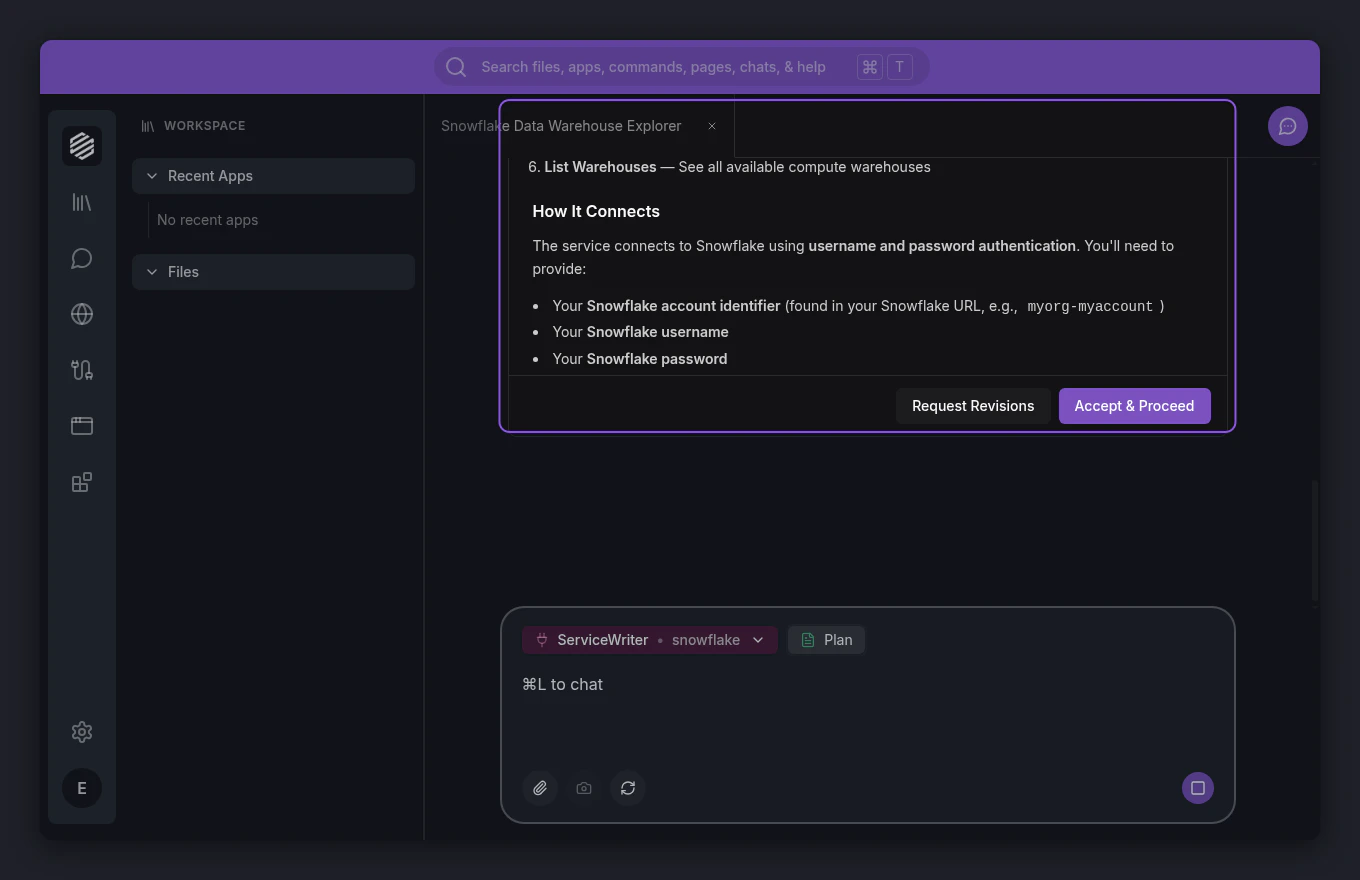
    <img src="https://mintcdn.com/synthetiq/RNJQjOGIp-QHg-Gg/images/tutorials/service-writer/step-04-review-plan-light.png?fit=max&auto=format&n=RNJQjOGIp-QHg-Gg&q=85&s=ca515e375f5819999933f39a04fd5b7f" className="block dark:hidden" alt="Plan approval card with service details — tools list, auth type, and settings" width="1360" height="880" data-path="images/tutorials/service-writer/step-04-review-plan-light.png" />

    <img src="https://mintcdn.com/synthetiq/RNJQjOGIp-QHg-Gg/images/tutorials/service-writer/step-04-review-plan-dark.png?fit=max&auto=format&n=RNJQjOGIp-QHg-Gg&q=85&s=5e99c18e635a26a221d4acc5fa4ef841" className="hidden dark:block" alt="Plan approval card with service details — tools list, auth type, and settings" width="1360" height="880" data-path="images/tutorials/service-writer/step-04-review-plan-dark.png" />
  </Step>

  <Step title="Accept the plan">
    If the plan looks good, click **Accept & Proceed** at the bottom of the plan card. The ServiceWriter agent begins building your service.

    If something needs changing, click **Request Revisions** instead and describe what you want adjusted.
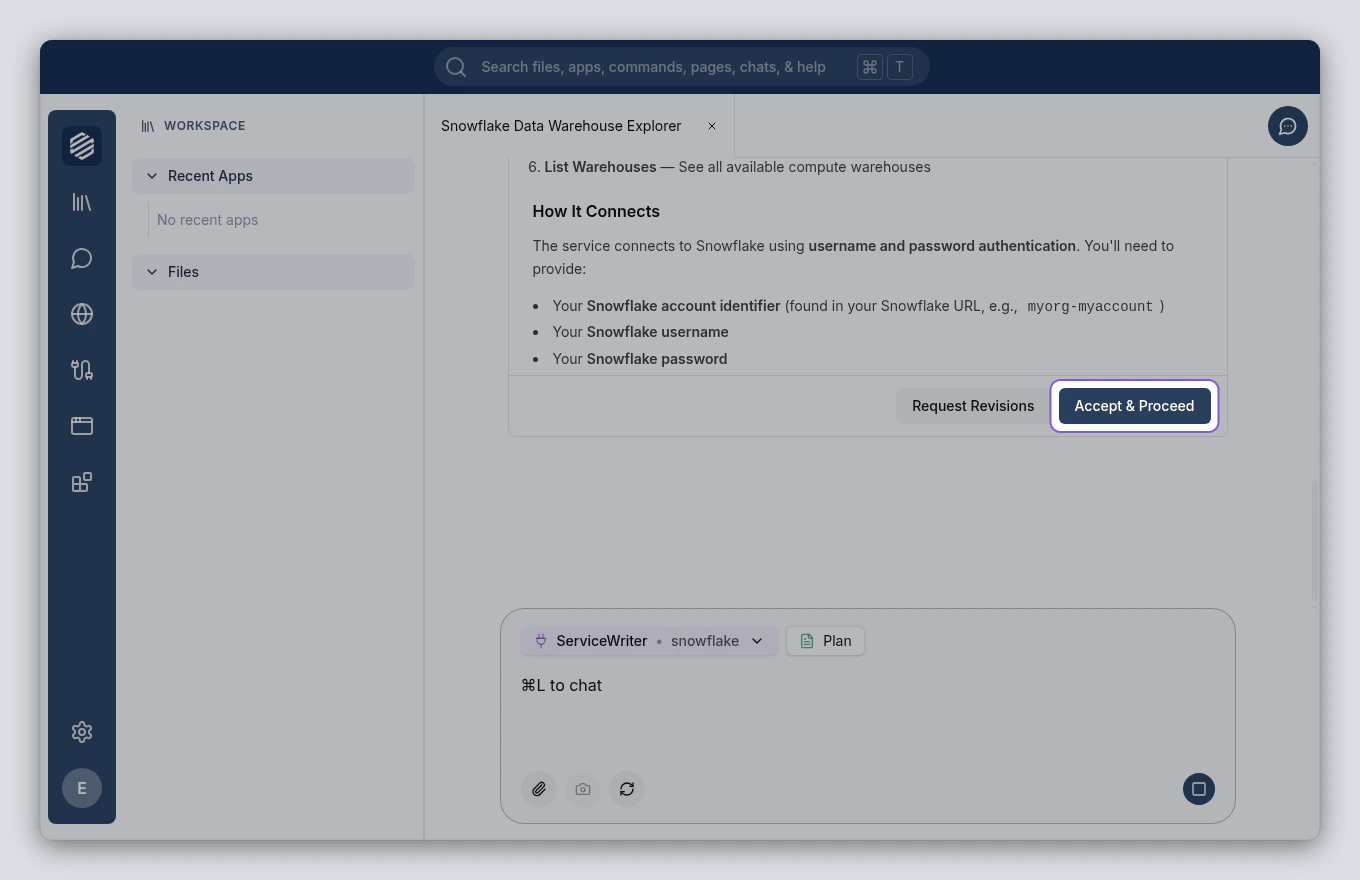
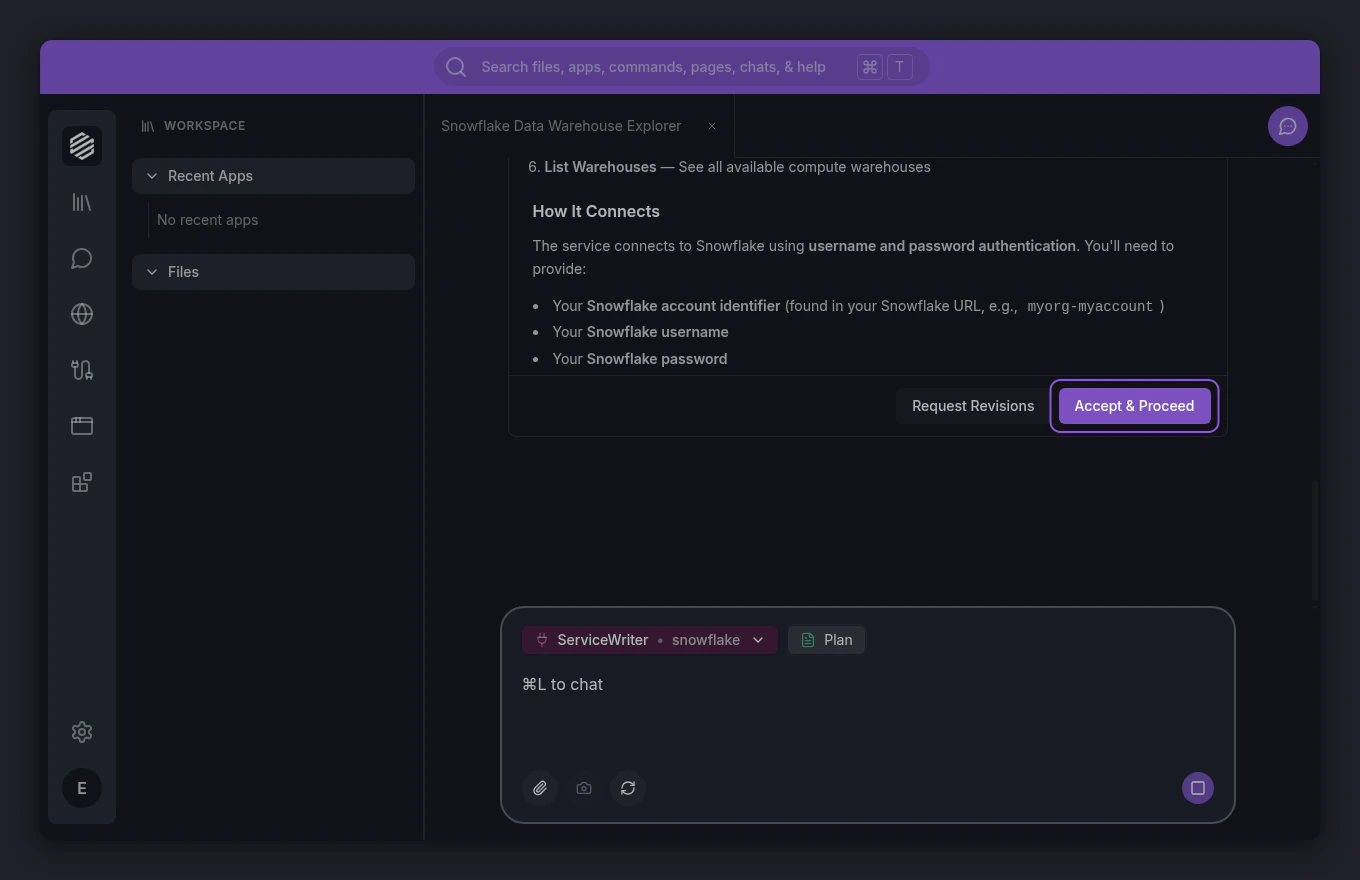
    <img src="https://mintcdn.com/synthetiq/RNJQjOGIp-QHg-Gg/images/tutorials/service-writer/step-05-accept-plan-light.png?fit=max&auto=format&n=RNJQjOGIp-QHg-Gg&q=85&s=15c364f42e15010e359ceb39fc9bf7cb" className="block dark:hidden" alt="Accept and Proceed button highlighted on the plan card" width="1360" height="880" data-path="images/tutorials/service-writer/step-05-accept-plan-light.png" />

    <img src="https://mintcdn.com/synthetiq/RNJQjOGIp-QHg-Gg/images/tutorials/service-writer/step-05-accept-plan-dark.png?fit=max&auto=format&n=RNJQjOGIp-QHg-Gg&q=85&s=8a79128e89359d4d2fa00f24f5ea0476" className="hidden dark:block" alt="Accept and Proceed button highlighted on the plan card" width="1360" height="880" data-path="images/tutorials/service-writer/step-05-accept-plan-dark.png" />
  </Step>

  <Step title="Wait for the build to finish">
    The ServiceWriter agent creates your service's connection logic, tools, and authentication setup. You can watch progress as tool calls appear in the chat. This usually takes a minute or two.
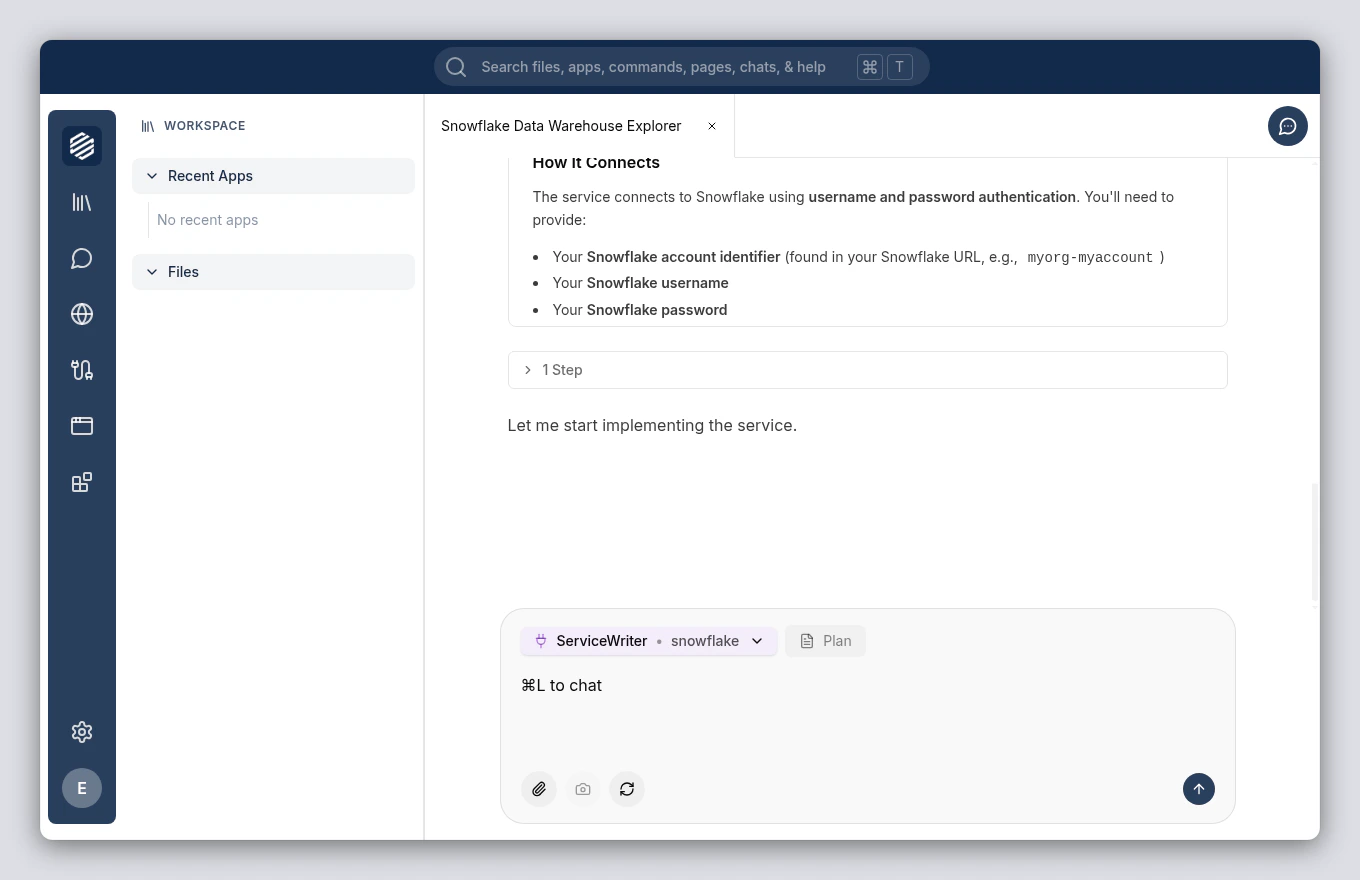
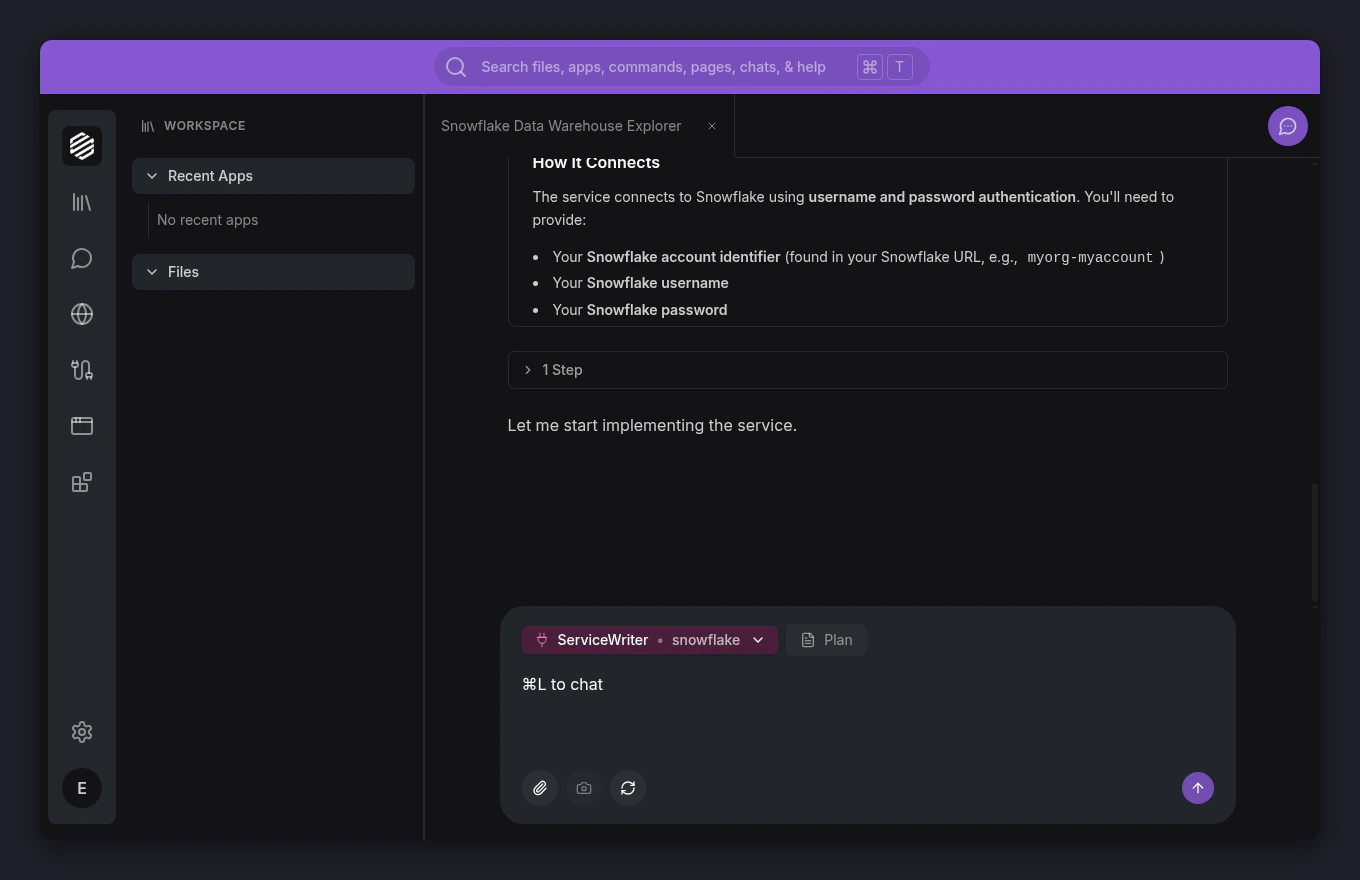
    <img src="https://mintcdn.com/synthetiq/RNJQjOGIp-QHg-Gg/images/tutorials/service-writer/step-06-building-light.png?fit=max&auto=format&n=RNJQjOGIp-QHg-Gg&q=85&s=770915c43faf61da13977b265af1c53c" className="block dark:hidden" alt="Tool call progress visible in the chat during the service build" width="1360" height="880" data-path="images/tutorials/service-writer/step-06-building-light.png" />

    <img src="https://mintcdn.com/synthetiq/RNJQjOGIp-QHg-Gg/images/tutorials/service-writer/step-06-building-dark.png?fit=max&auto=format&n=RNJQjOGIp-QHg-Gg&q=85&s=269908481b71c9848bc5b4ea78f08504" className="hidden dark:block" alt="Tool call progress visible in the chat during the service build" width="1360" height="880" data-path="images/tutorials/service-writer/step-06-building-dark.png" />
  </Step>

  <Step title="Enter your credentials">
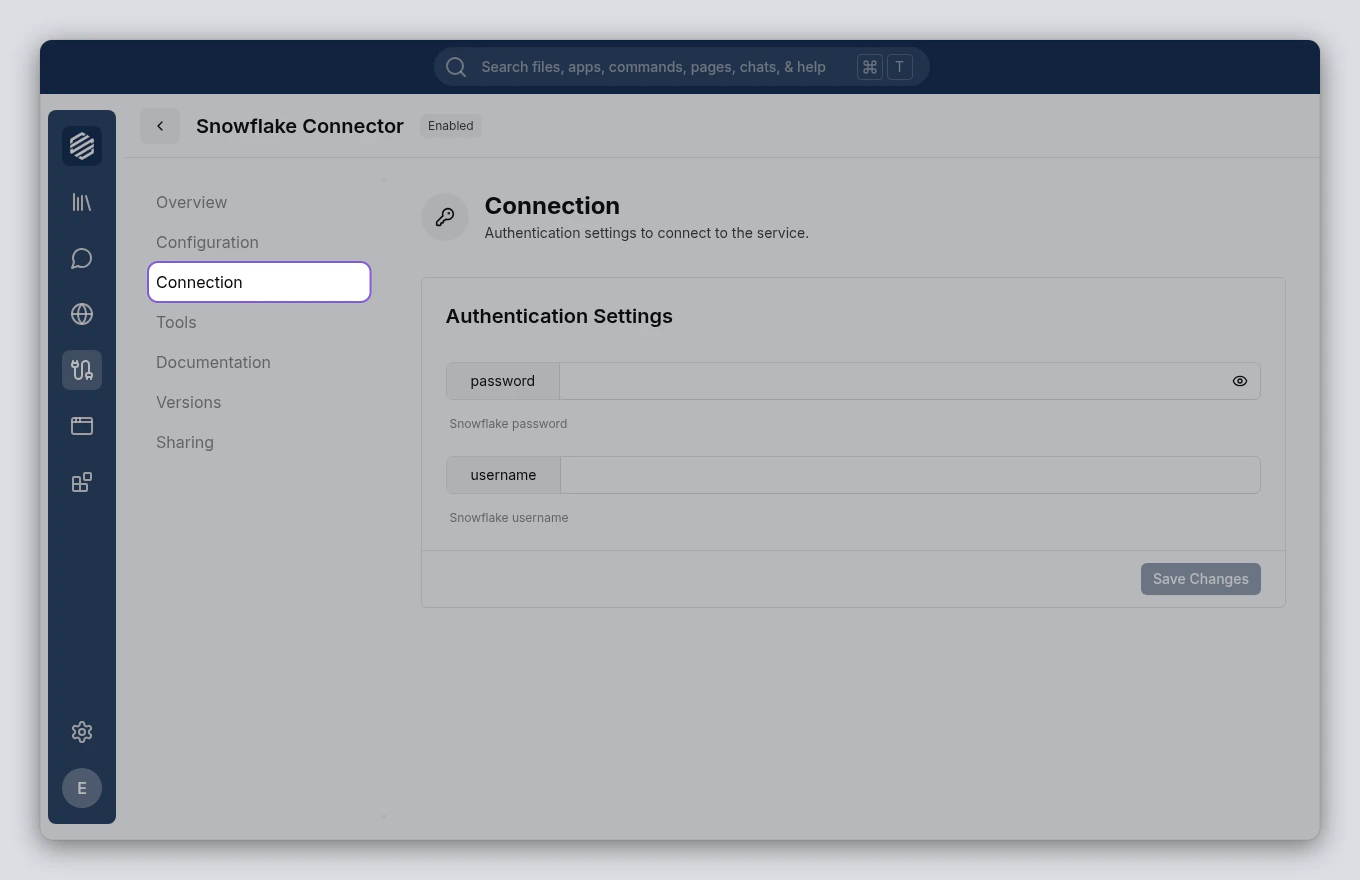
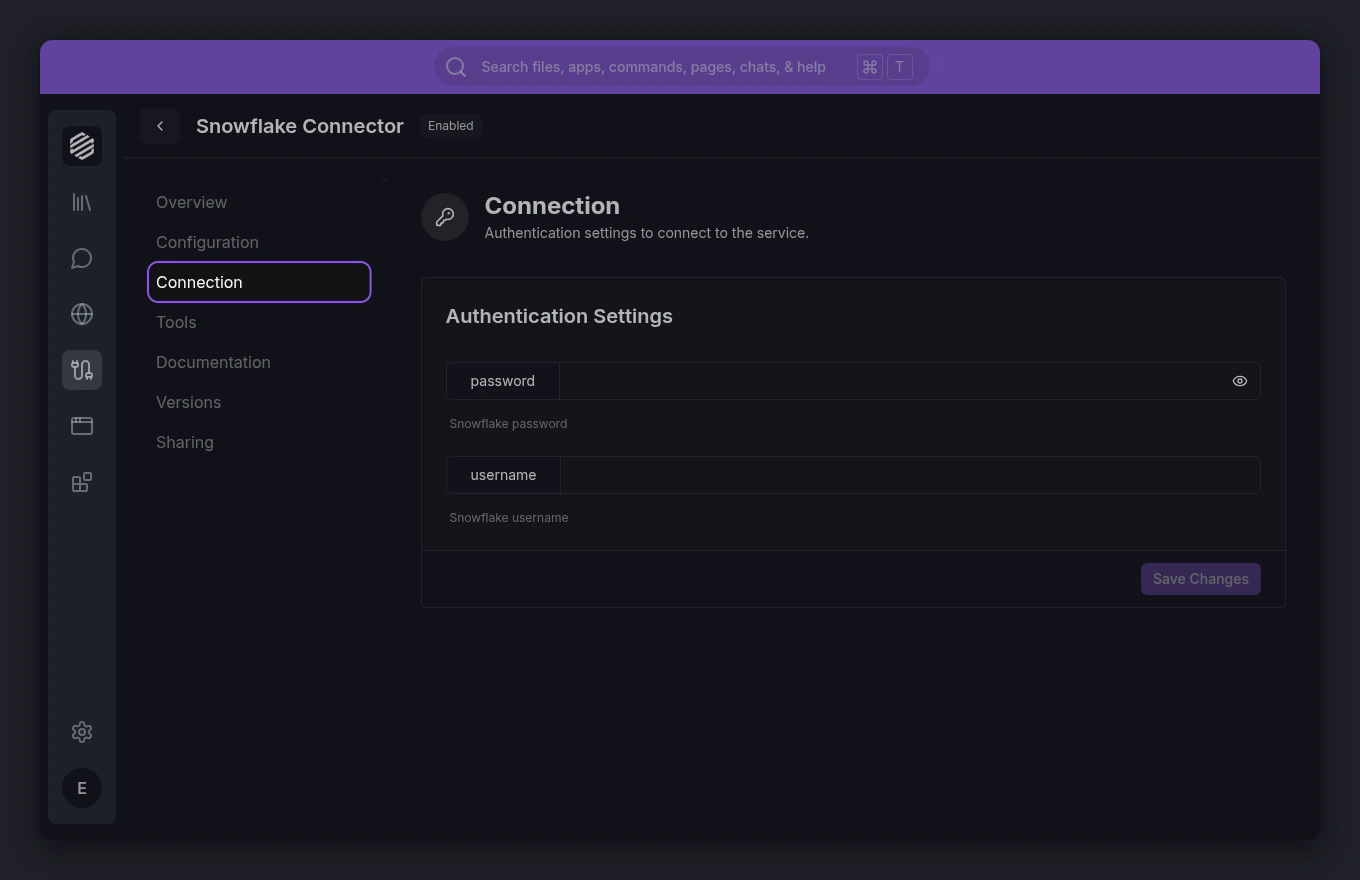
    When the build finishes, open the **Services** panel by clicking the **cable icon** in the left menu. Find your new service and click it, then go to the **Connection** tab to enter your Snowflake credentials — account identifier, username, and password.
    <img src="https://mintcdn.com/synthetiq/RNJQjOGIp-QHg-Gg/images/tutorials/service-writer/step-07-credentials-light.png?fit=max&auto=format&n=RNJQjOGIp-QHg-Gg&q=85&s=98faf26d487cb7a057db507f9eeec176" className="block dark:hidden" alt="Service connection tab showing Snowflake credential fields" width="1360" height="880" data-path="images/tutorials/service-writer/step-07-credentials-light.png" />

    <img src="https://mintcdn.com/synthetiq/RNJQjOGIp-QHg-Gg/images/tutorials/service-writer/step-07-credentials-dark.png?fit=max&auto=format&n=RNJQjOGIp-QHg-Gg&q=85&s=bde263b96f80af88994cebdcdee345a6" className="hidden dark:block" alt="Service connection tab showing Snowflake credential fields" width="1360" height="880" data-path="images/tutorials/service-writer/step-07-credentials-dark.png" />
  </Step>

  <Step title="View your service's tools">
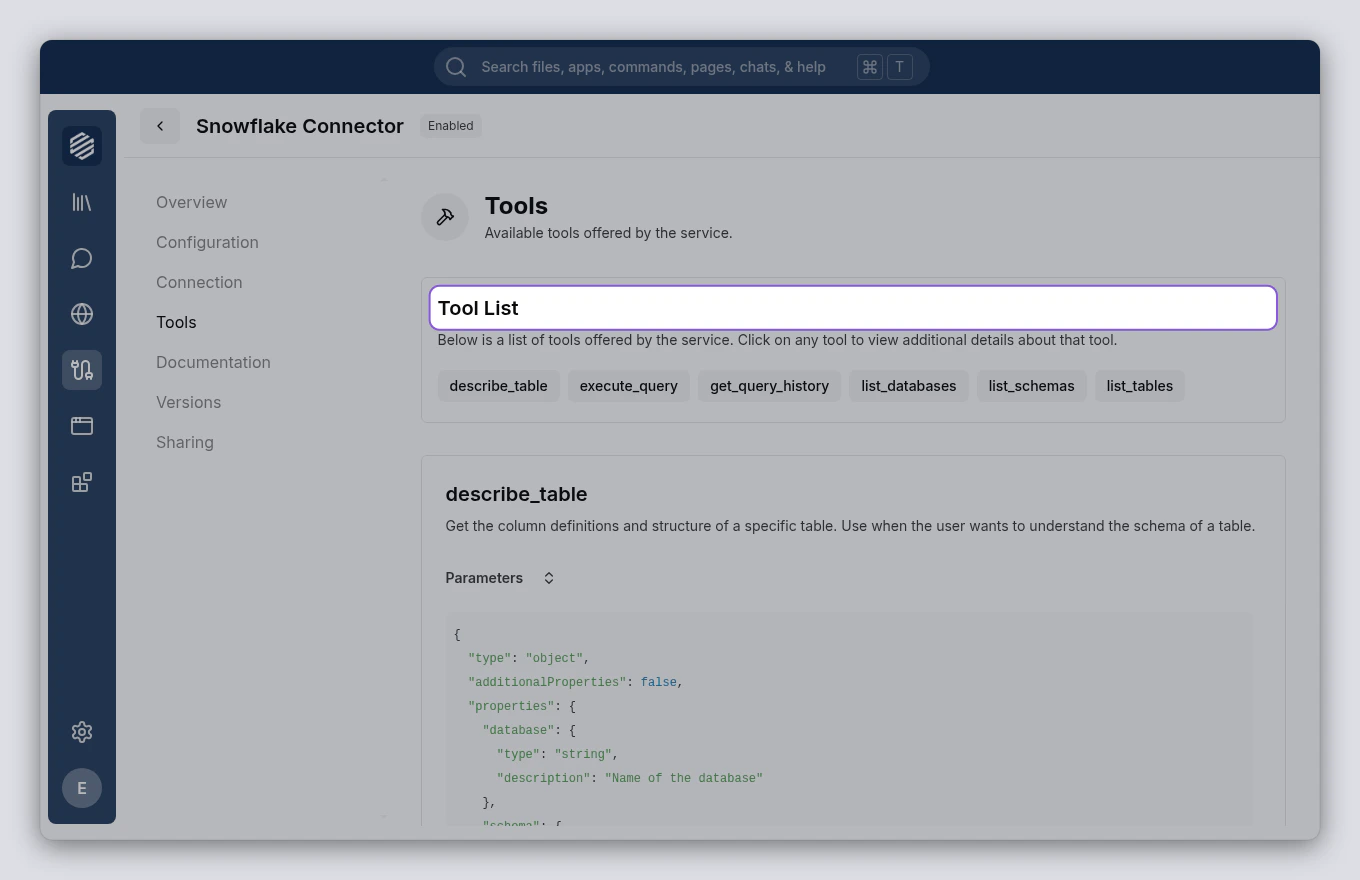
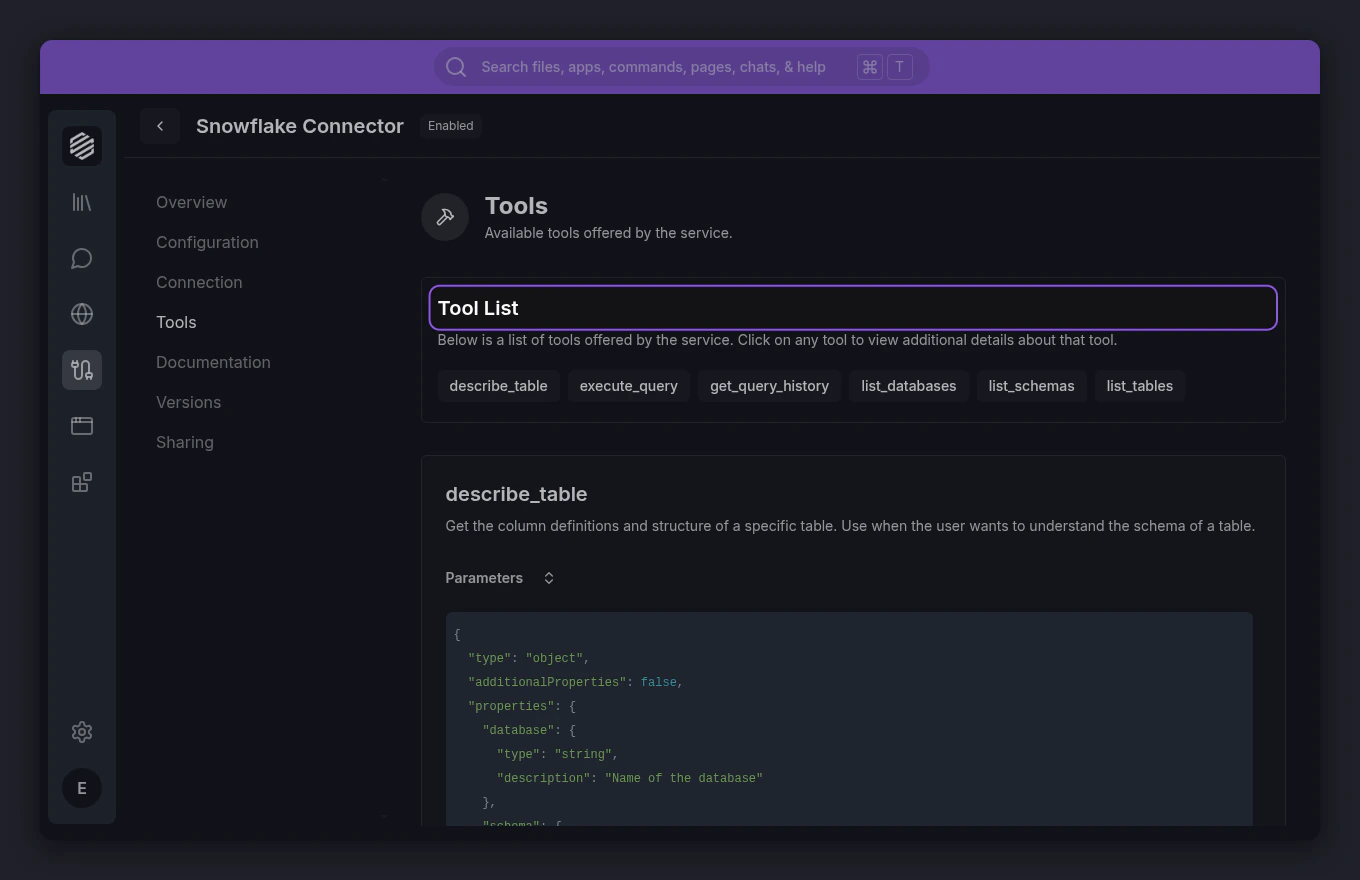
    Click the **Tools** tab to see everything your service can do. Each tool represents an action — like listing databases, browsing tables, or running queries.
    <img src="https://mintcdn.com/synthetiq/RNJQjOGIp-QHg-Gg/images/tutorials/service-writer/step-08-service-tools-light.png?fit=max&auto=format&n=RNJQjOGIp-QHg-Gg&q=85&s=d8c4b3f36cce45322d5253ba5d0fbc75" className="block dark:hidden" alt="Service tools tab showing the list of available tools" width="1360" height="880" data-path="images/tutorials/service-writer/step-08-service-tools-light.png" />

    <img src="https://mintcdn.com/synthetiq/RNJQjOGIp-QHg-Gg/images/tutorials/service-writer/step-08-service-tools-dark.png?fit=max&auto=format&n=RNJQjOGIp-QHg-Gg&q=85&s=46bf067391b30bed24daed7660999a19" className="hidden dark:block" alt="Service tools tab showing the list of available tools" width="1360" height="880" data-path="images/tutorials/service-writer/step-08-service-tools-dark.png" />
  </Step>
</Steps>

<Tip>
  You can ask the agent to make changes after the service is built. For example, "Add a tool to my Snowflake service that checks query history" — the agent will update the service without starting from scratch.
</Tip>