> ## Documentation Index
> Fetch the complete documentation index at: https://synthetiq.com/docs/llms.txt
> Use this file to discover all available pages before exploring further.

# Setup API keys

> Add your Claude API key and send your first message in Synthetiq.

This tutorial walks you through adding your Claude API key to Synthetiq and confirming the Workspace agent is ready to use.

## Prerequisites

* Synthetiq installed and signed in — download from [synthetiq.com](https://synthetiq.com) if you haven't already
* A Claude API key from [console.anthropic.com](https://console.anthropic.com)

## Steps

<Steps>
  <Step title="Open Settings">
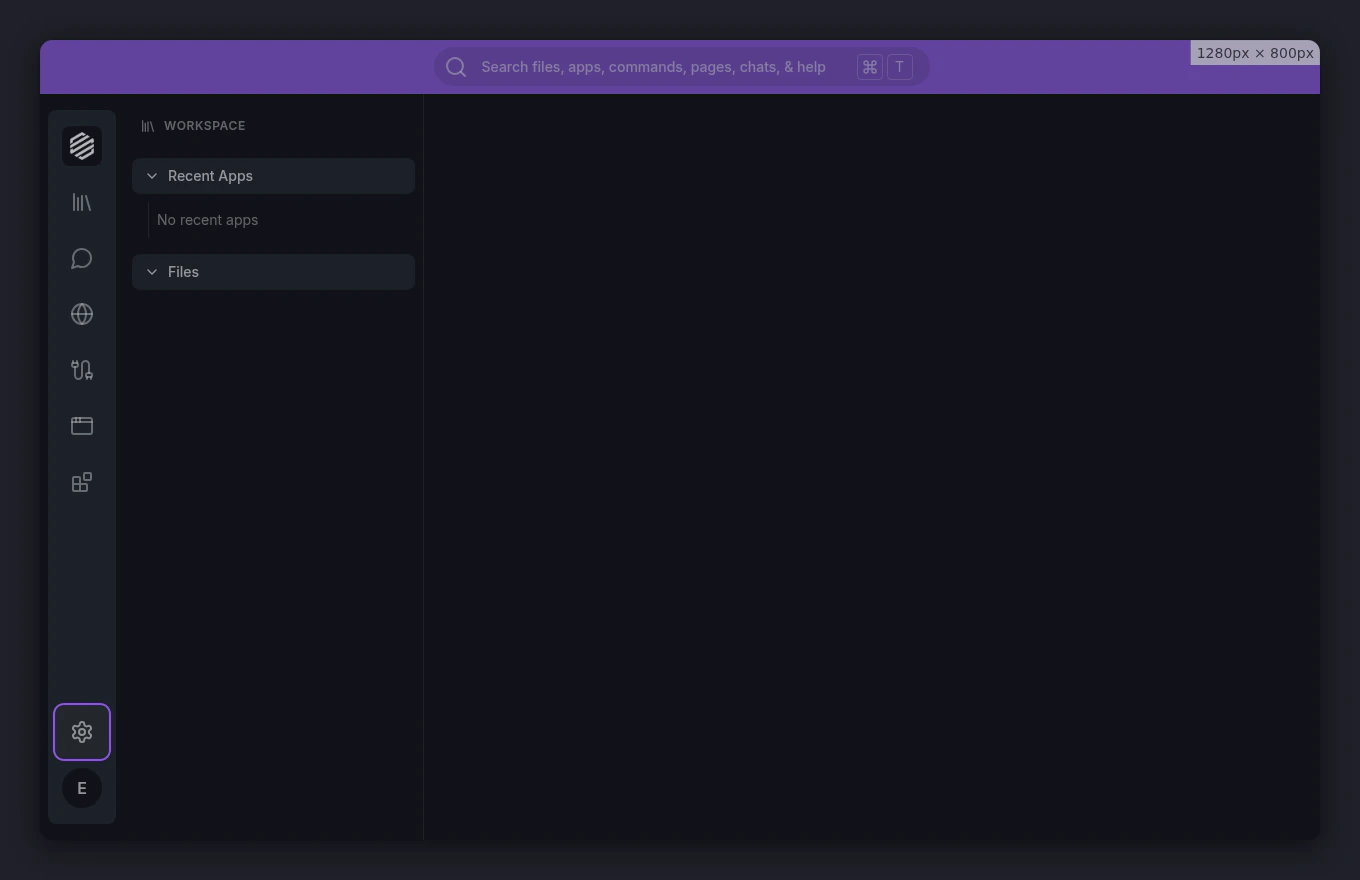
    Click the **gear icon** at the bottom of the left menu to open Settings.
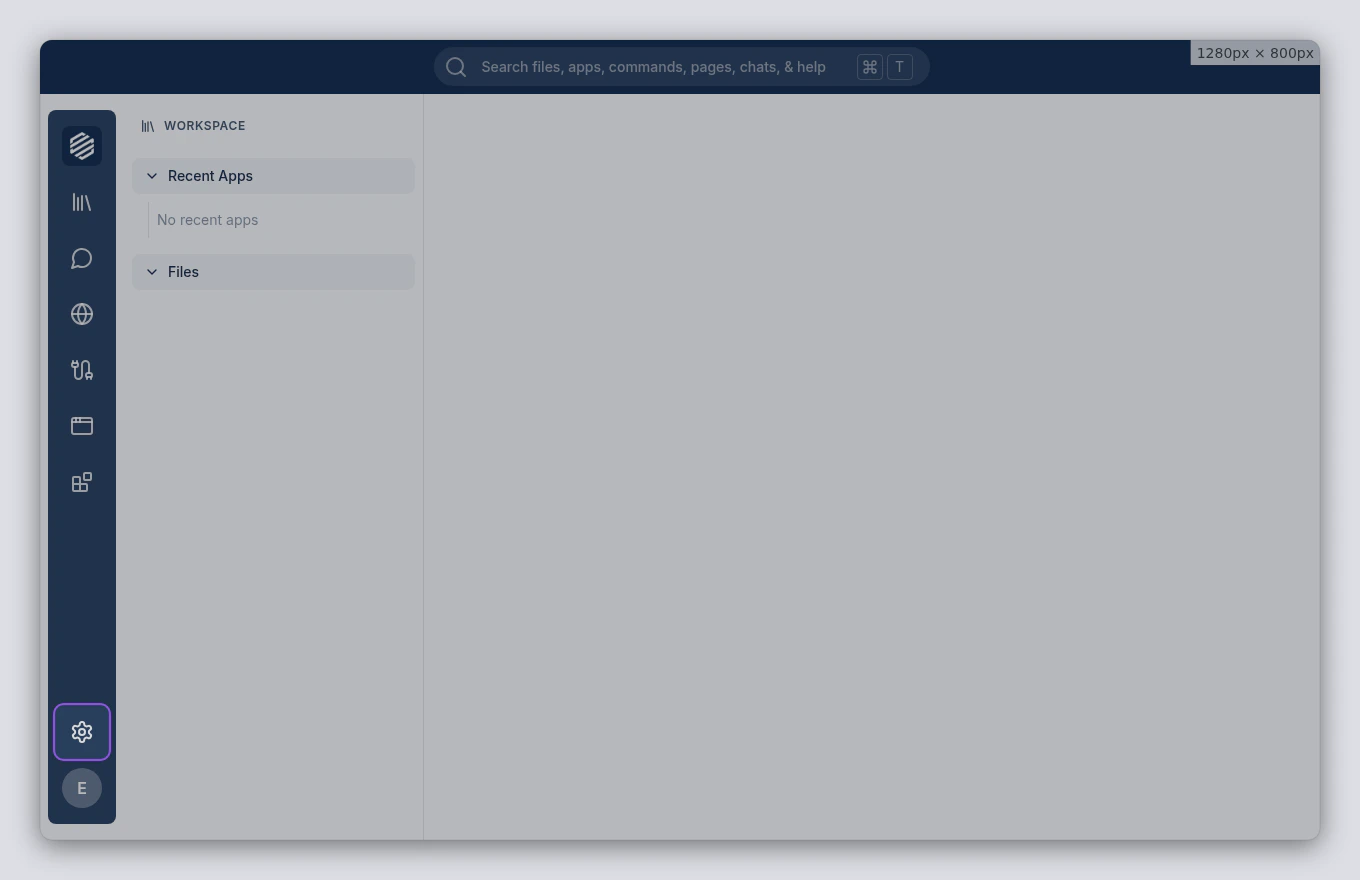
    <img src="https://mintcdn.com/synthetiq/RNJQjOGIp-QHg-Gg/images/tutorials/setup-and-api-key/step-01-settings-icon-light.png?fit=max&auto=format&n=RNJQjOGIp-QHg-Gg&q=85&s=c1dd731aa3364f4686f94e8c81bb8cce" className="block dark:hidden" alt="Main app with gear icon in the left menu" width="1360" height="880" data-path="images/tutorials/setup-and-api-key/step-01-settings-icon-light.png" />

    <img src="https://mintcdn.com/synthetiq/RNJQjOGIp-QHg-Gg/images/tutorials/setup-and-api-key/step-01-settings-icon-dark.png?fit=max&auto=format&n=RNJQjOGIp-QHg-Gg&q=85&s=6d6ee9e8ee9aa8c06efe850307ea3f2e" className="hidden dark:block" alt="Main app with gear icon in the left menu" width="1360" height="880" data-path="images/tutorials/setup-and-api-key/step-01-settings-icon-dark.png" />
  </Step>

  <Step title="Go to Agent API Keys">
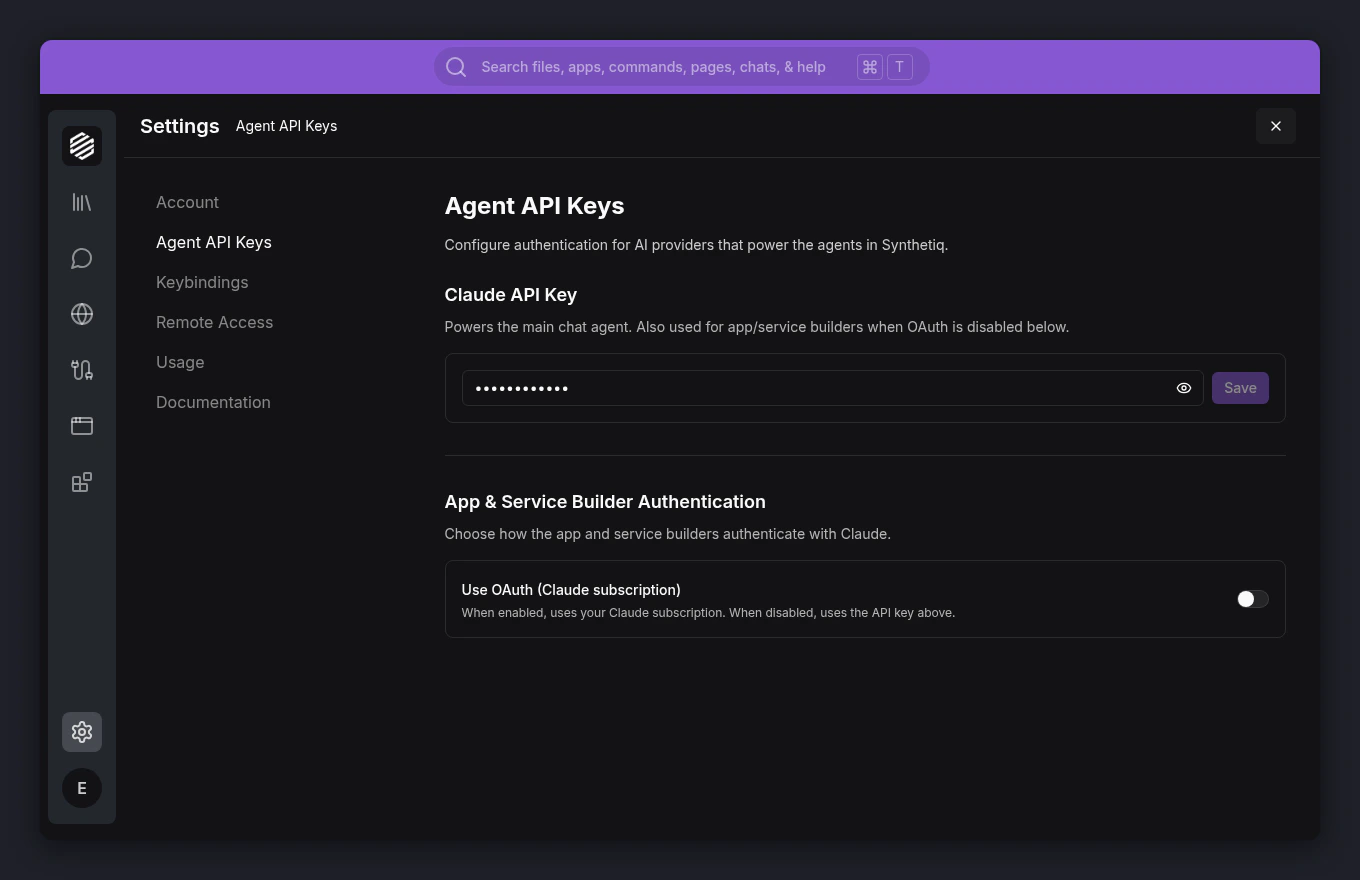
    In the Settings panel, click **Agent API Keys** in the left sidebar.
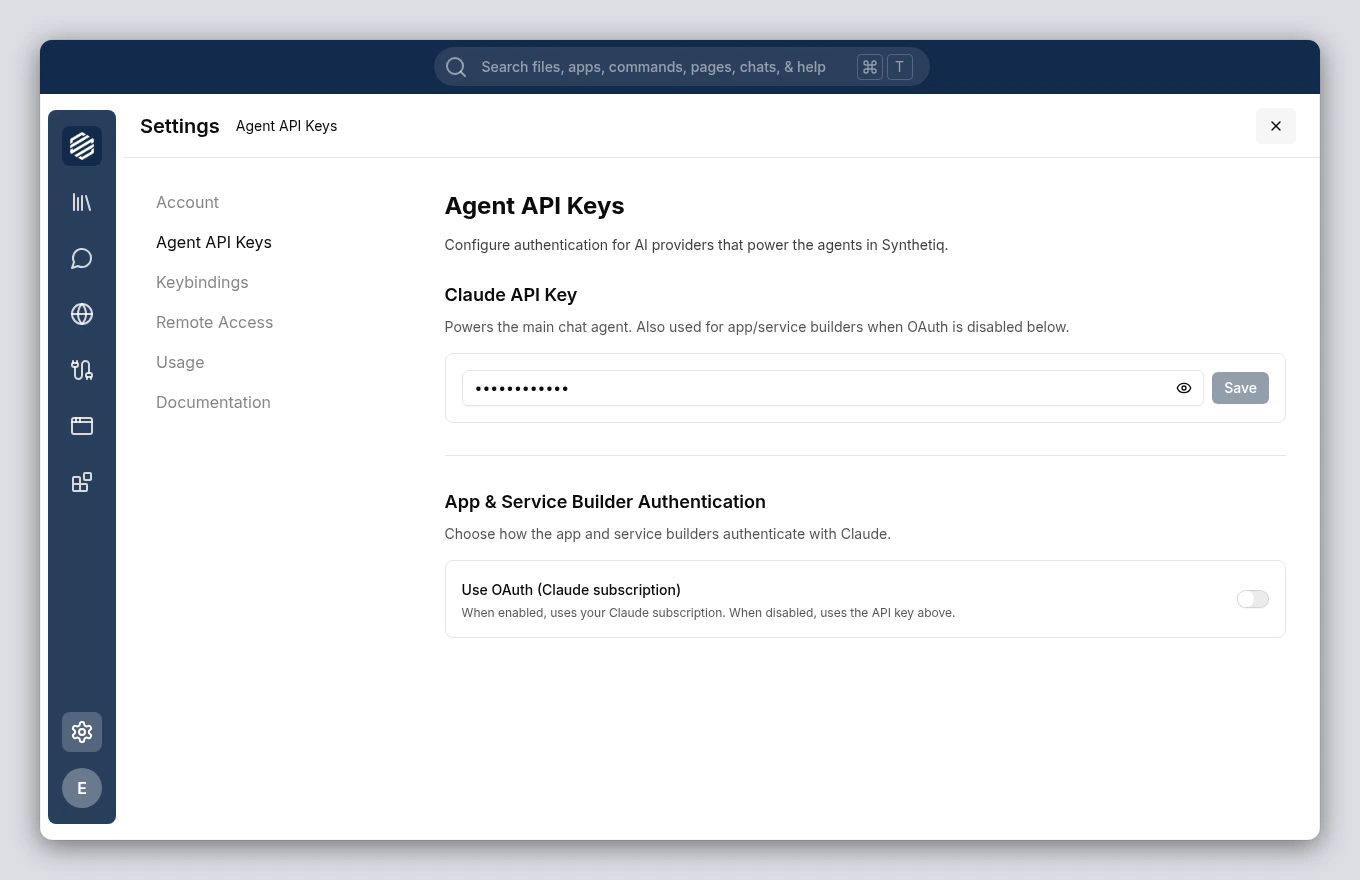
    <img src="https://mintcdn.com/synthetiq/RNJQjOGIp-QHg-Gg/images/tutorials/setup-and-api-key/step-02-settings-panel-light.png?fit=max&auto=format&n=RNJQjOGIp-QHg-Gg&q=85&s=83b8f9c043f8fd23955ae22a96c52e5e" className="block dark:hidden" alt="Settings panel with Agent API Keys selected" width="1360" height="880" data-path="images/tutorials/setup-and-api-key/step-02-settings-panel-light.png" />

    <img src="https://mintcdn.com/synthetiq/RNJQjOGIp-QHg-Gg/images/tutorials/setup-and-api-key/step-02-settings-panel-dark.png?fit=max&auto=format&n=RNJQjOGIp-QHg-Gg&q=85&s=291be2bea4c226ccd303a698e7e6b8a9" className="hidden dark:block" alt="Settings panel with Agent API Keys selected" width="1360" height="880" data-path="images/tutorials/setup-and-api-key/step-02-settings-panel-dark.png" />
  </Step>

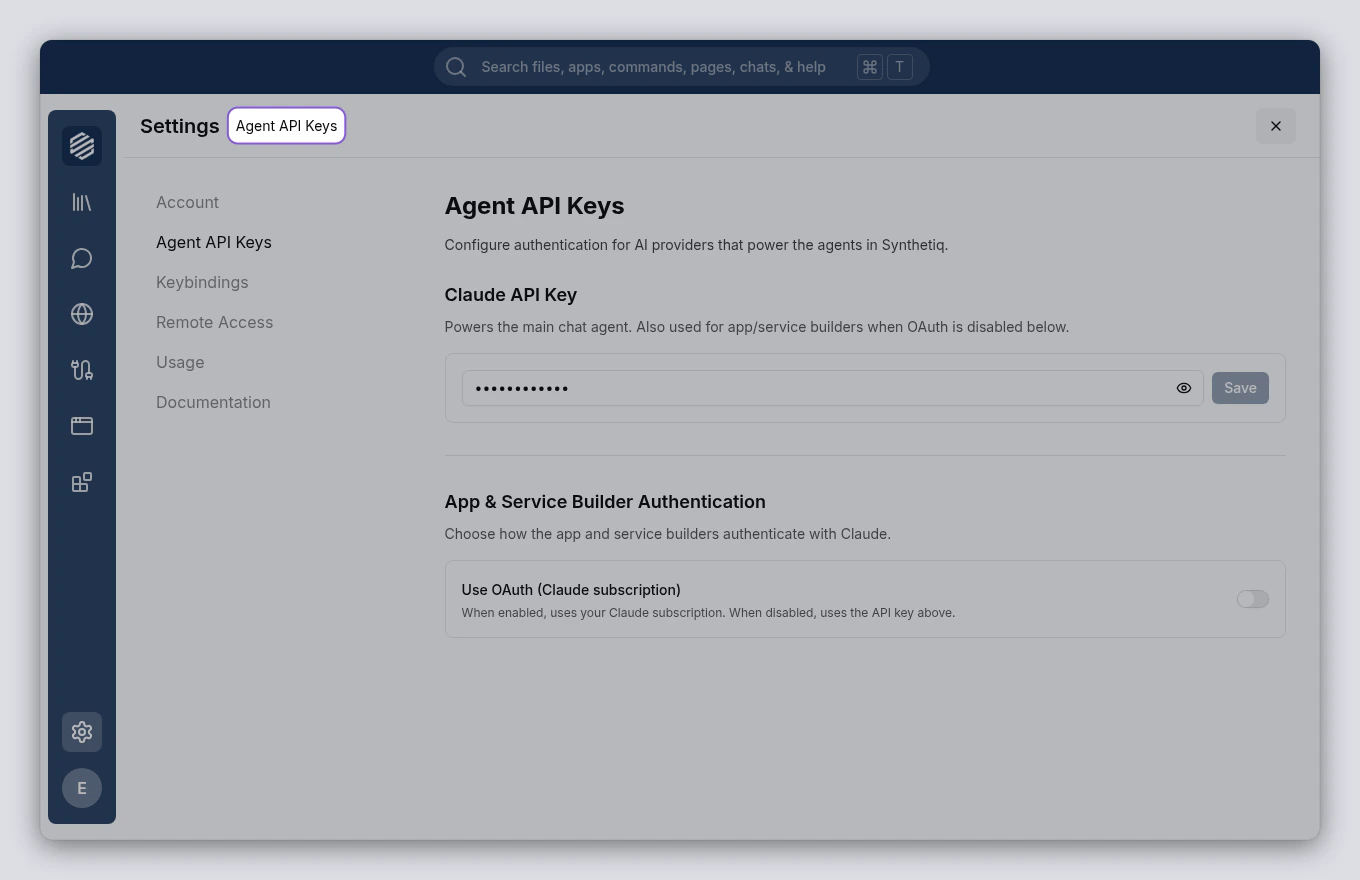
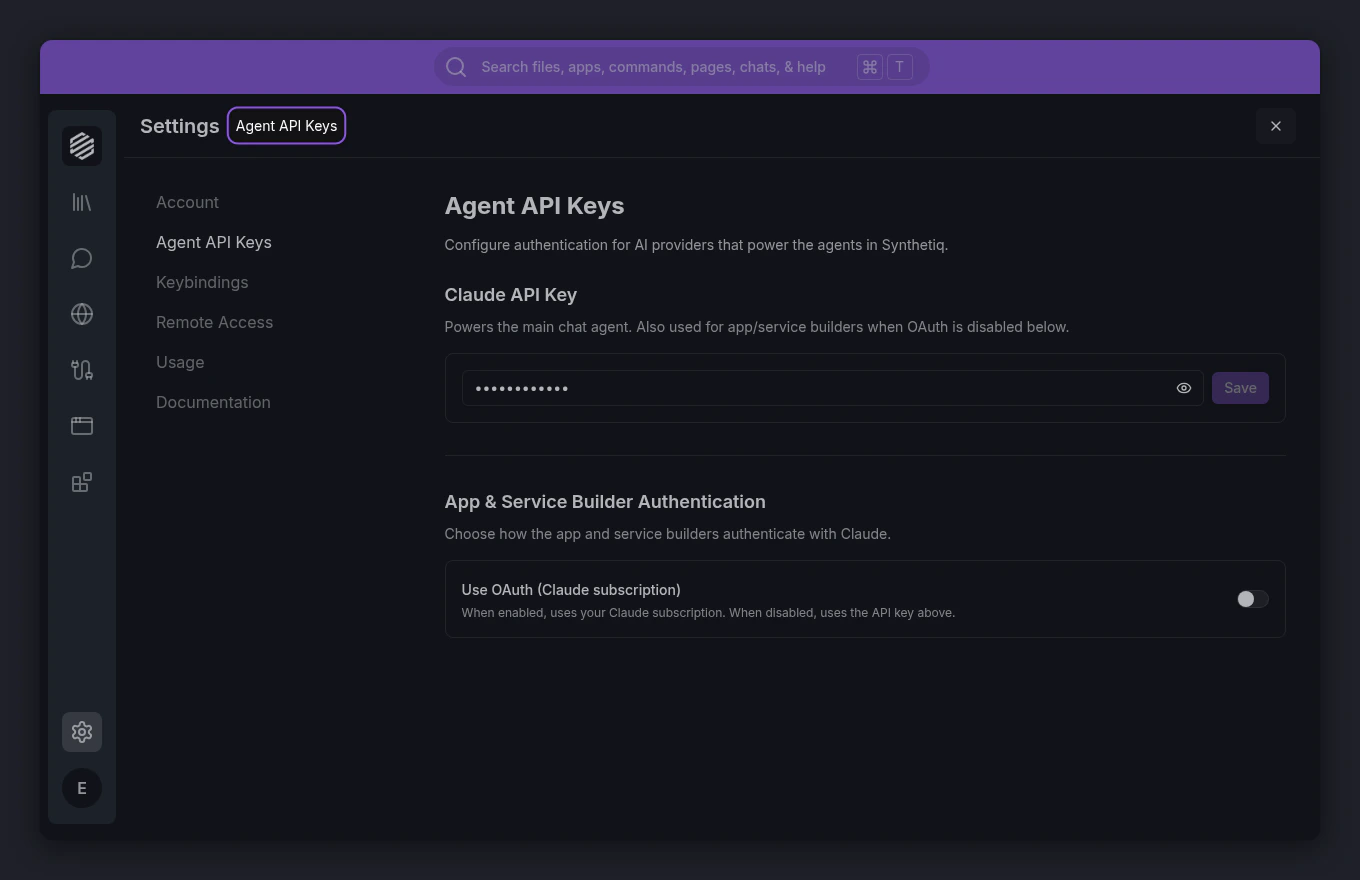
  <Step title="Paste your Claude API key">
    In the **Claude API Key** section, paste your API key into the input field. Your key starts with `sk-ant-`. Click **Save**.

    To get an API key, go to [console.anthropic.com](https://console.anthropic.com), sign in, and create a new key from the **API Keys** section.
    <img src="https://mintcdn.com/synthetiq/RNJQjOGIp-QHg-Gg/images/tutorials/setup-and-api-key/step-03-api-keys-light.png?fit=max&auto=format&n=RNJQjOGIp-QHg-Gg&q=85&s=1ec8a4435fdb6f5eedd860a5c3a21e9e" className="block dark:hidden" alt="Claude API Key input field and Save button" width="1360" height="880" data-path="images/tutorials/setup-and-api-key/step-03-api-keys-light.png" />

    <img src="https://mintcdn.com/synthetiq/RNJQjOGIp-QHg-Gg/images/tutorials/setup-and-api-key/step-03-api-keys-dark.png?fit=max&auto=format&n=RNJQjOGIp-QHg-Gg&q=85&s=c5b798837ef7cfc8acfbfe59558f89ef" className="hidden dark:block" alt="Claude API Key input field and Save button" width="1360" height="880" data-path="images/tutorials/setup-and-api-key/step-03-api-keys-dark.png" />
  </Step>

  <Step title="Send a test message">
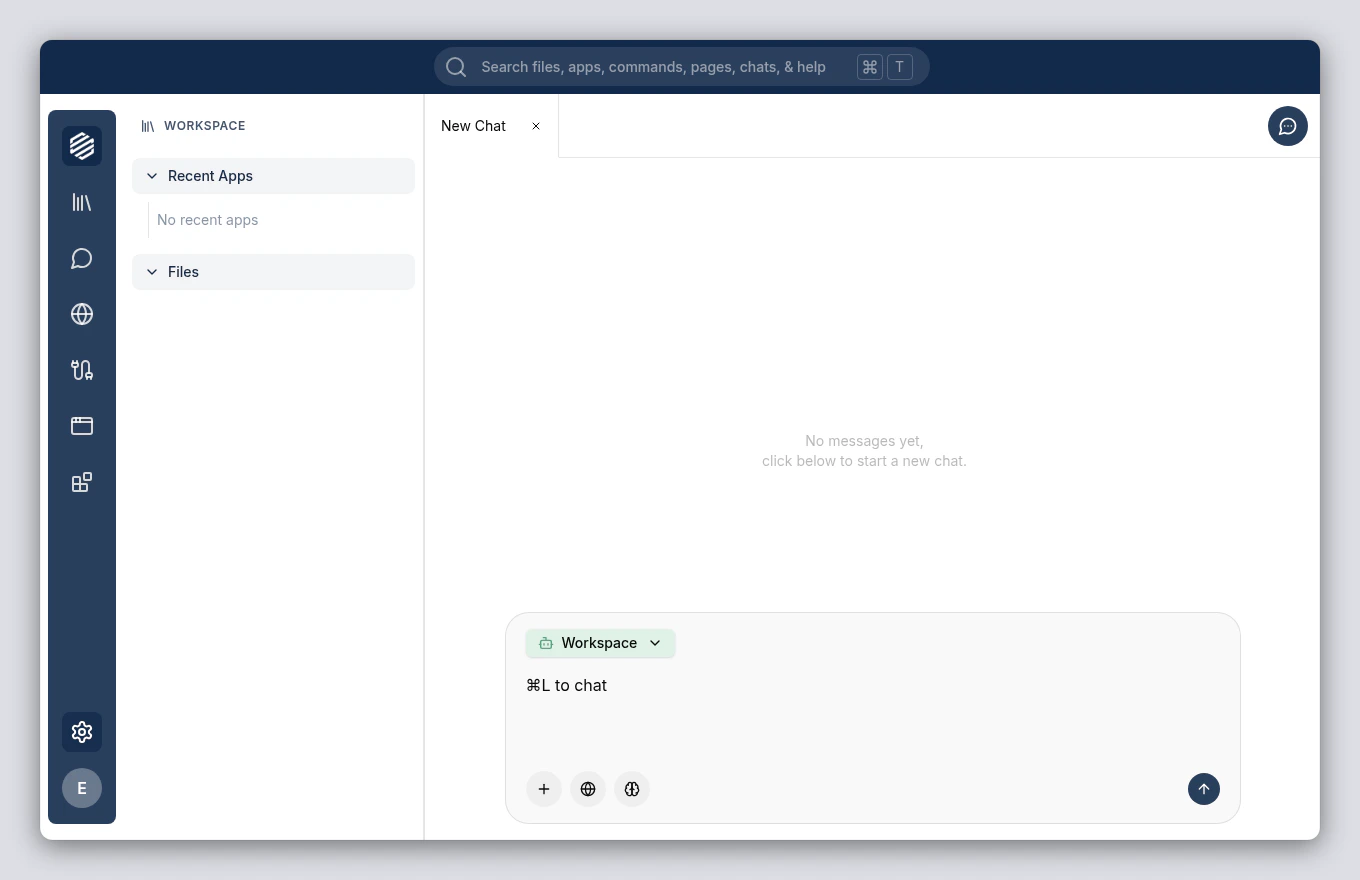
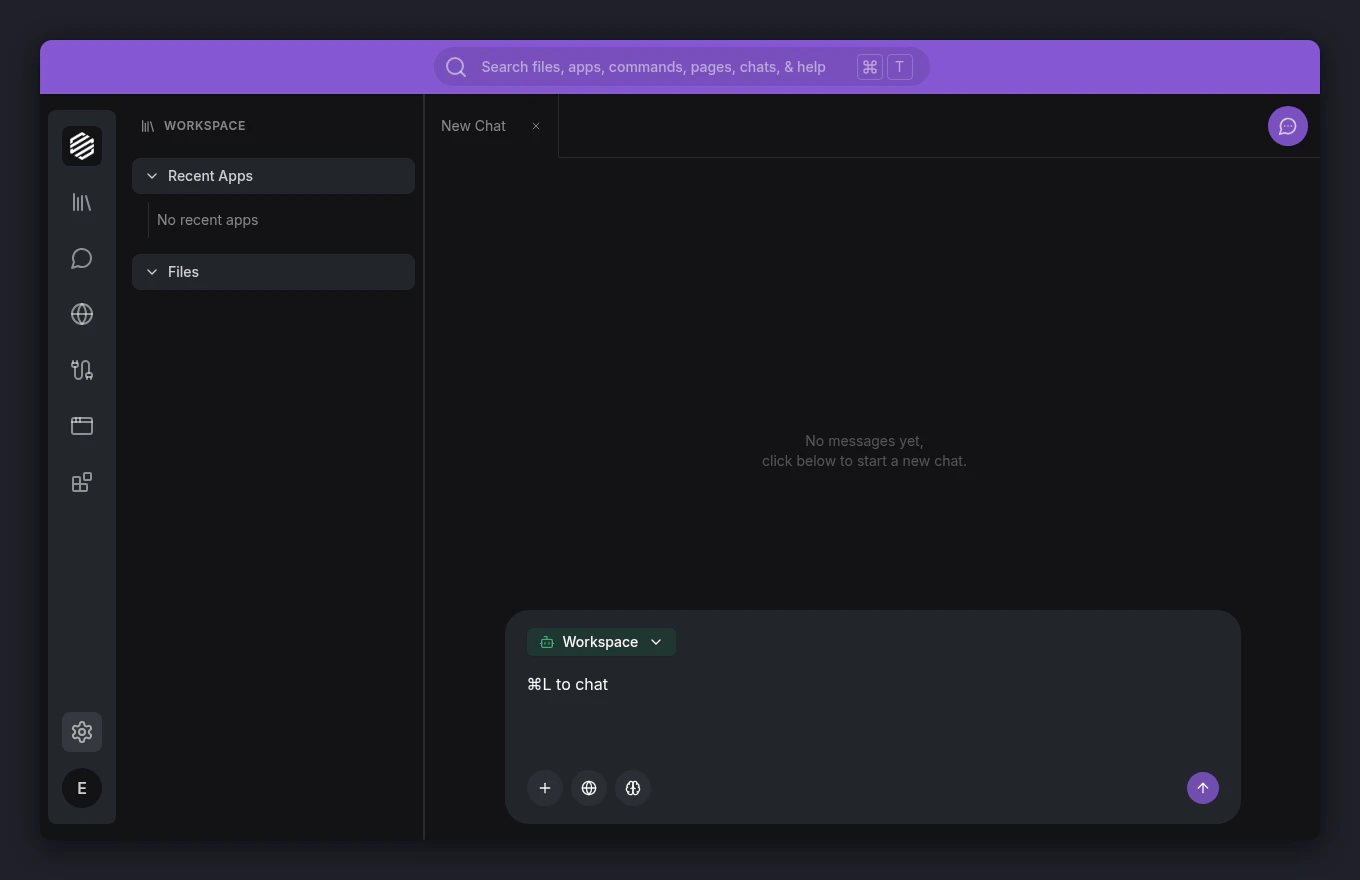
    Click the chat icon or press **⌘]** to open the chat panel. Type a message like "Hello!" and press **Enter**. The Workspace agent responds if your API key is working correctly.
    <img src="https://mintcdn.com/synthetiq/RNJQjOGIp-QHg-Gg/images/tutorials/setup-and-api-key/step-04-chat-panel-light.png?fit=max&auto=format&n=RNJQjOGIp-QHg-Gg&q=85&s=ed32ada660c58f3ecbf7cf417b840c0f" className="block dark:hidden" alt="Chat panel with test message and agent response" width="1360" height="880" data-path="images/tutorials/setup-and-api-key/step-04-chat-panel-light.png" />

    <img src="https://mintcdn.com/synthetiq/RNJQjOGIp-QHg-Gg/images/tutorials/setup-and-api-key/step-04-chat-panel-dark.png?fit=max&auto=format&n=RNJQjOGIp-QHg-Gg&q=85&s=956d193d6c144ca9d02b9e3ab4876261" className="hidden dark:block" alt="Chat panel with test message and agent response" width="1360" height="880" data-path="images/tutorials/setup-and-api-key/step-04-chat-panel-dark.png" />
  </Step>
</Steps>

<Tip>
  If the agent doesn't respond, double-check that your API key is correct and that your account has available credits.
</Tip>