> ## Documentation Index
> Fetch the complete documentation index at: https://synthetiq.com/docs/llms.txt
> Use this file to discover all available pages before exploring further.
# How to Publish an App
> Push a new version of your app so teammates can install and use it from the Store.
Publishing makes your app available to others. Once you push a version, teammates can install it from the Store, and anyone you've shared the app with can access it.
## Prerequisites
* A Synthetiq workspace with at least one app you own
* You must be the app's publisher — if you installed the app from someone else's workspace, you won't see the **Push New Version** button
If you haven't shared your app yet, you can do that after publishing. See How to Share an App for steps.
Click the **Apps** icon in the left sidebar. The Apps panel slides open showing your apps.
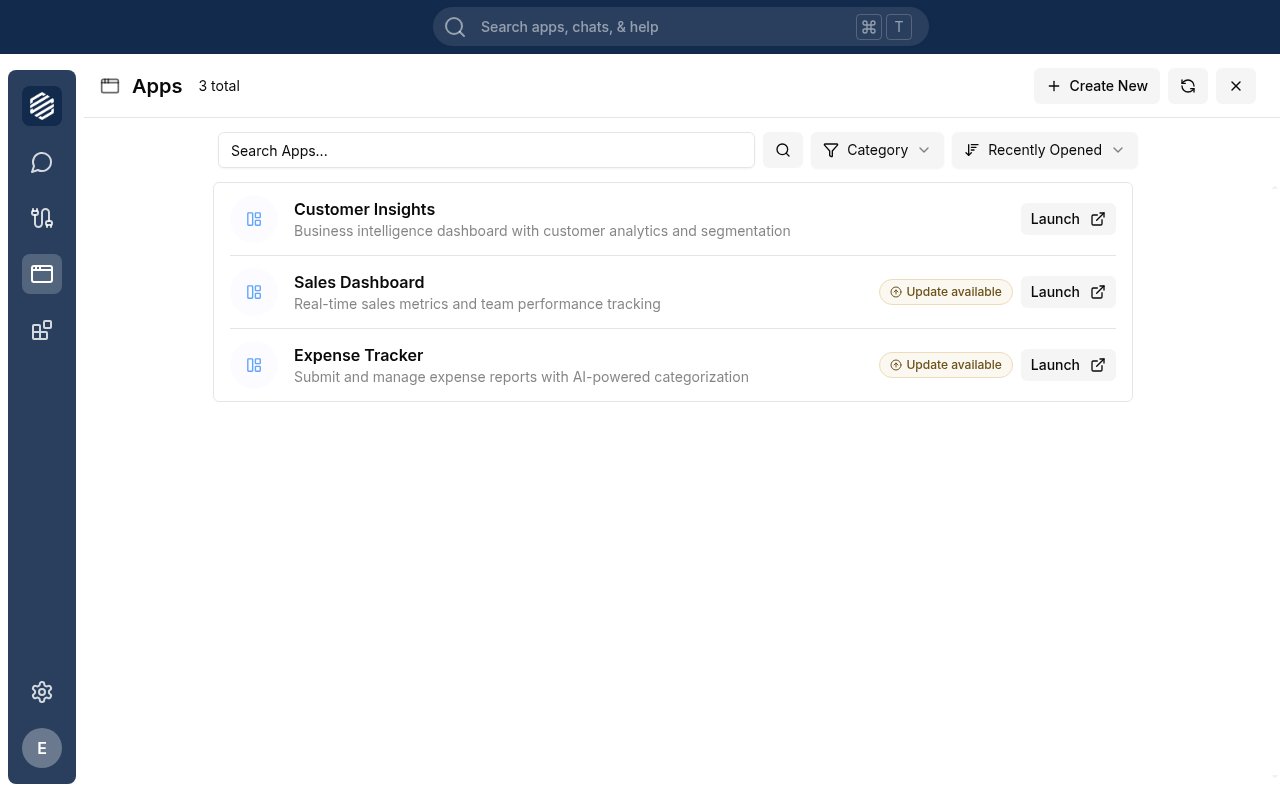
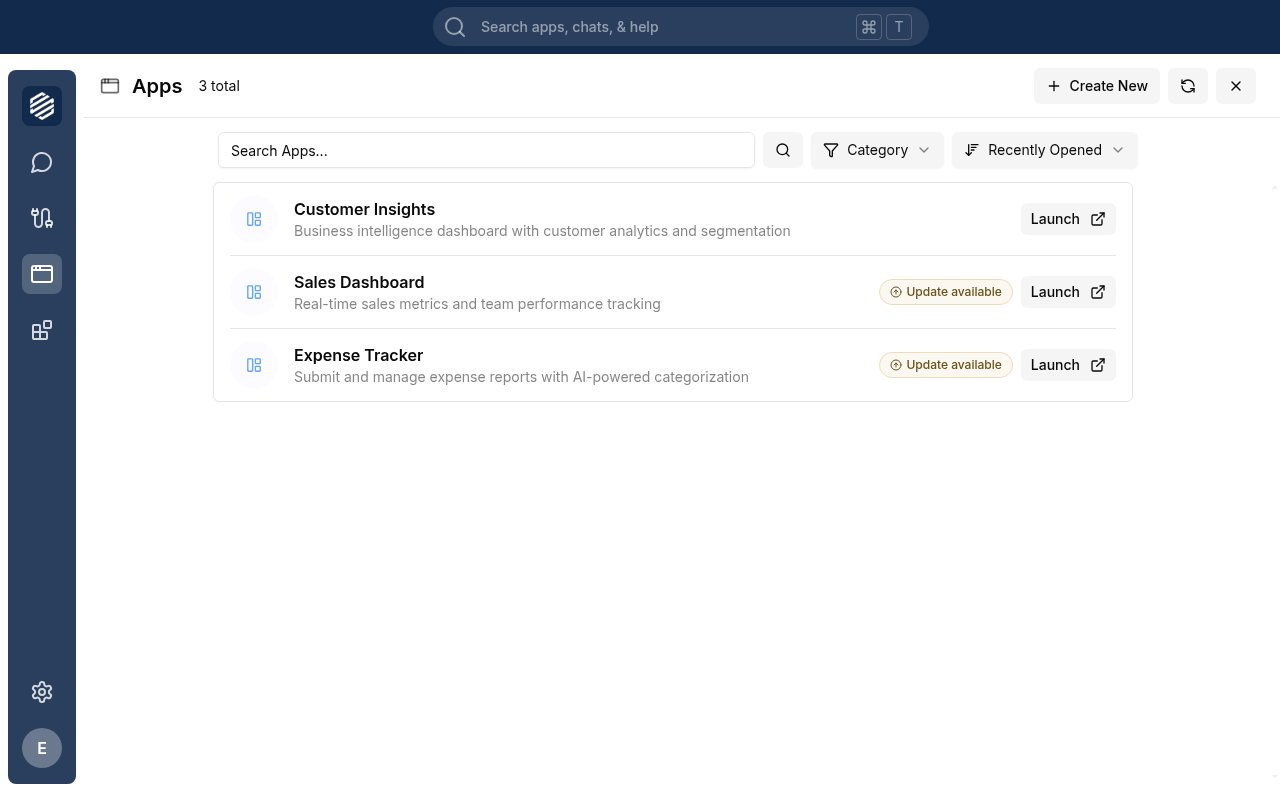 Find the app you want to publish and click its **name**. The app details view opens with tabs along the top: Overview, Configuration, Versions, and Sharing.
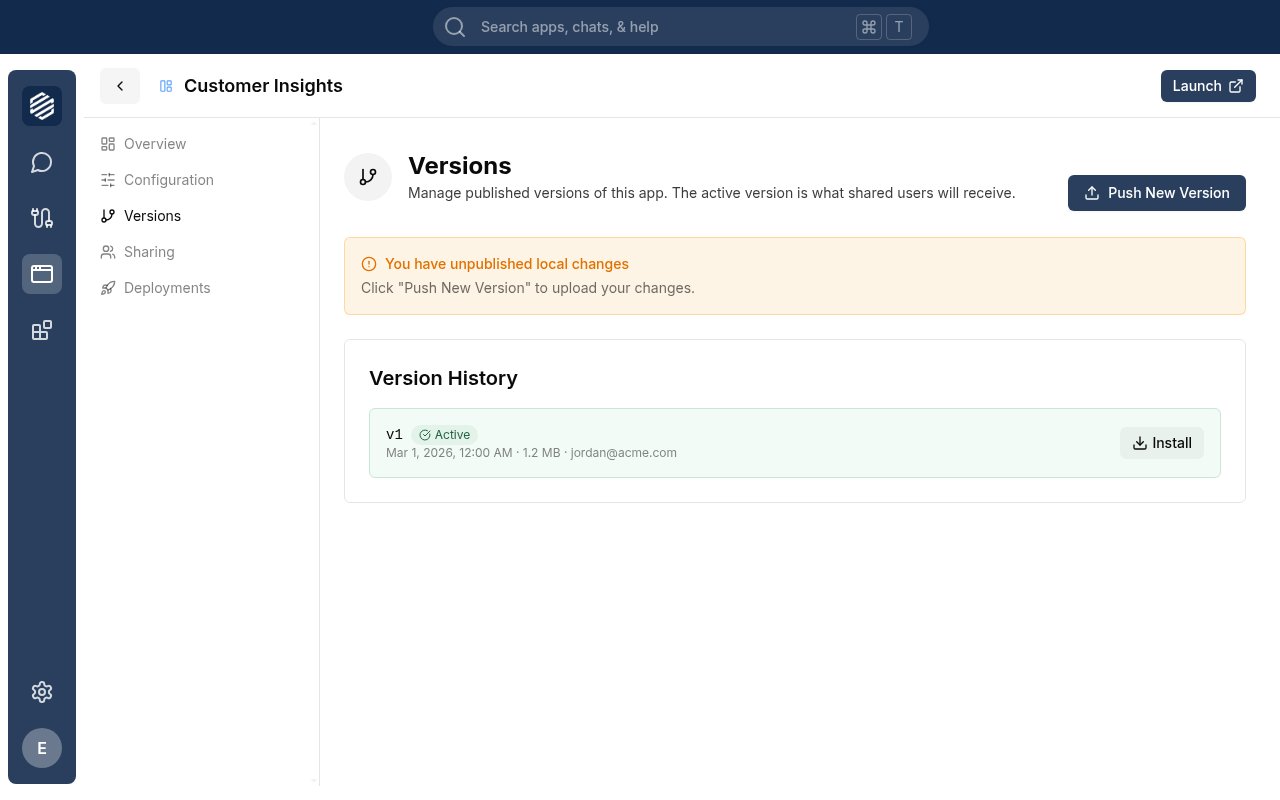
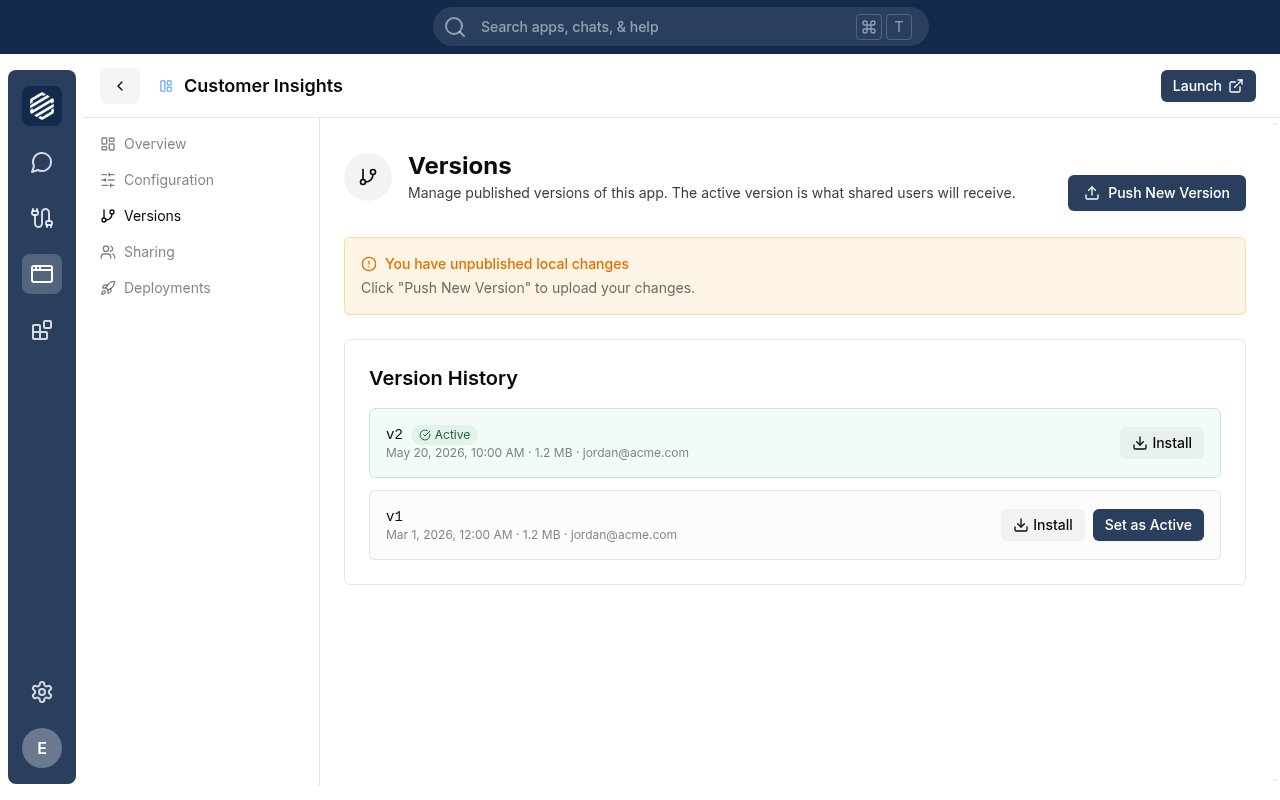
 Click **Versions** in the app details tabs. This tab shows all published versions and whether you have unpublished local changes.
If you see a notice that says you have unpublished local changes, you're ready to publish. The **Push New Version** button in the top right becomes active.
Click **Versions** in the app details tabs. This tab shows all published versions and whether you have unpublished local changes.
If you see a notice that says you have unpublished local changes, you're ready to publish. The **Push New Version** button in the top right becomes active.
 Click **Push New Version** in the top right corner. A modal appears showing publish options.
If your app uses any services you've modified, those services are listed here. You can choose to publish them at the same time.
Click **Push New Version** in the top right corner. A modal appears showing publish options.
If your app uses any services you've modified, those services are listed here. You can choose to publish them at the same time.
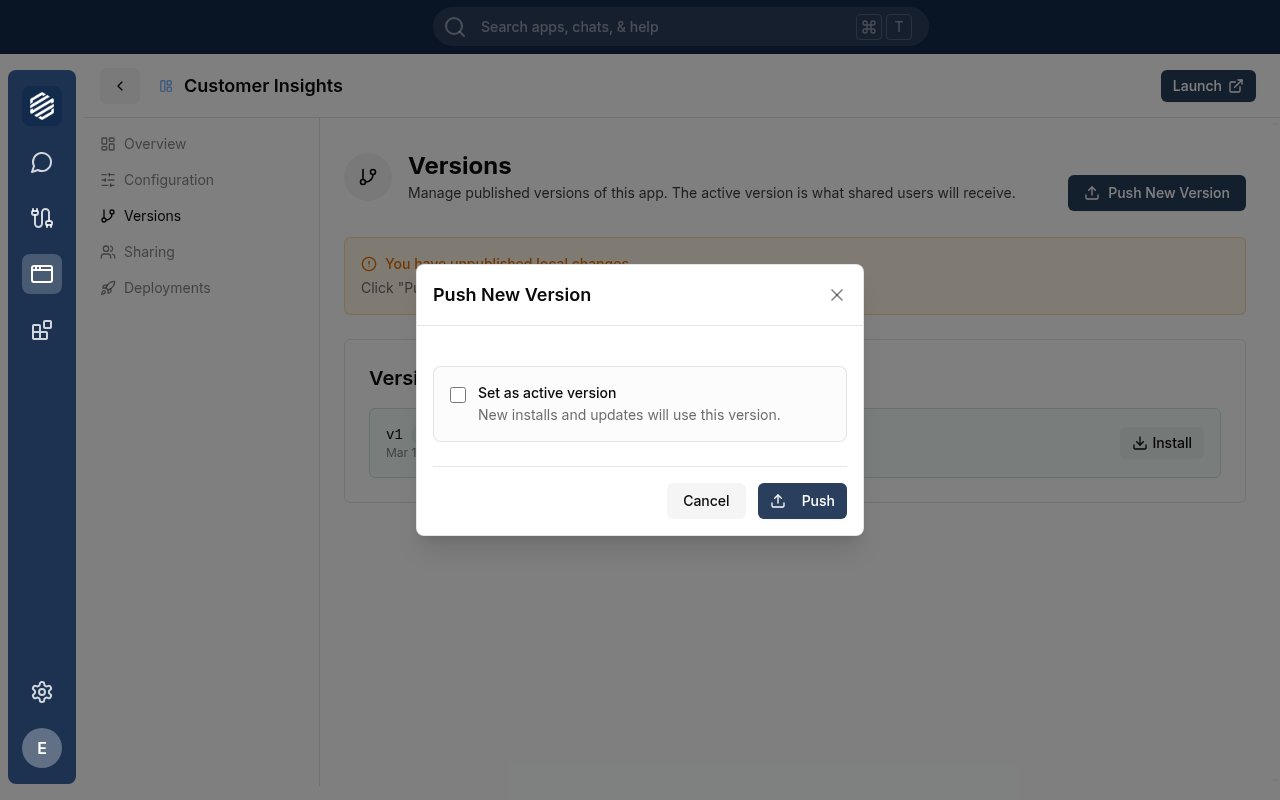 In the modal, you'll see a **Set as active version** checkbox. When checked, new installs and updates will use this version. Leave it checked if this is the version you want others to receive.
Click **Push**. Synthetiq validates the build, packages your app, and uploads the new version. You can watch each step complete in real time.
In the modal, you'll see a **Set as active version** checkbox. When checked, new installs and updates will use this version. Leave it checked if this is the version you want others to receive.
Click **Push**. Synthetiq validates the build, packages your app, and uploads the new version. You can watch each step complete in real time.
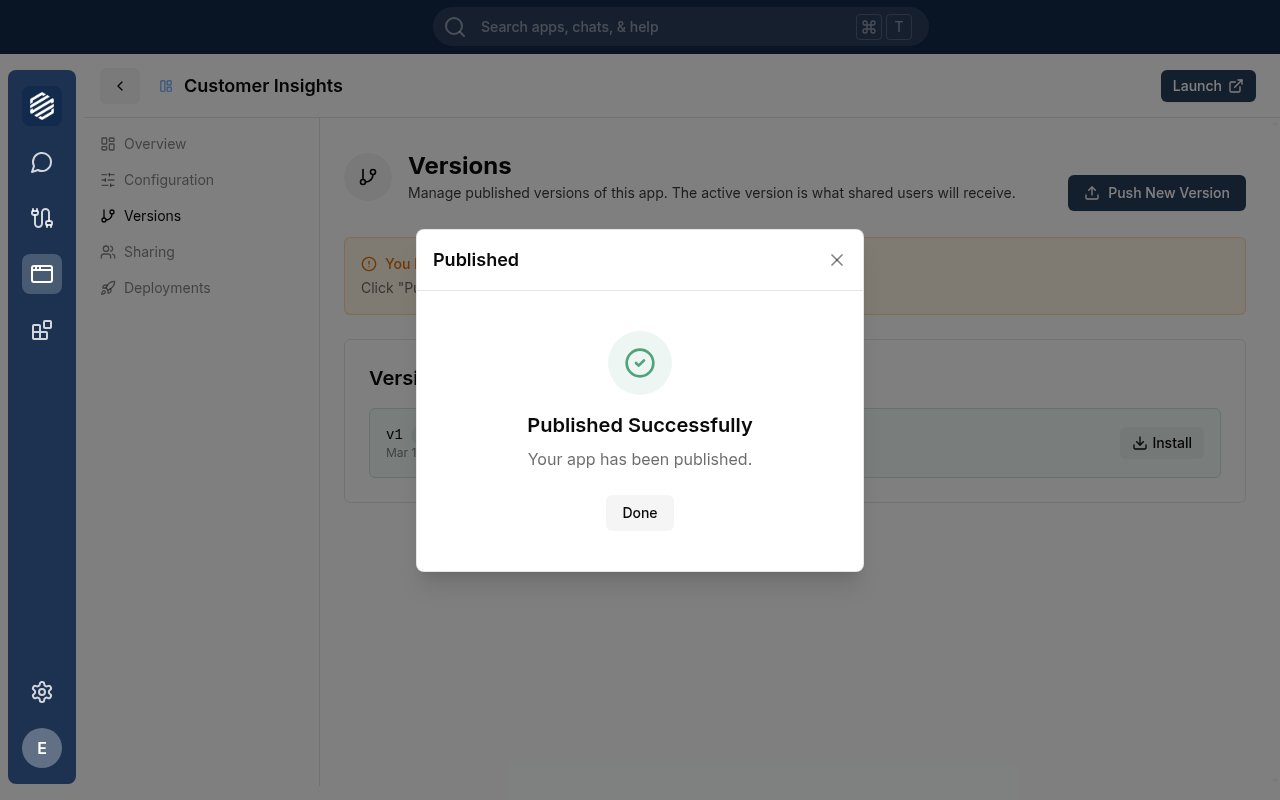 When all steps finish, a confirmation screen appears. Click **Done** to close the modal.
Back on the Versions tab, your new version appears in the Version History list with an **Active** badge if you set it as active.
When all steps finish, a confirmation screen appears. Click **Done** to close the modal.
Back on the Versions tab, your new version appears in the Version History list with an **Active** badge if you set it as active.
 ## What's next
Share your published app with teammates or your entire organization.
Browse and install apps your team has shared with you.
## What's next
Share your published app with teammates or your entire organization.
Browse and install apps your team has shared with you.