
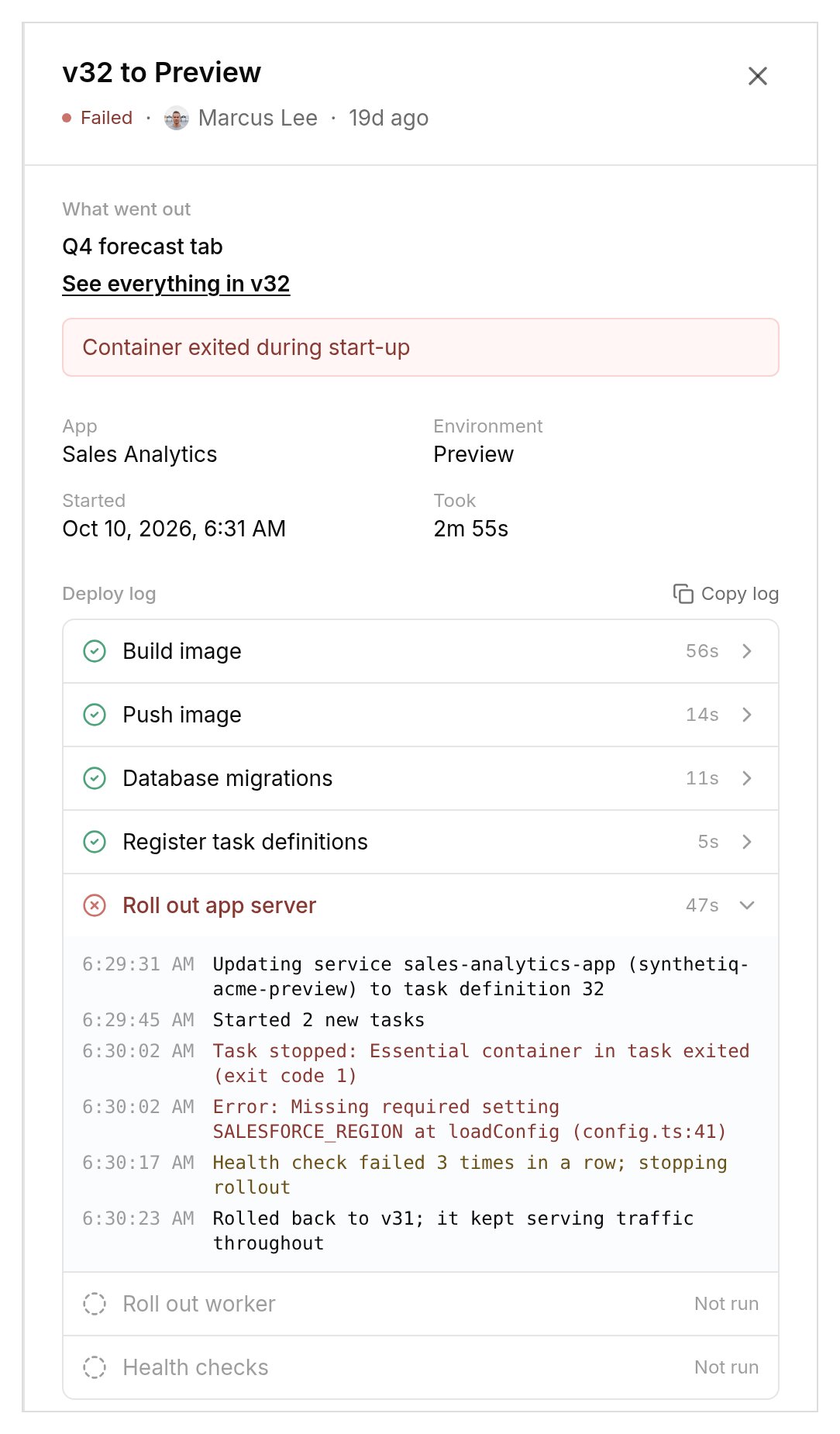
One deploy and its log. A failed step opens on its log lines.
Deploy a version
Select Deploy and pick the app, environment and version. You can only pick versions that passed review or didn’t need one. The others show why: Waiting for review, Changes requested or Blocked by review. For Production, you type the app’s name to confirm. The button says what will happen:- Deploy vX for a newer version
- Roll back to vX for an earlier one
- Redeploy vX for the one already running
entities:deploy, and the control plane checks you may deploy that app to that environment. The app must first be set up there from the desktop app’s Deployments tab. If it runs on more than one AWS account in the same environment and none is the organization’s default, deploy from the desktop app, where you can pick the account.
Roll back
Rolling back is deploying an earlier version, and since versions are immutable snapshots, it deploys exactly as it was. Select Roll back to vX on an earlier deploy, or pick the version in the deploy dialog, which shows what the environment goes back to before you confirm.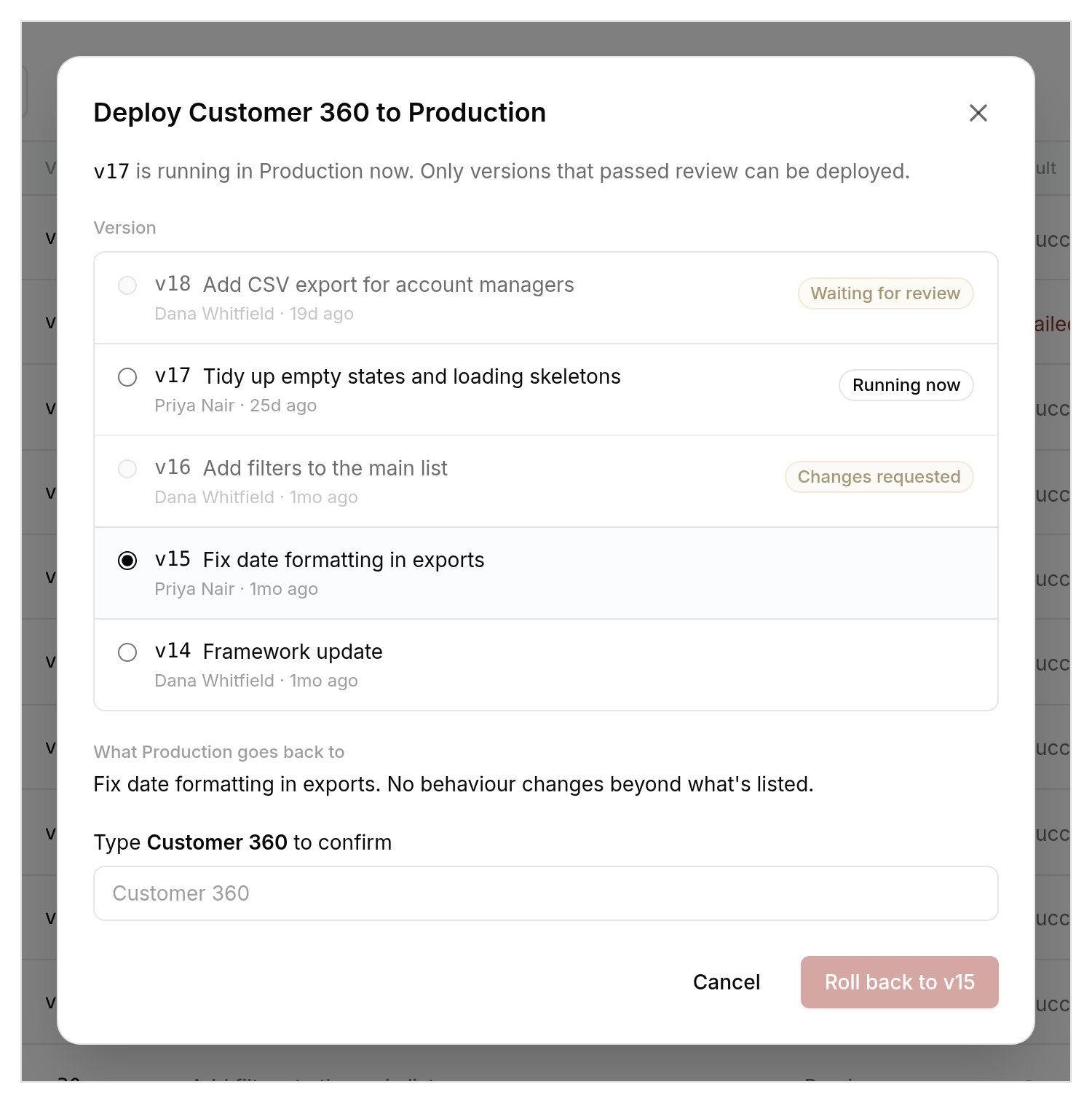
Rolling back Production. Versions waiting for review or with changes requested can't be picked.