
Prerequisites
- A Synthetiq account — request access if you don’t have one
- A Mac running macOS 12 or later
Steps
1
Download Synthetiq
Open your browser and go to console.synthetiq.com/console/settings/downloads. Under the latest version, click the download link for your Mac type — Mac (ARM64) for Apple Silicon or Mac (x64) for Intel. Your browser saves a 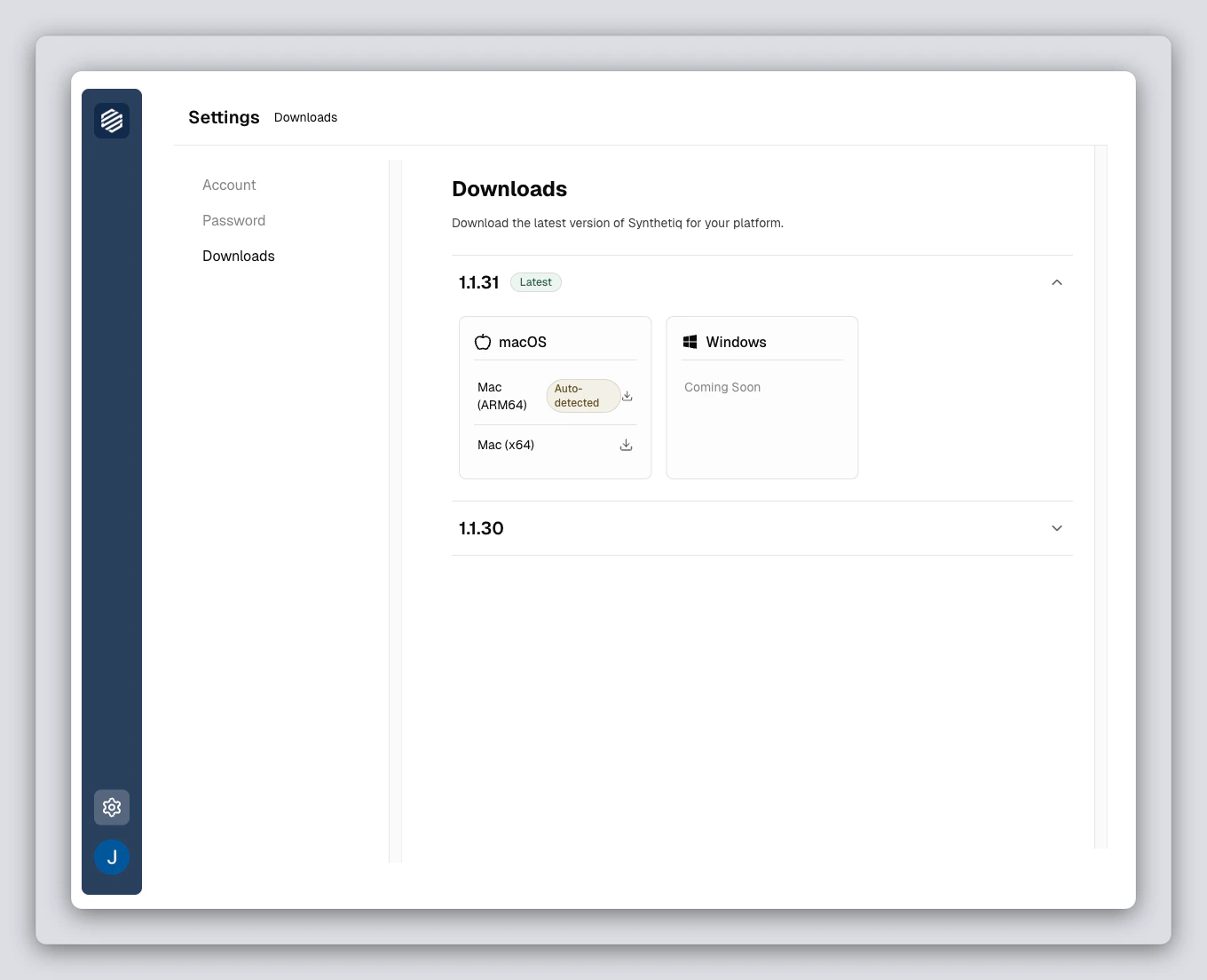
.dmg file to your Downloads folder.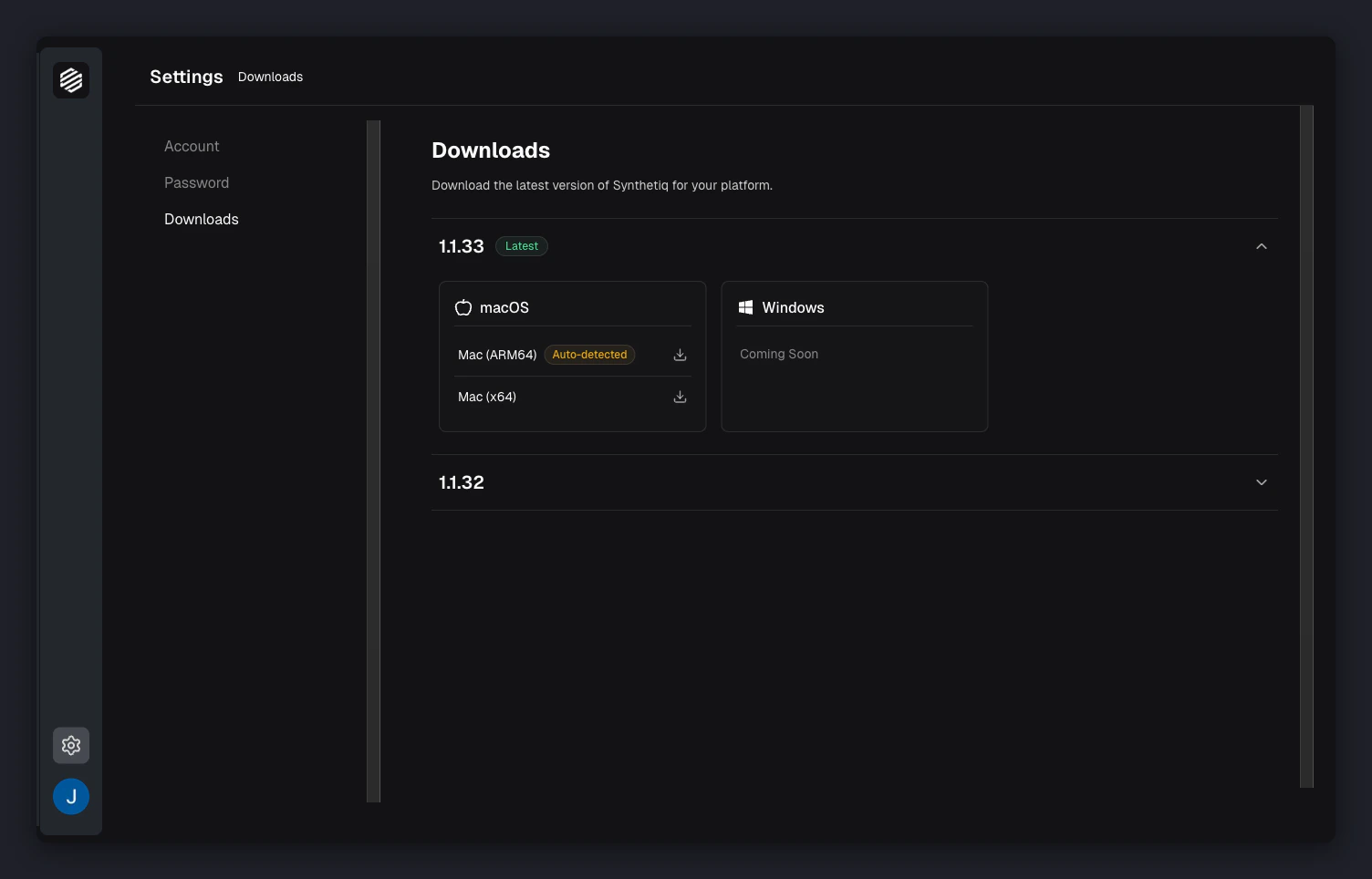
2
Open the installer
Open your Downloads folder and double-click the Synthetiq 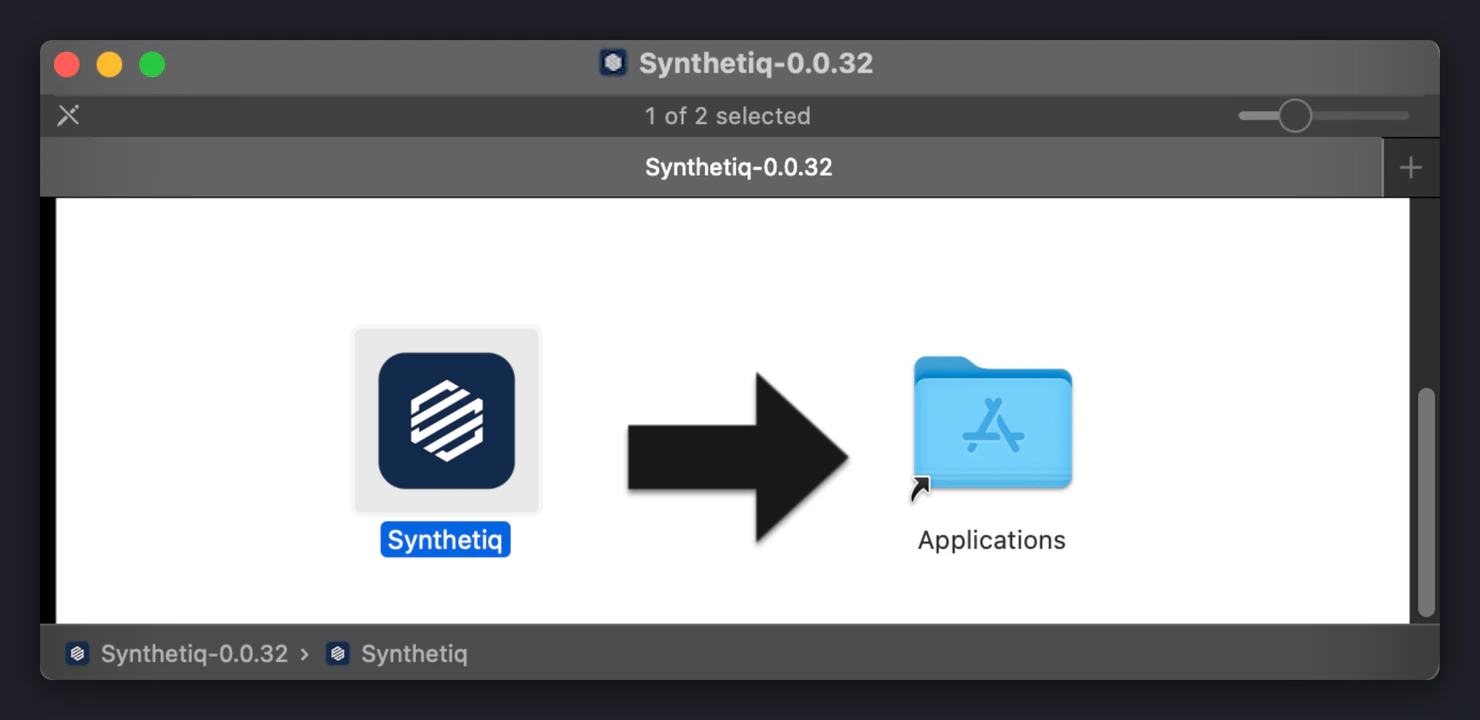
.dmg file. A window opens showing the Synthetiq app icon. Drag the icon into the Applications folder shortcut in the same window.3
Open Synthetiq
Open your Applications folder and double-click Synthetiq.
4
Sign in to your account
Synthetiq opens to the sign-in screen. Enter your email address and password, then click Sign in.If you don’t have an account yet, click Sign up to create one before continuing.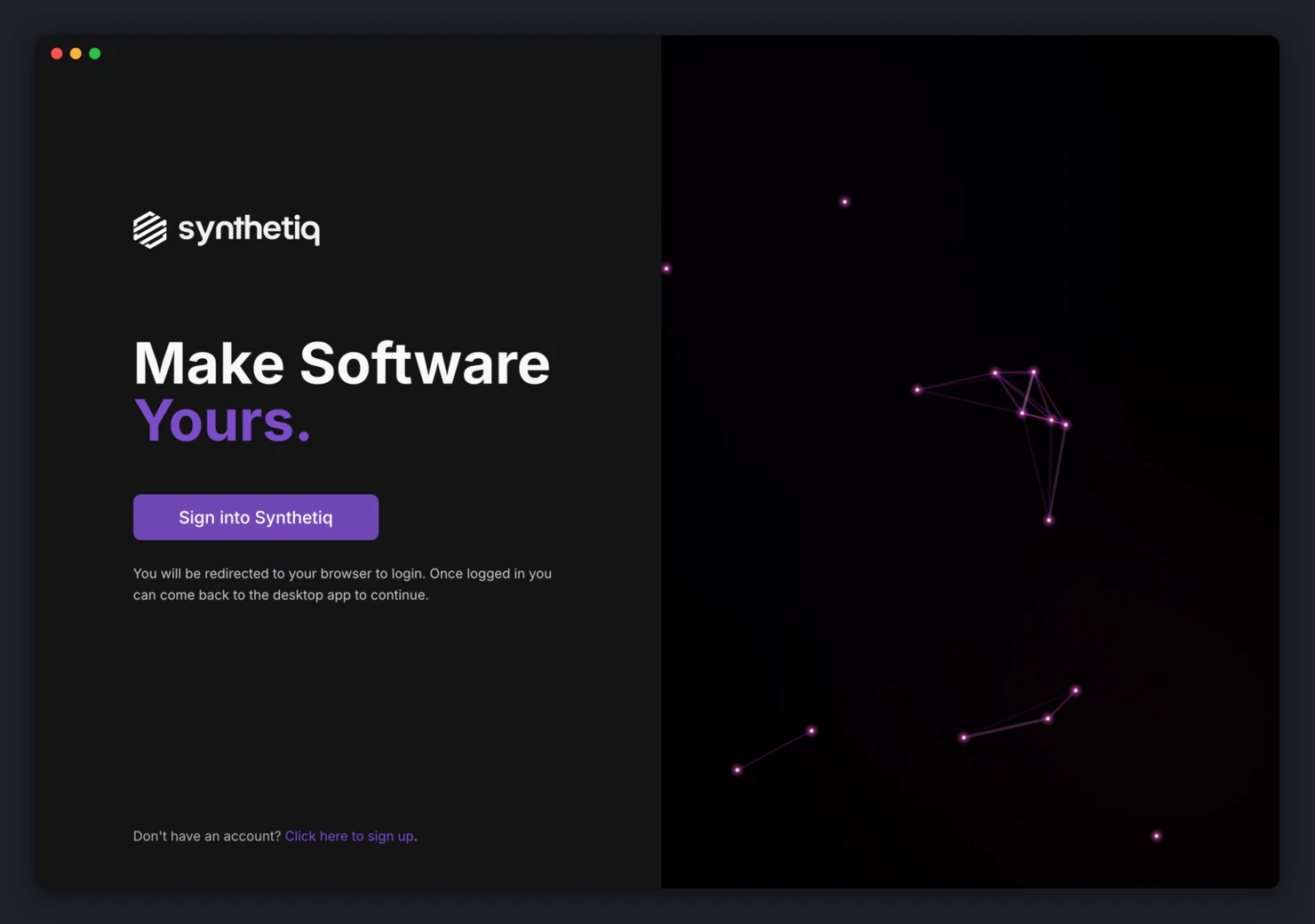
5
You're in
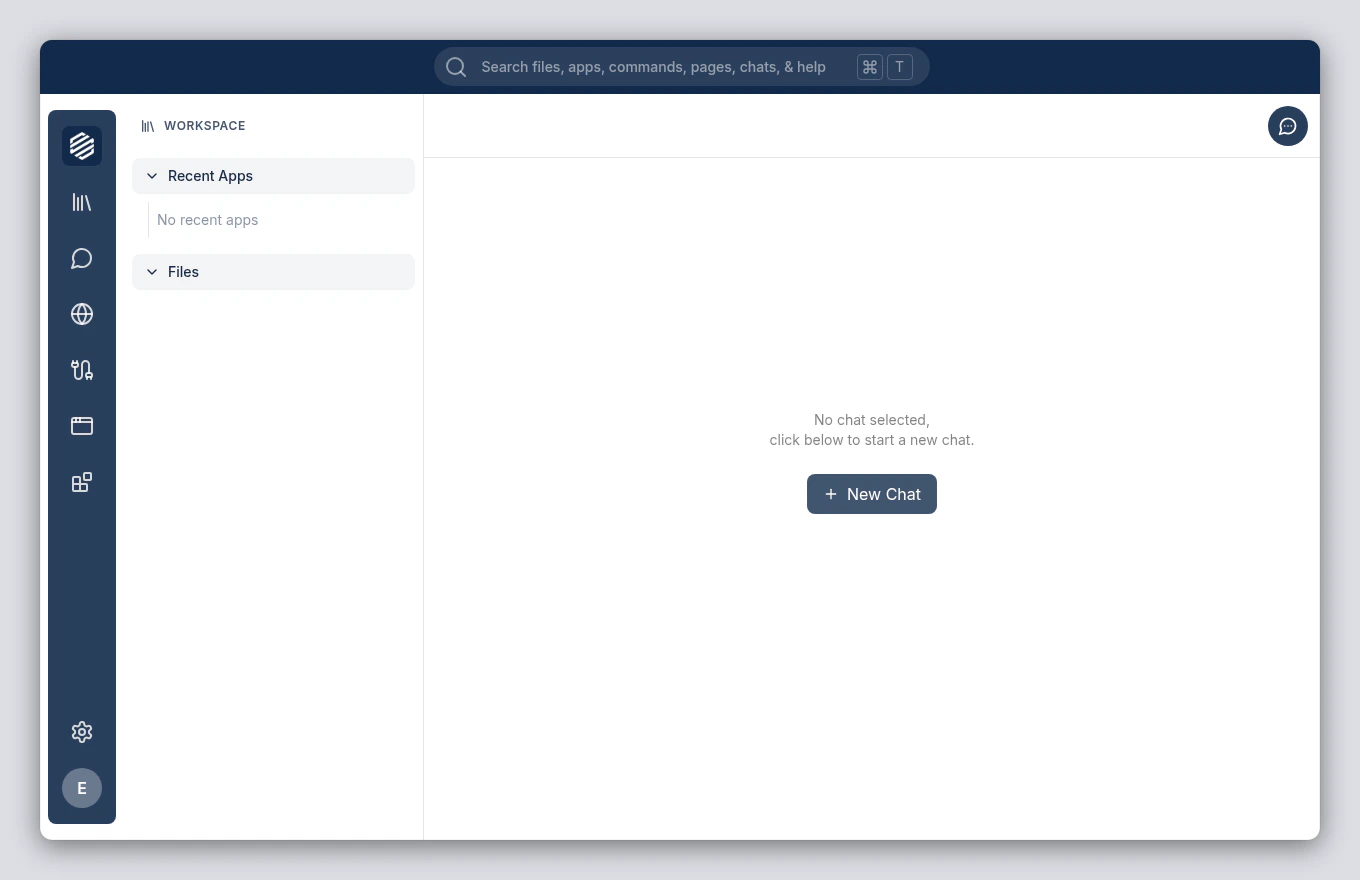
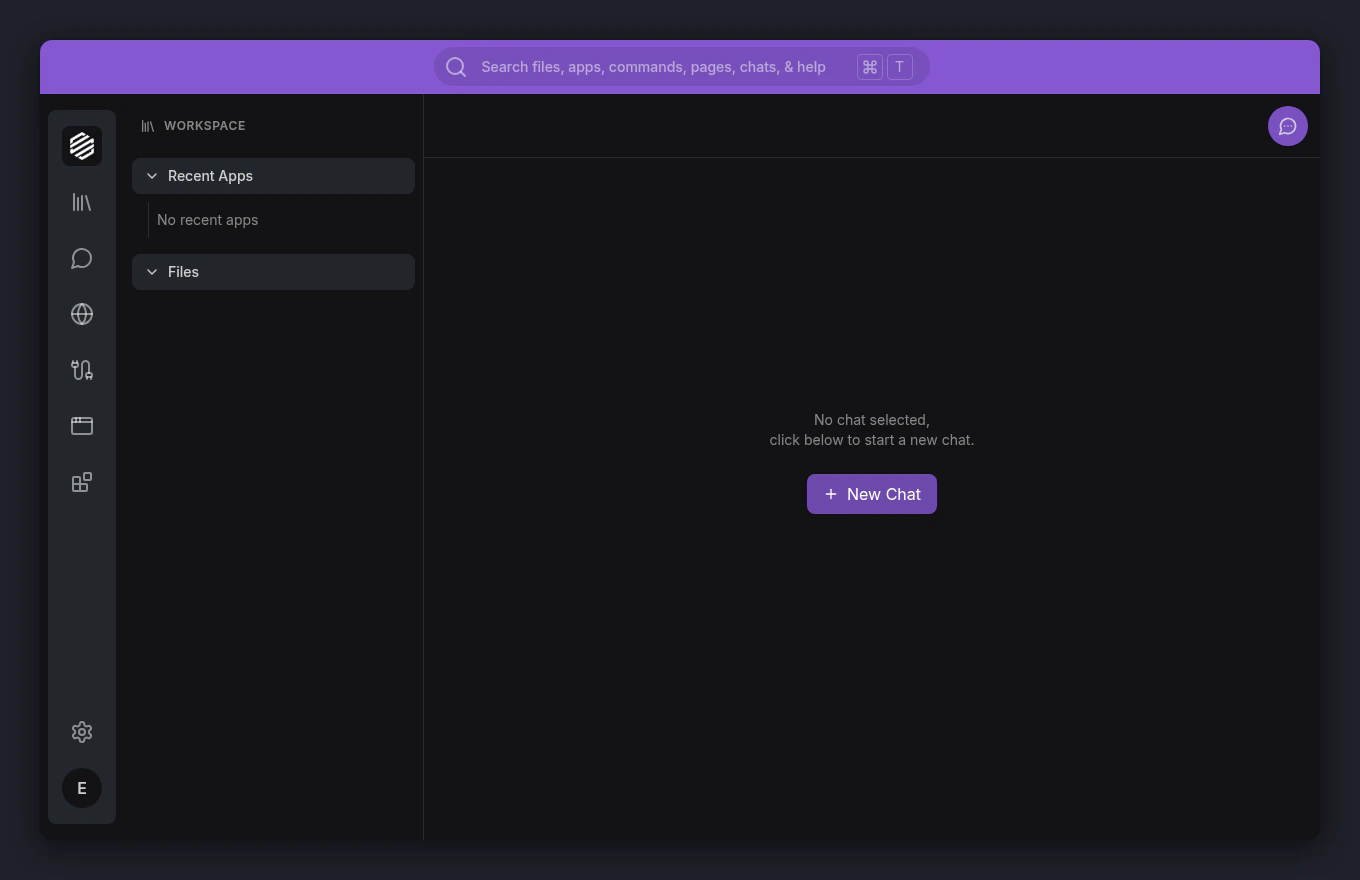
After signing in, Synthetiq opens your workspace. You’ll see the sidebar on the left, your content area in the center, and the chat panel on the right.