

Apps in the same workspace already connect automatically — when you build a new app, the AppWriter agent can draw on your other apps with no setup. Follow this tutorial to connect to a deployed app, such as one a colleague deployed or one you want any app to reach.
Prerequisites
- An app that’s already deployed — connecting uses the deployed app’s live API. If you haven’t deployed yet, see How to Publish an App.
- Admin access to that app, so you can open its OAuth Clients page.
- A second app — new or existing — where you want to use the first app’s data.
1
Open your app's OAuth Clients page
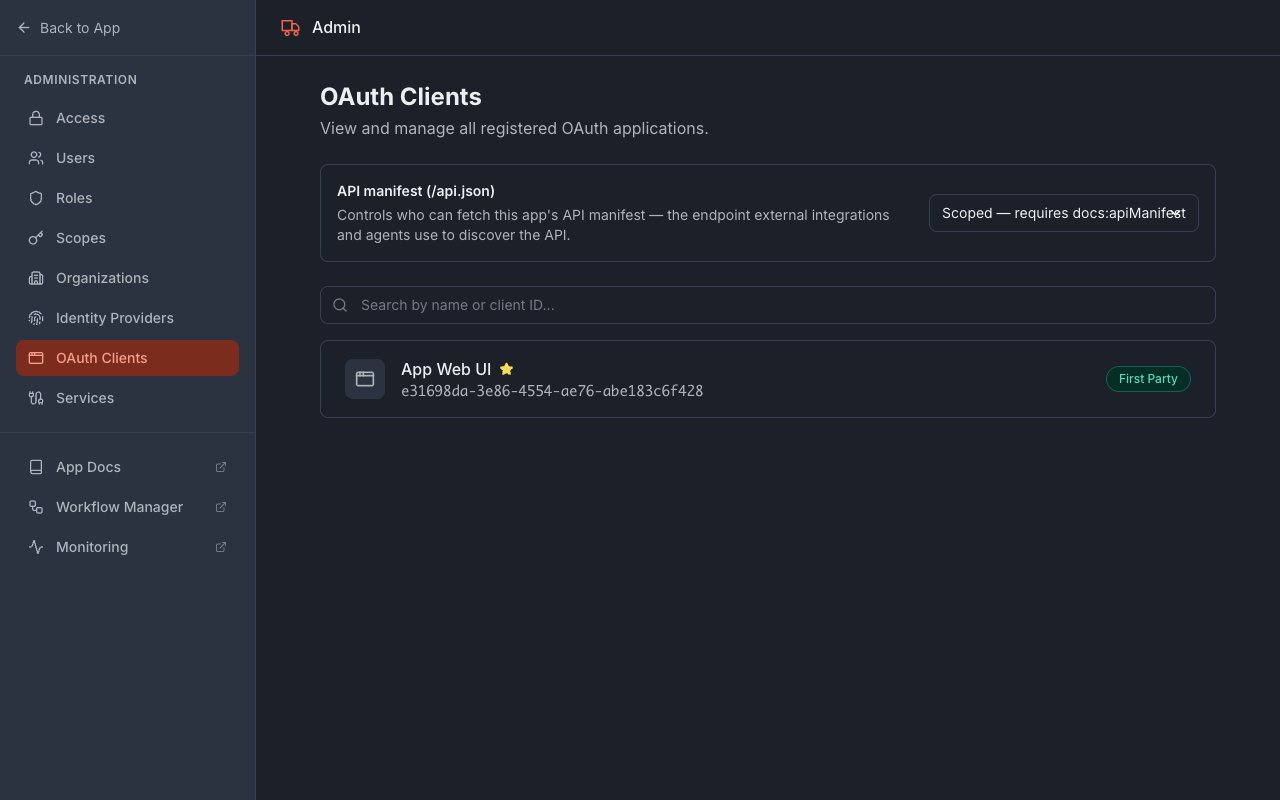
Open your deployed app and go to its Admin area. In the admin menu, click OAuth Clients. At the top of the page you’ll see a card titled API manifest (/api.json).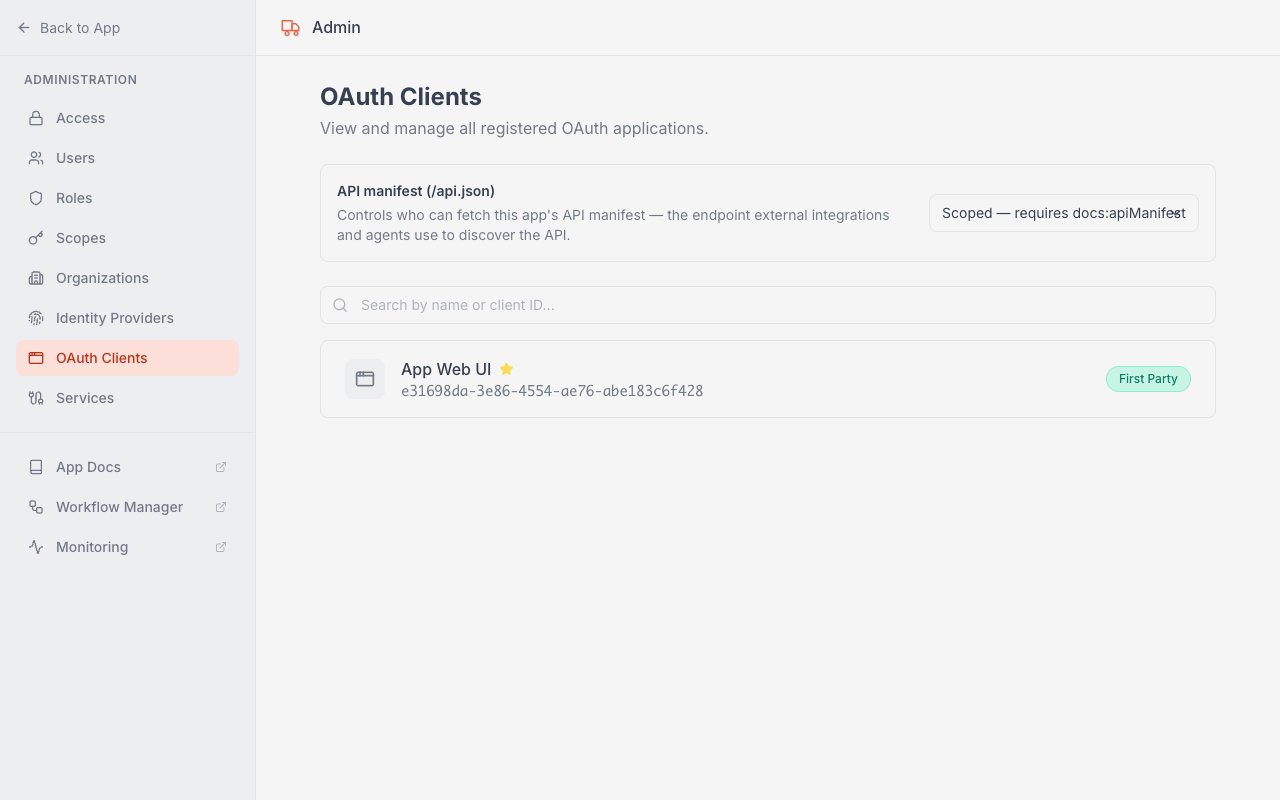
2
Make the API manifest public
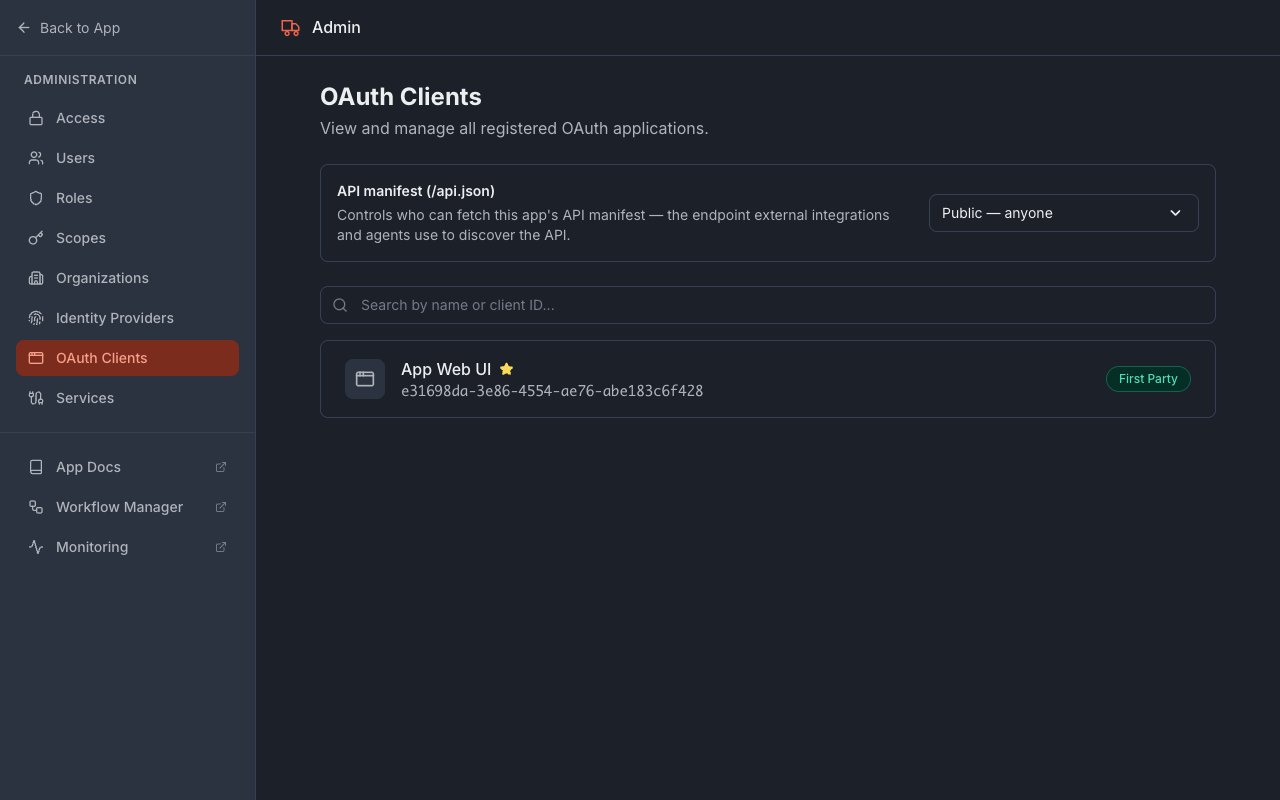
In the API manifest (/api.json) card, open the dropdown on the right and choose Public — anyone. This lets other apps and agents read your app’s API without signing in.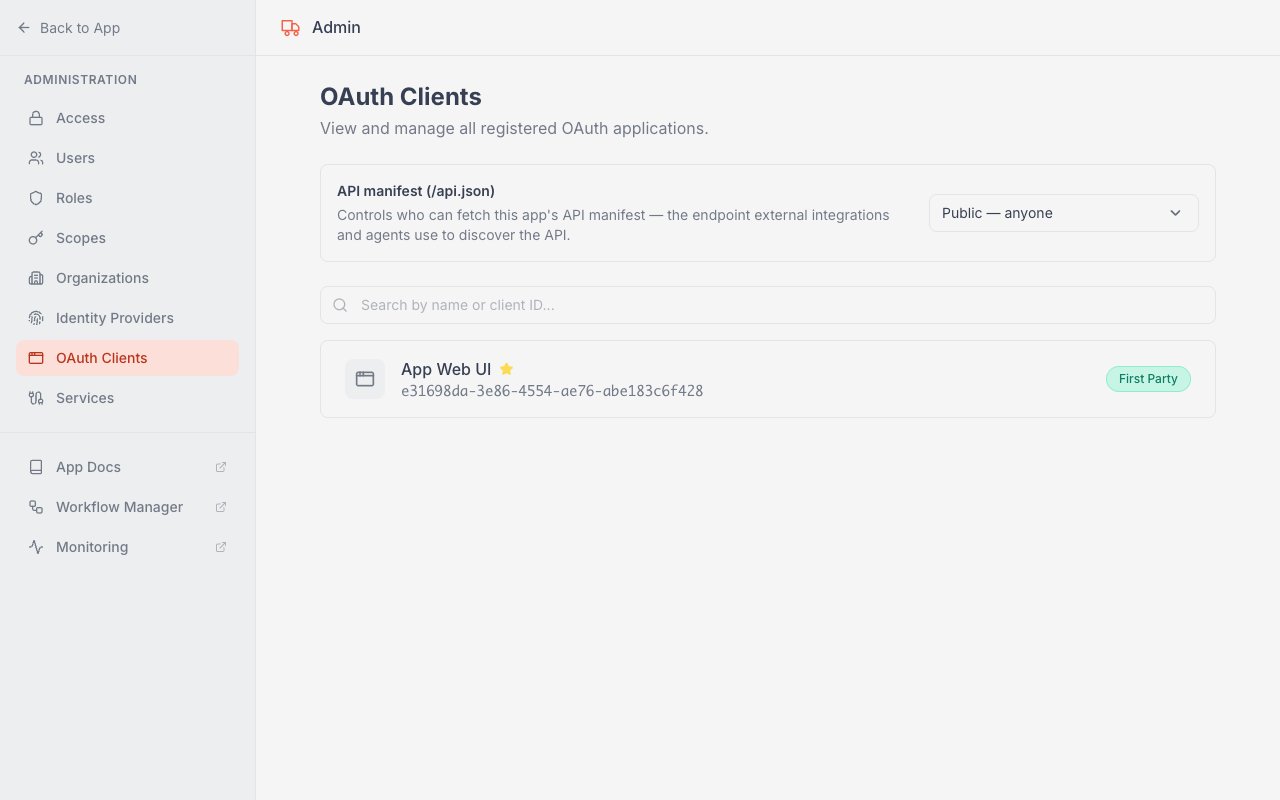
3
Copy your app's API address
Your app’s API has its own address — your app’s domain with 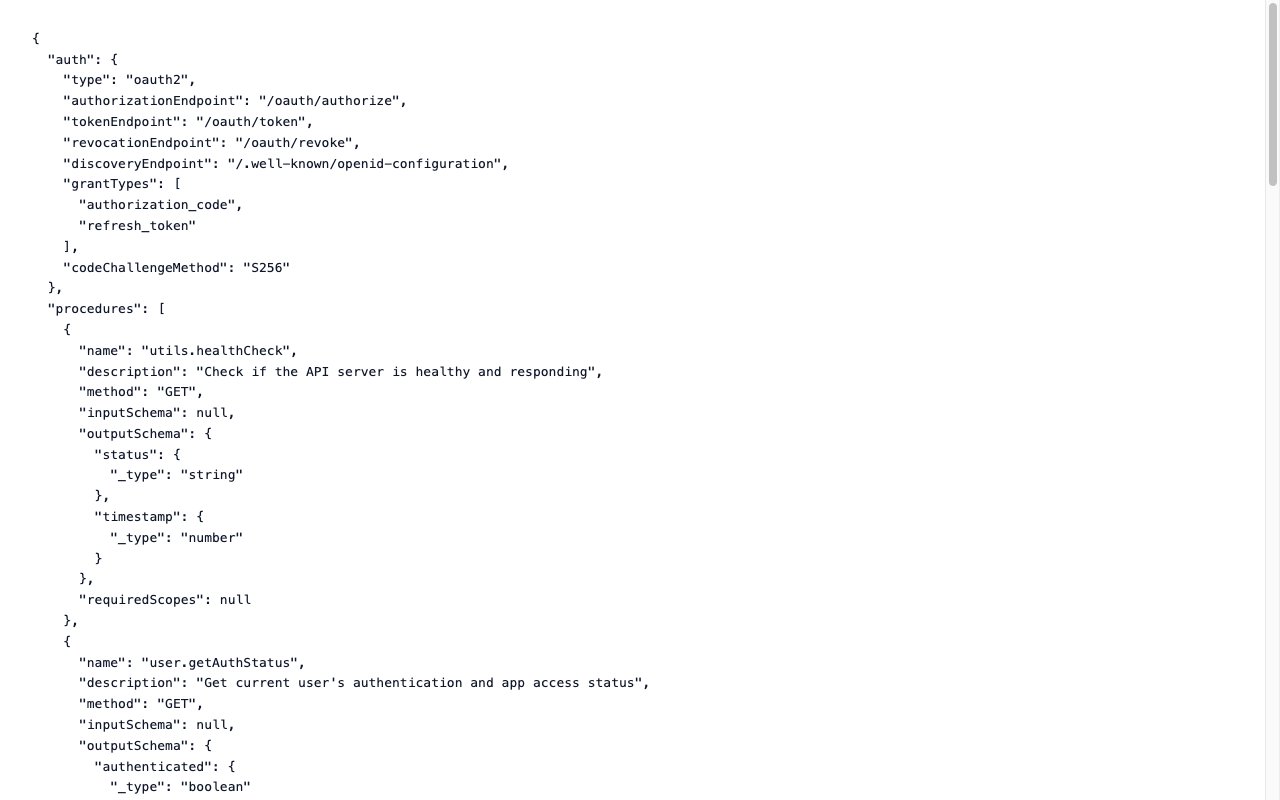
api. in front. For example, if your app is at myapp.synthetiqapps.com, its API lives at myapp.api.synthetiqapps.com, and the manifest is at myapp.api.synthetiqapps.com/api.json. Open that /api.json address in a browser to confirm you see the API manifest — a page listing the app’s endpoints — then copy it.4
Ask Synthetiq to create a service
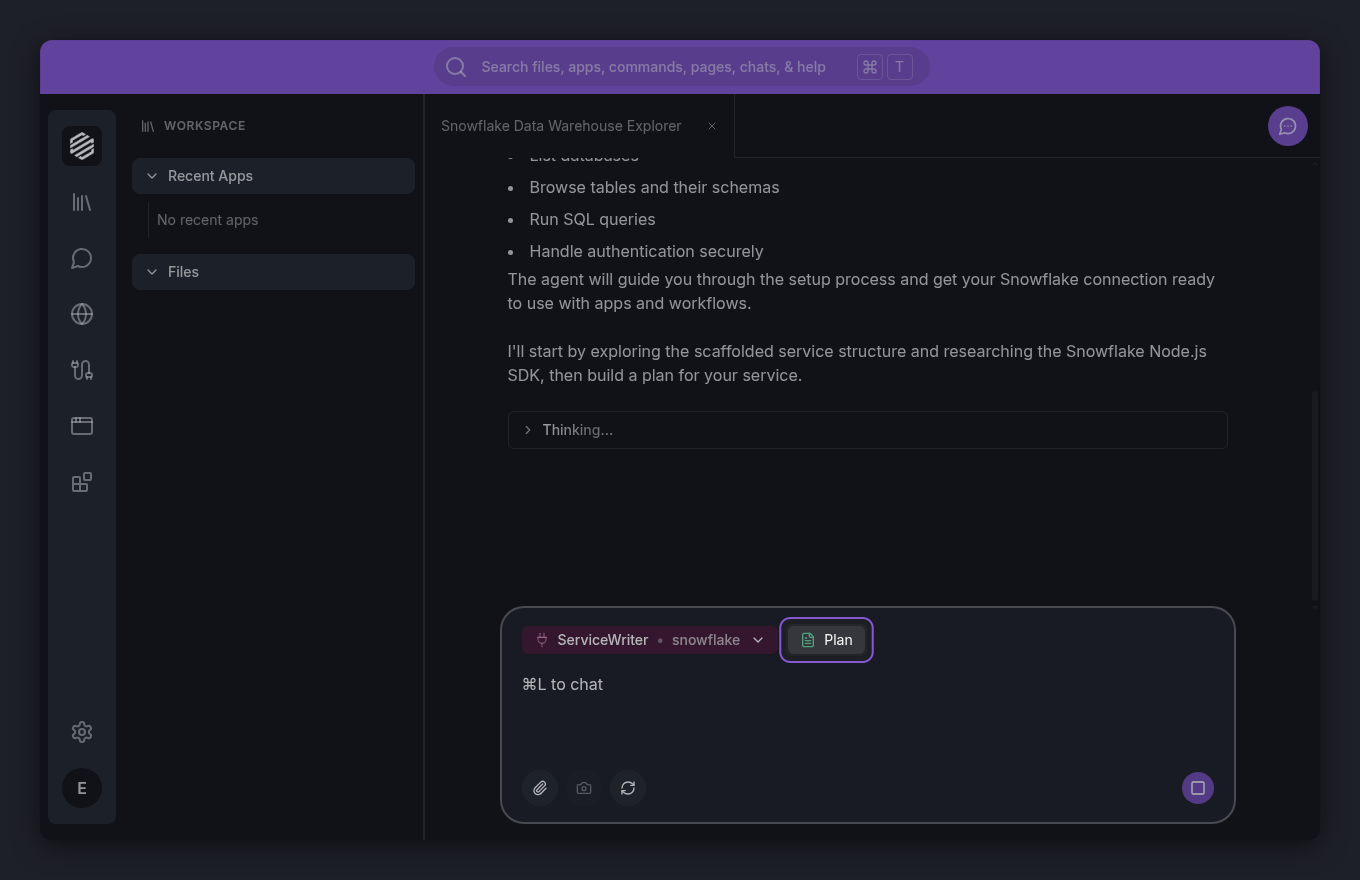
Switch to Synthetiq and open the chat. Paste the address you copied and ask the agent to create a service for it — for example, “Create a service for the API at the URL I just copied.” The Workspace agent hands off to the ServiceWriter agent, which reads the manifest, builds the service, and adds it to your workspace. For the full service-building walkthrough, see Create Your First Service with the Service Writer.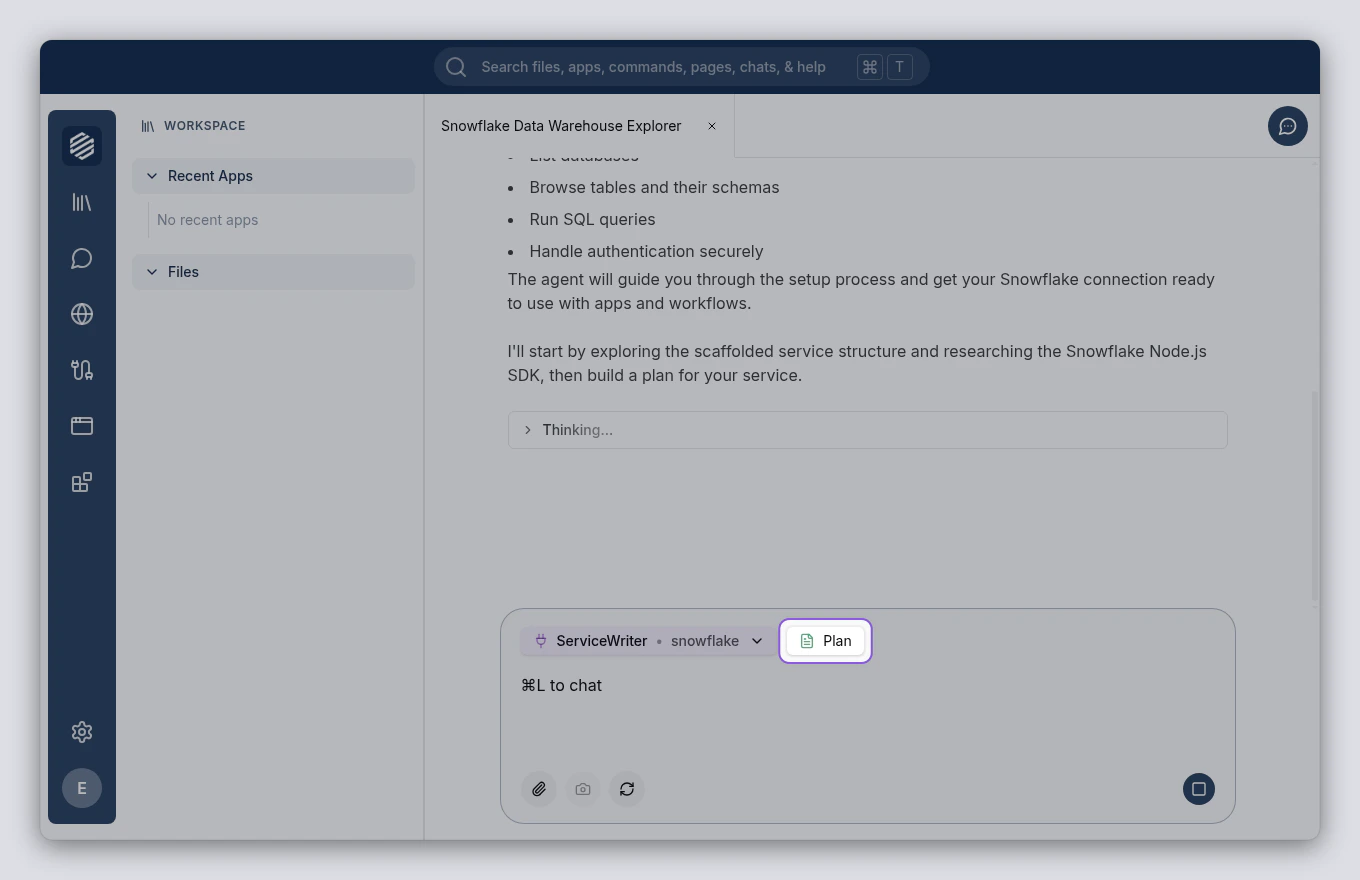
5
Check the new service
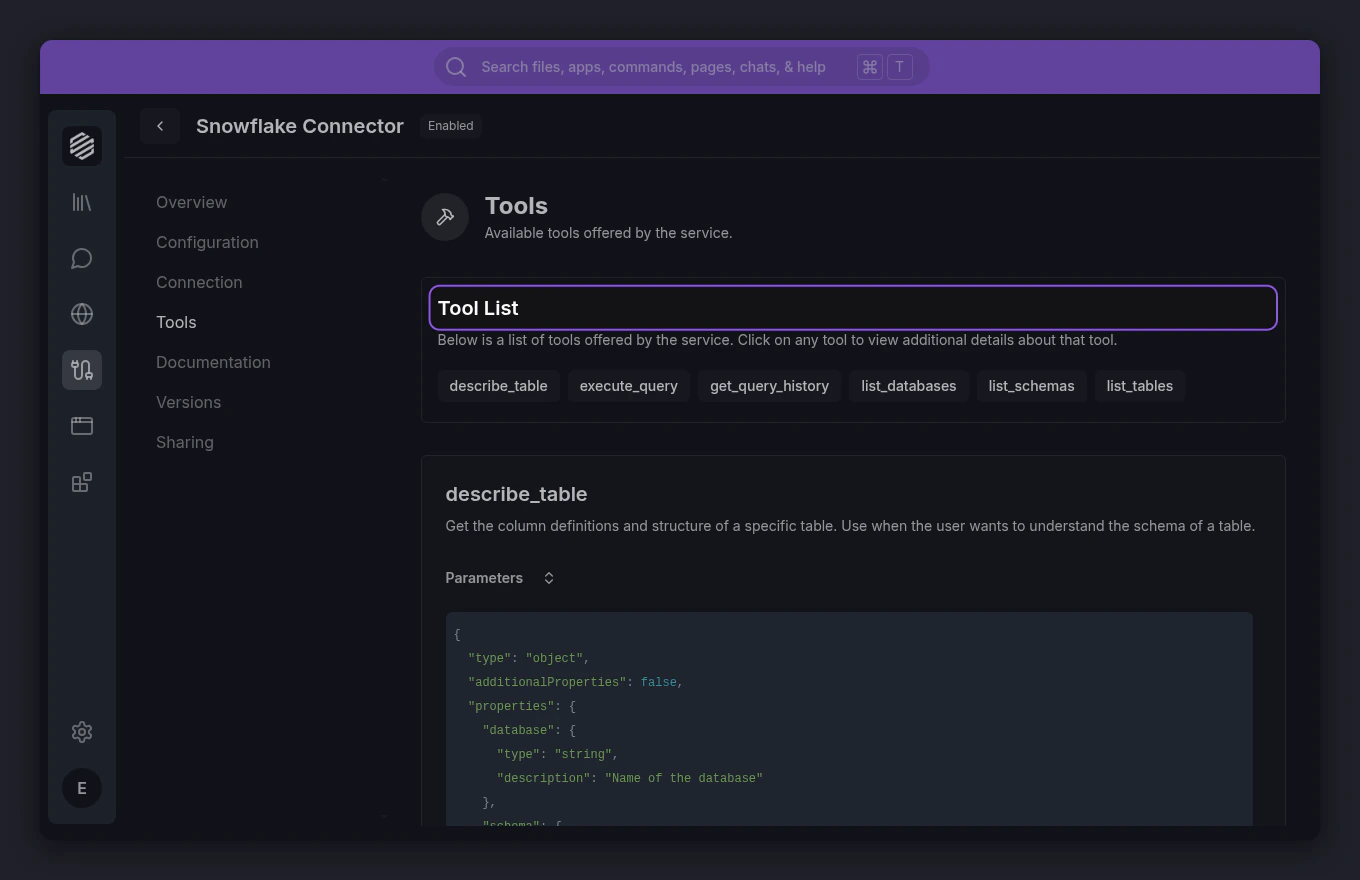
When ServiceWriter finishes, open the Services panel from the left menu. Your new service appears in the list. Click it to see the tools it provides — one for each action the app exposes.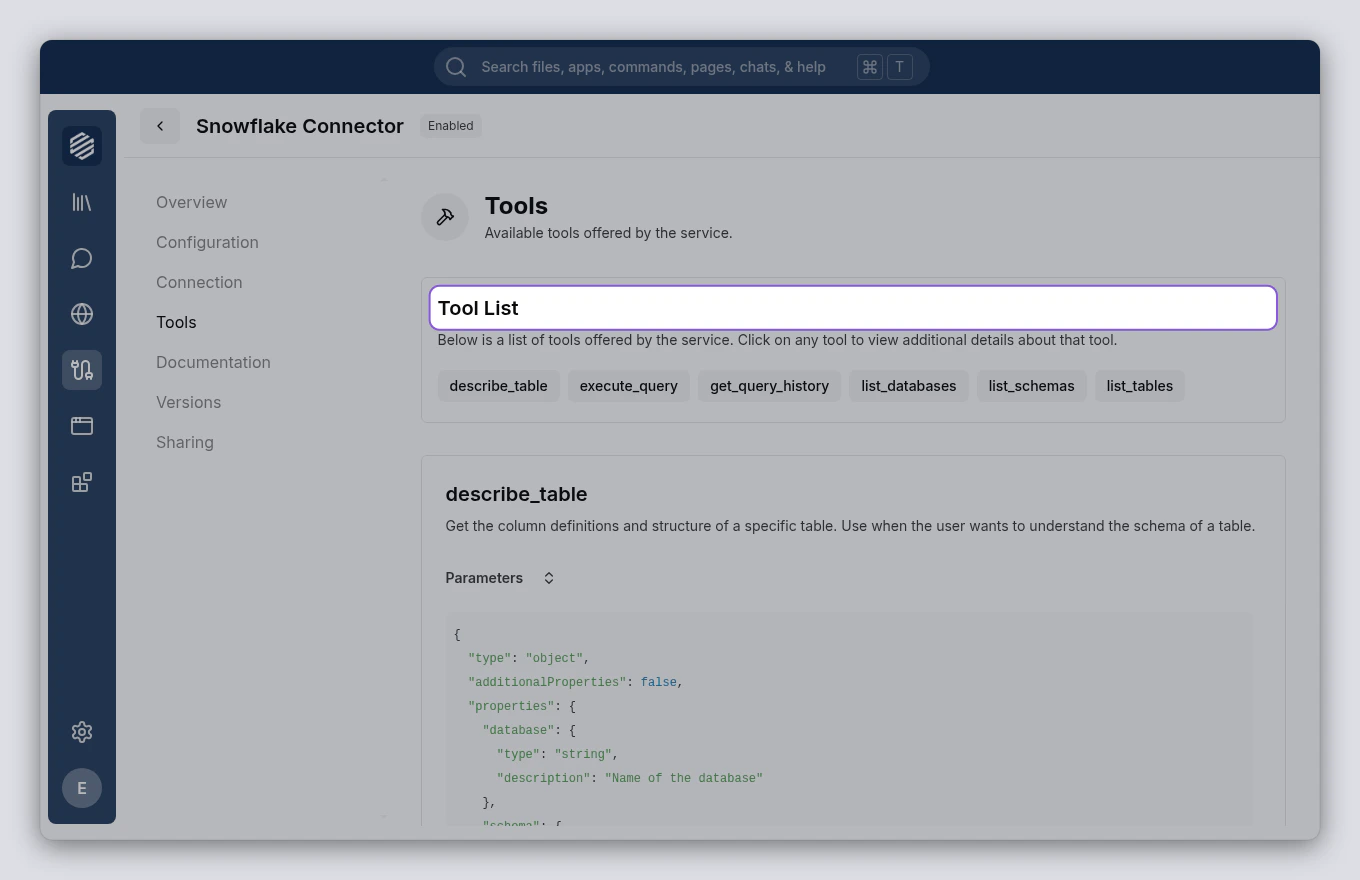
6
Use the service in your other app
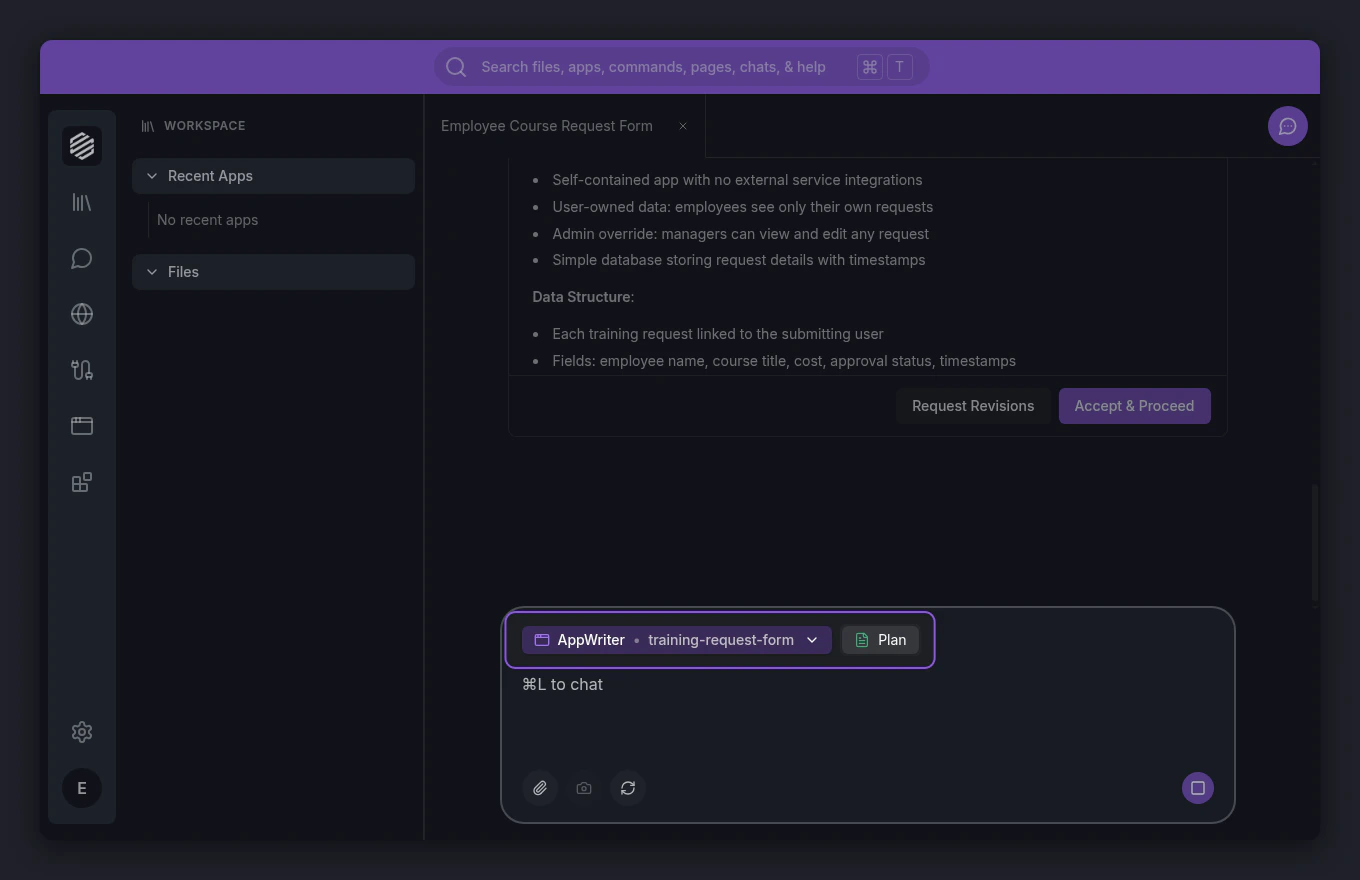
Now build or update your second app to use the service. In the chat, ask the agent to build or change an app that uses it — for example, “Build a Sales Forecasting app that reads deal data from the Customer 360 service.” The Workspace agent hands off to the AppWriter agent, which connects the service so your new app reads live data straight from the first app. For a full app build, see Create Your First App with the App Writer.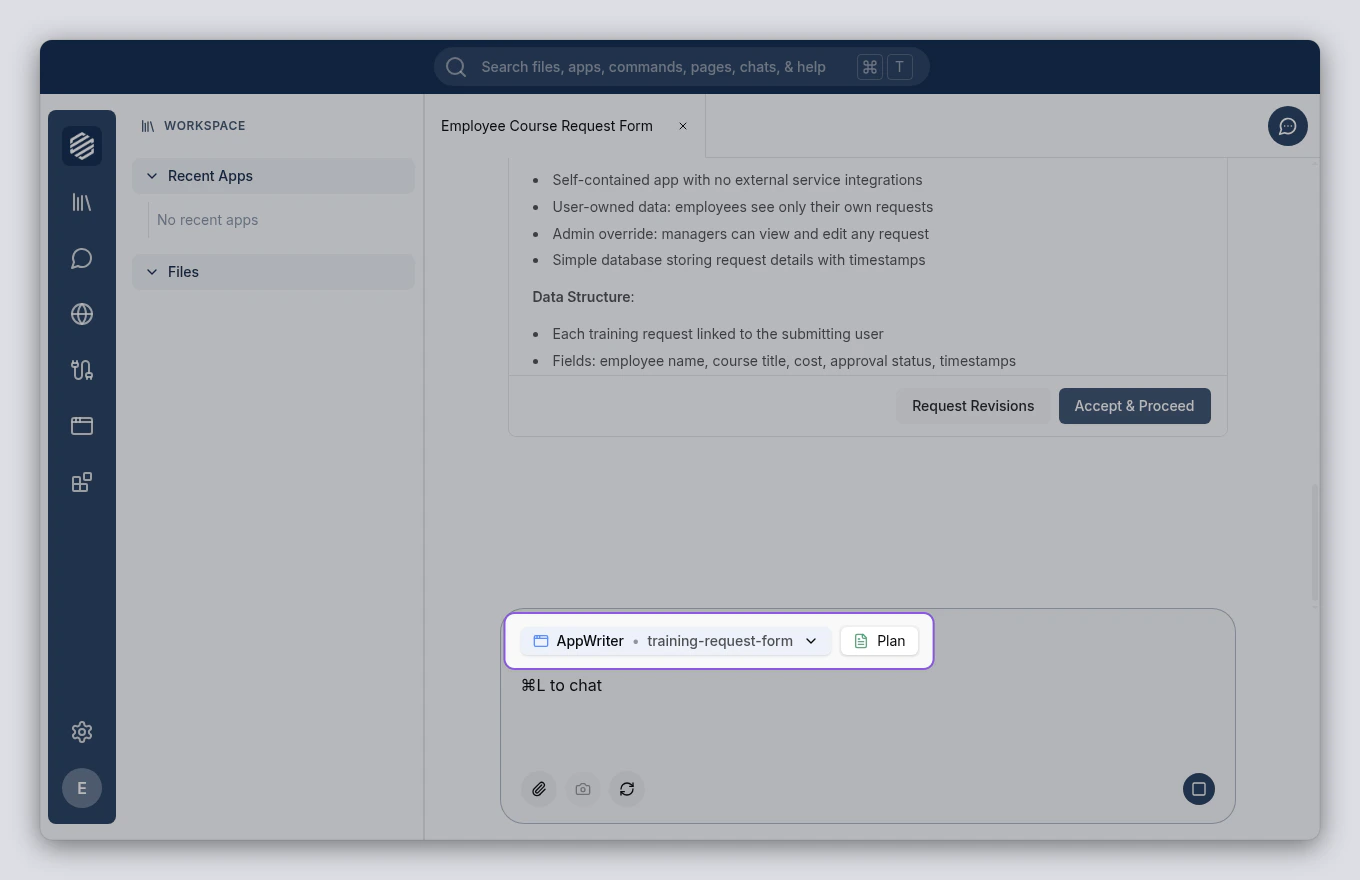
What’s next
How Apps and Services Work Together
See how every app you build becomes a reusable service for the next one.
Create Your First App with the App Writer
Build an app from a chat message — and point it at the service you just created.