

Prerequisites
- A Synthetiq workspace
- At least one AI API key configured (see Setup and API Key)
1
Open the Discover store
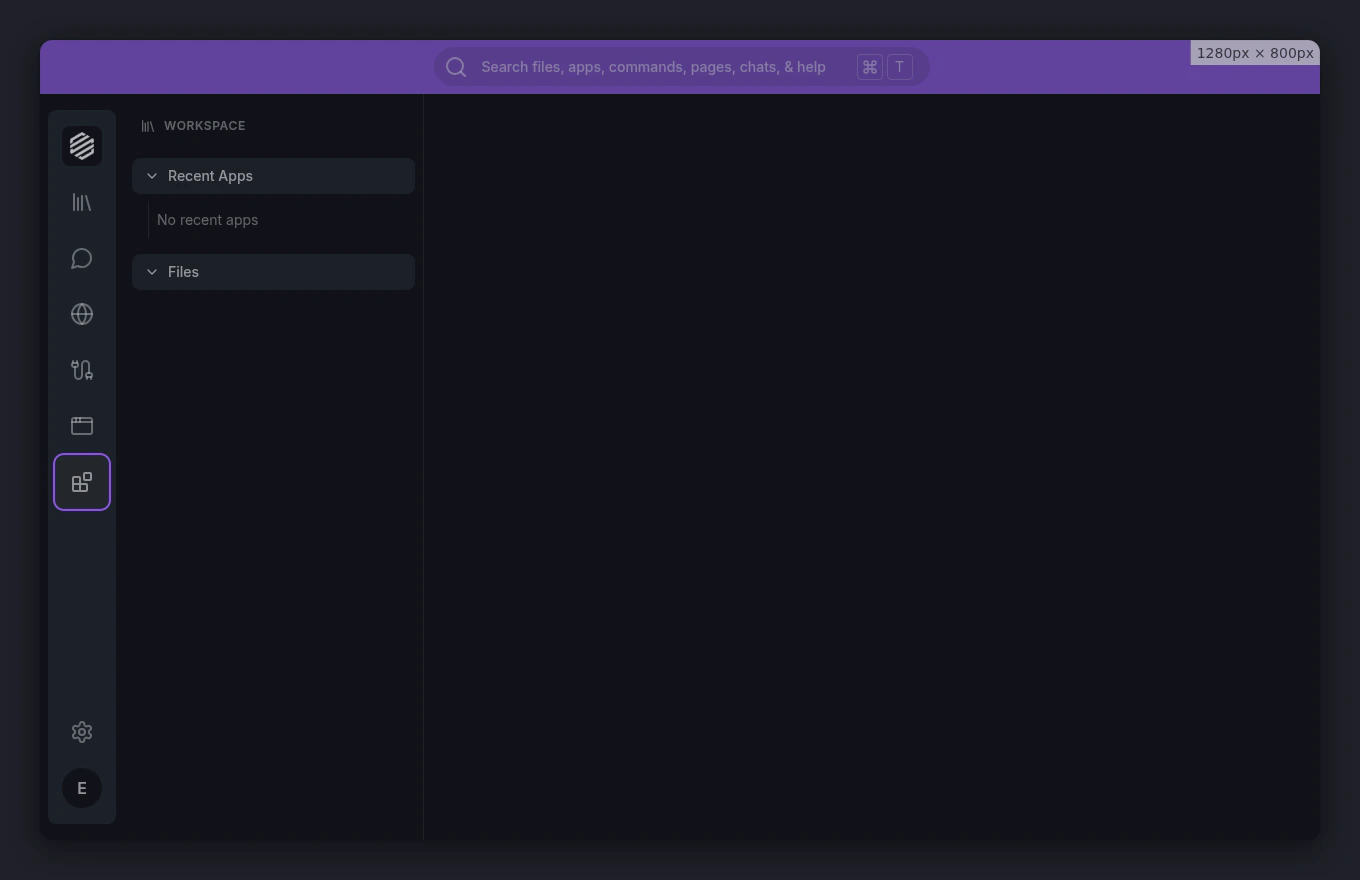
Click the Discover icon in the left sidebar. The store opens as an overlay panel.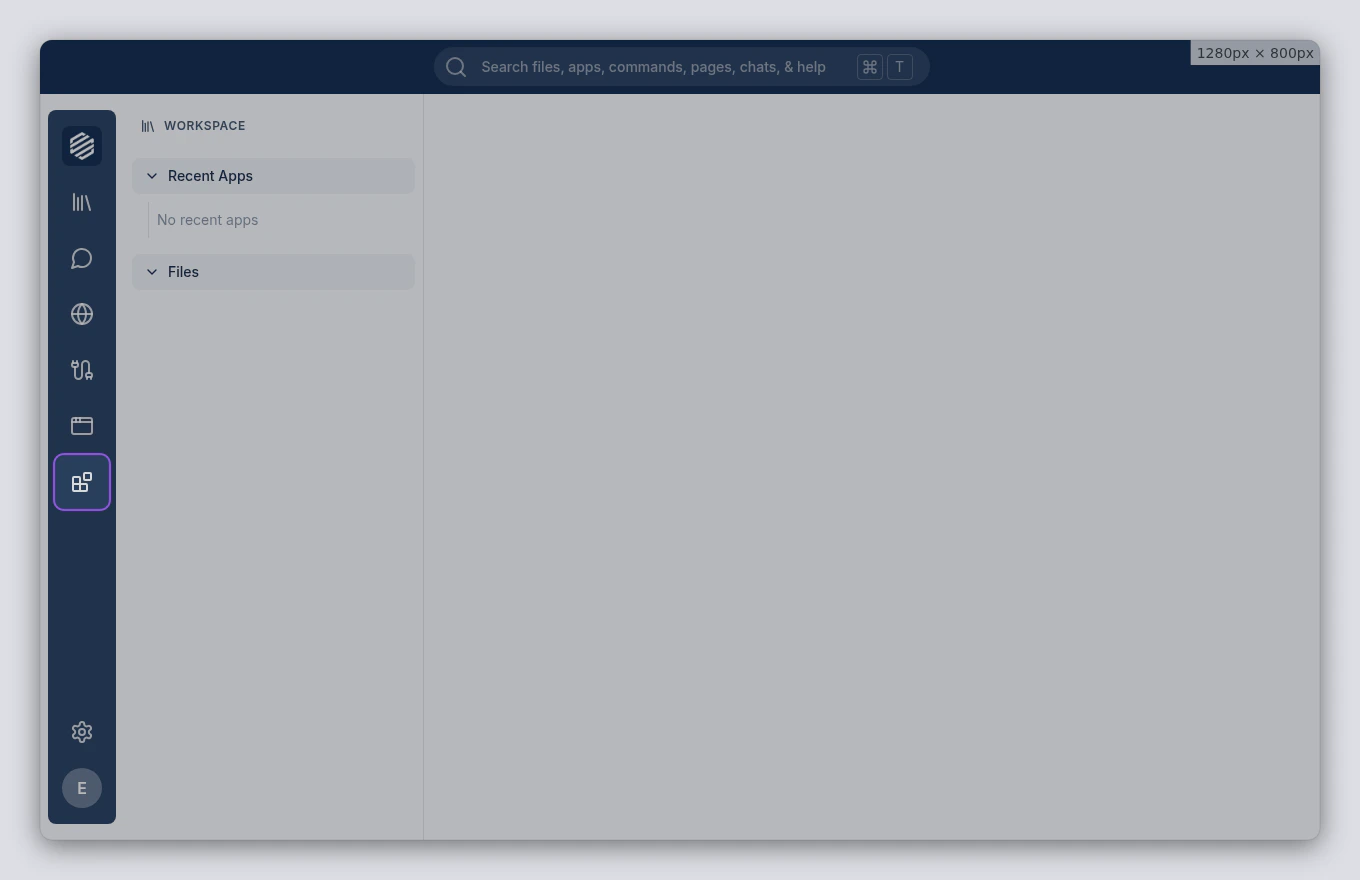
2
Browse apps from your organization
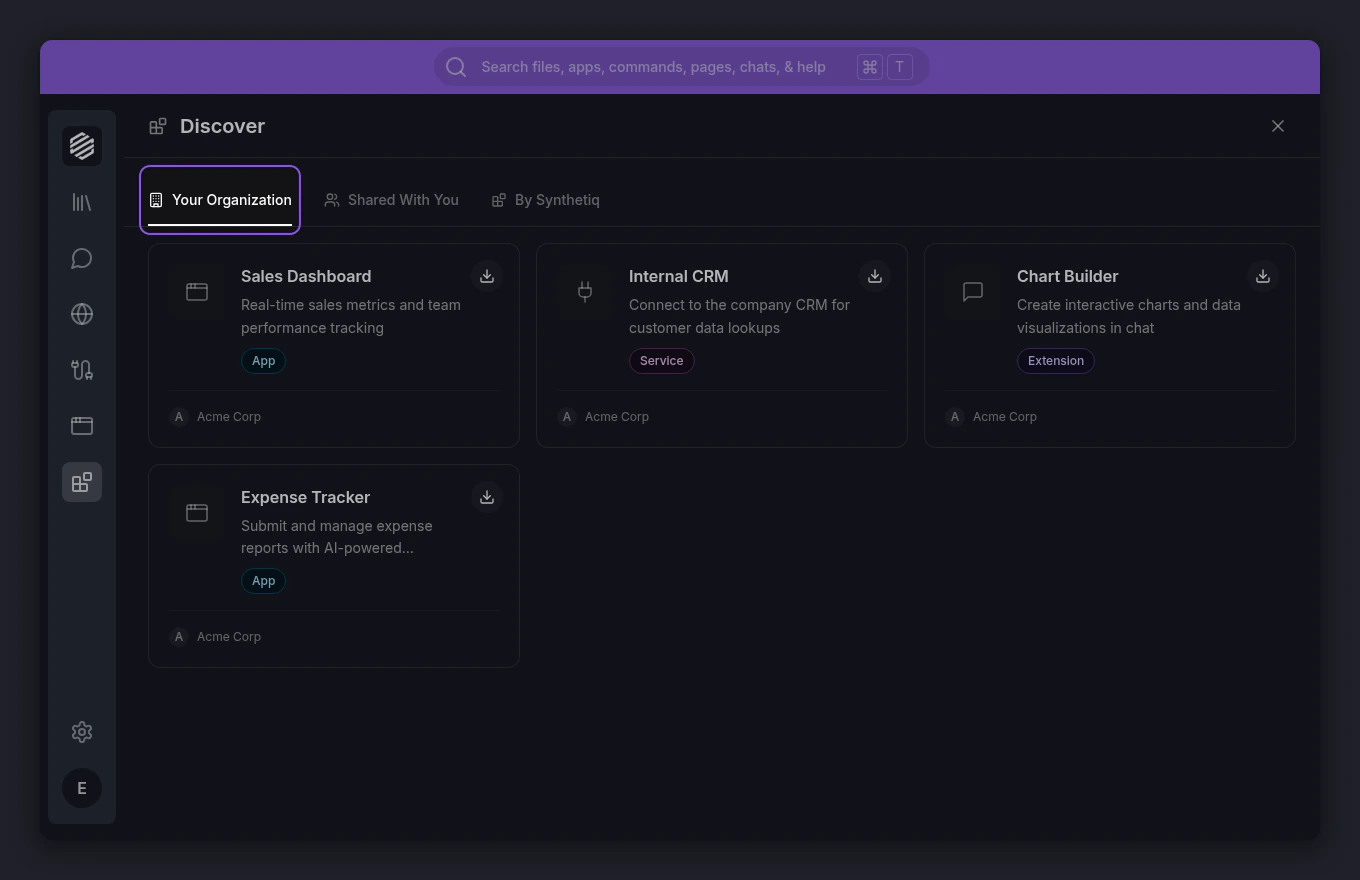
The Your Organization tab shows apps, services, and extensions published by your team. Each card displays the name, description, type, and install status.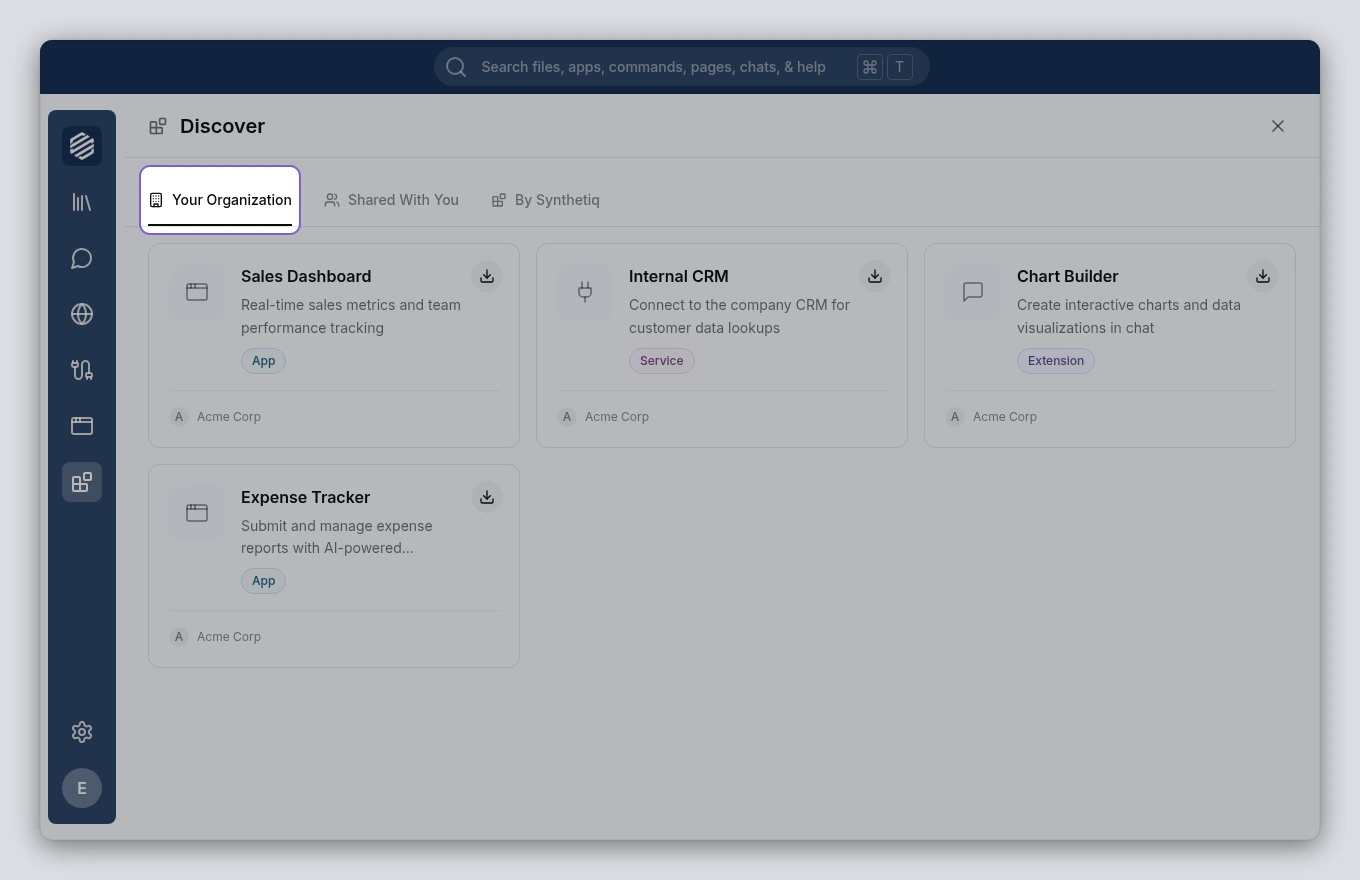
If you’re using a personal workspace (not part of an organization), this tab won’t appear. You’ll still see Shared With You and By Synthetiq.
3
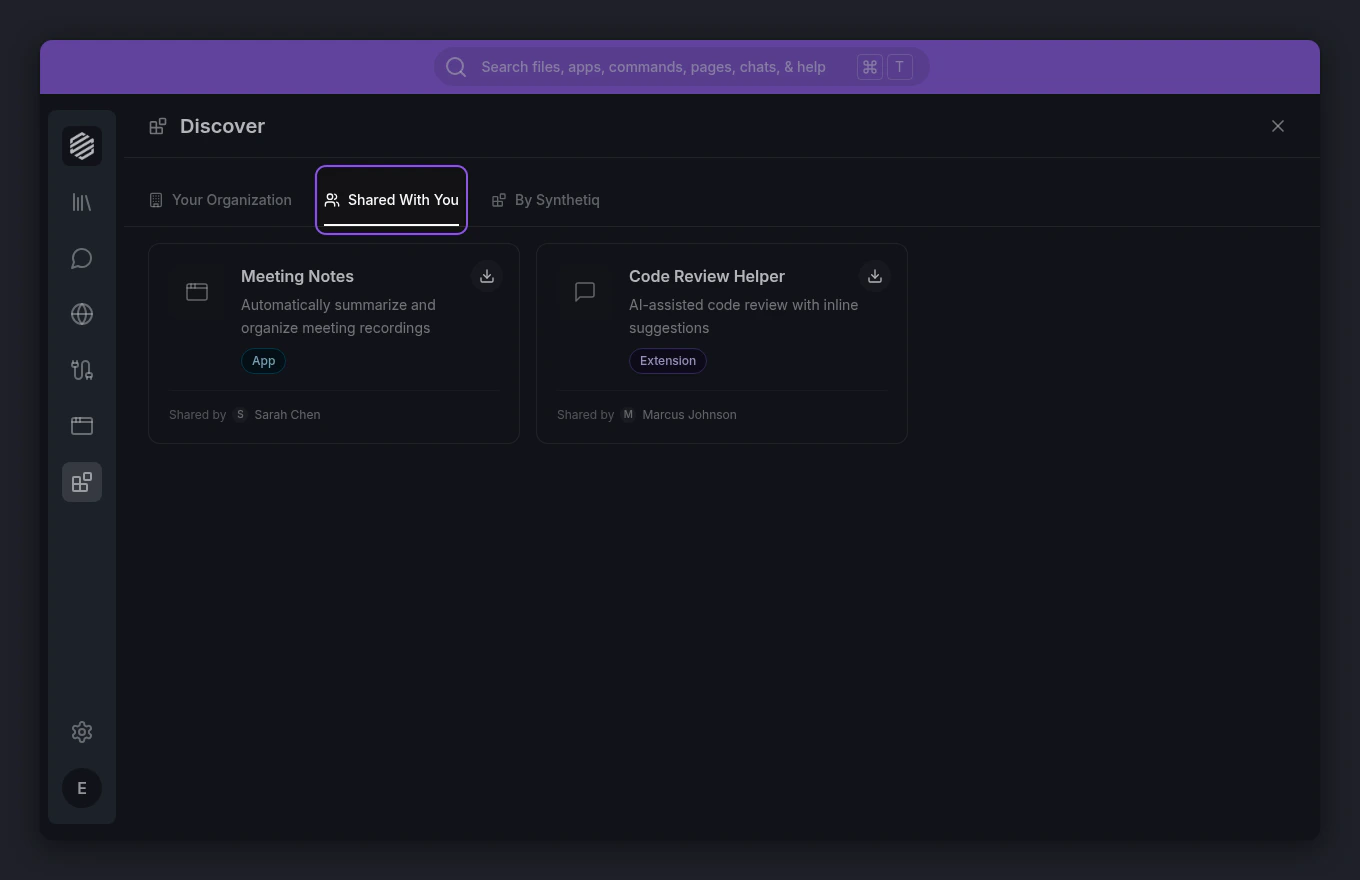
Browse apps shared with you
Click the Shared With You tab to see items that collaborators have shared with you directly. Each card shows who shared it and when.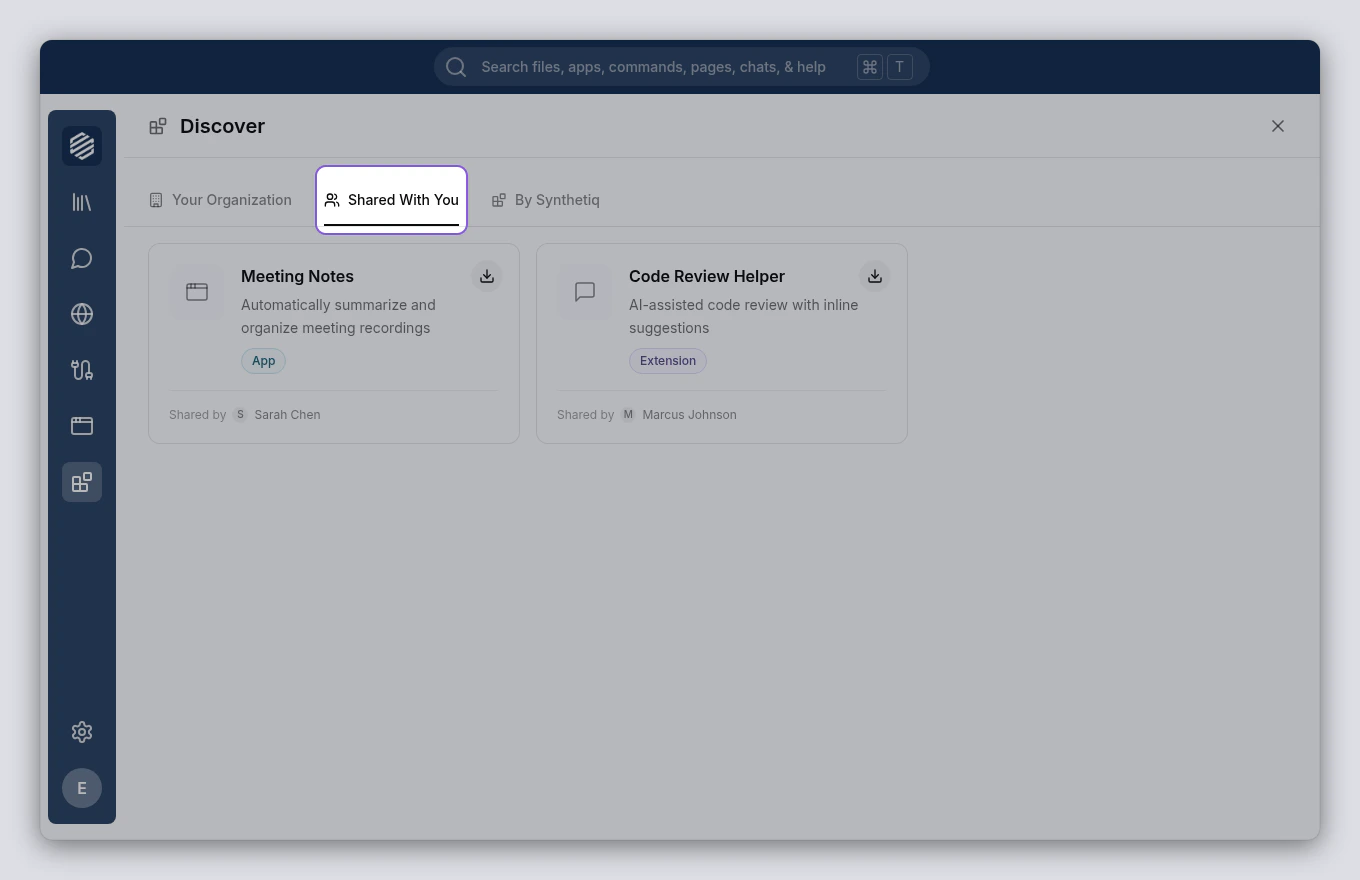
4
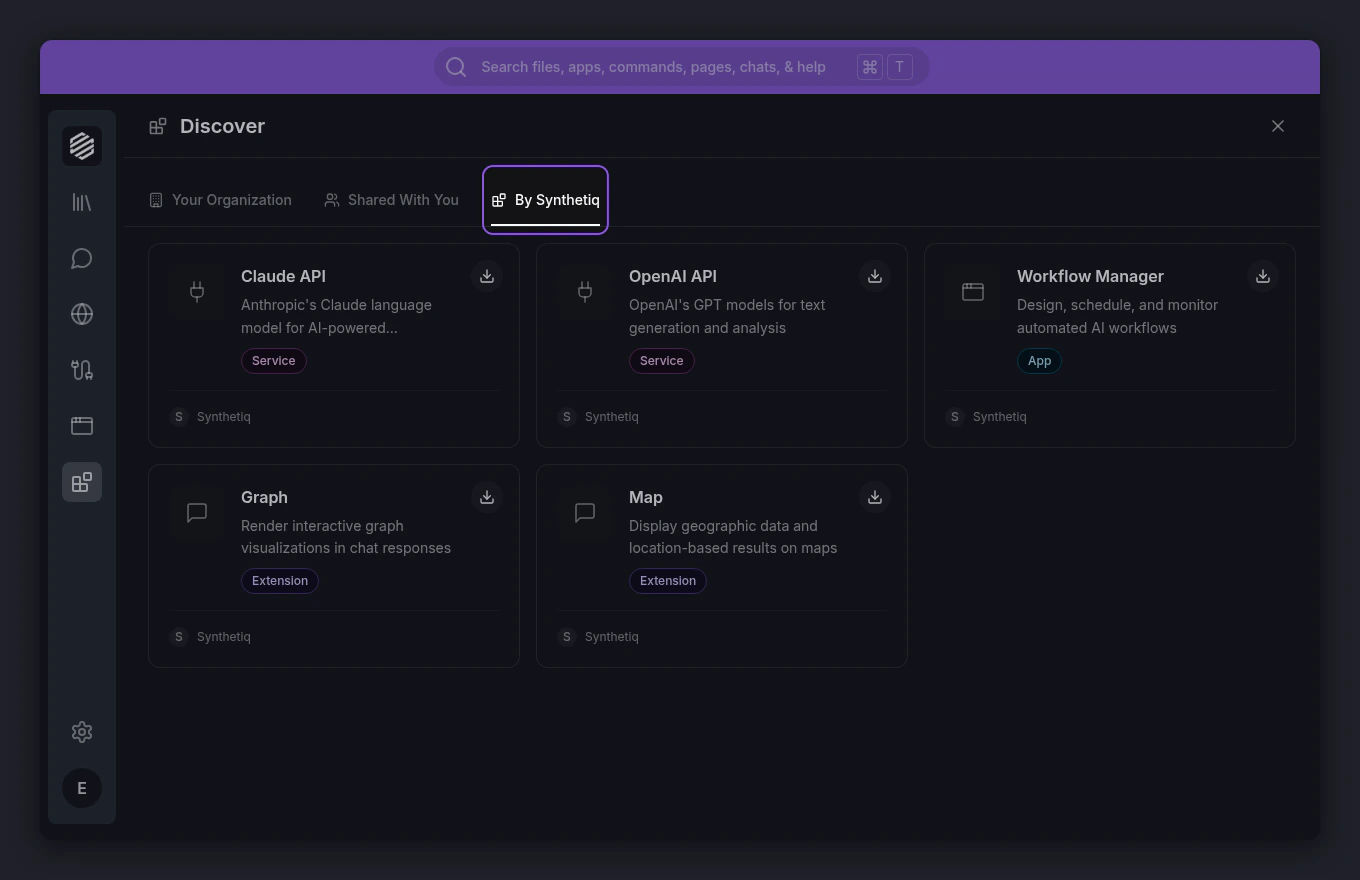
Browse apps by Synthetiq
Click the By Synthetiq tab to see official apps, services, and extensions provided by Synthetiq. These include AI services like Claude API and OpenAI API, plus tools like Workflow Manager.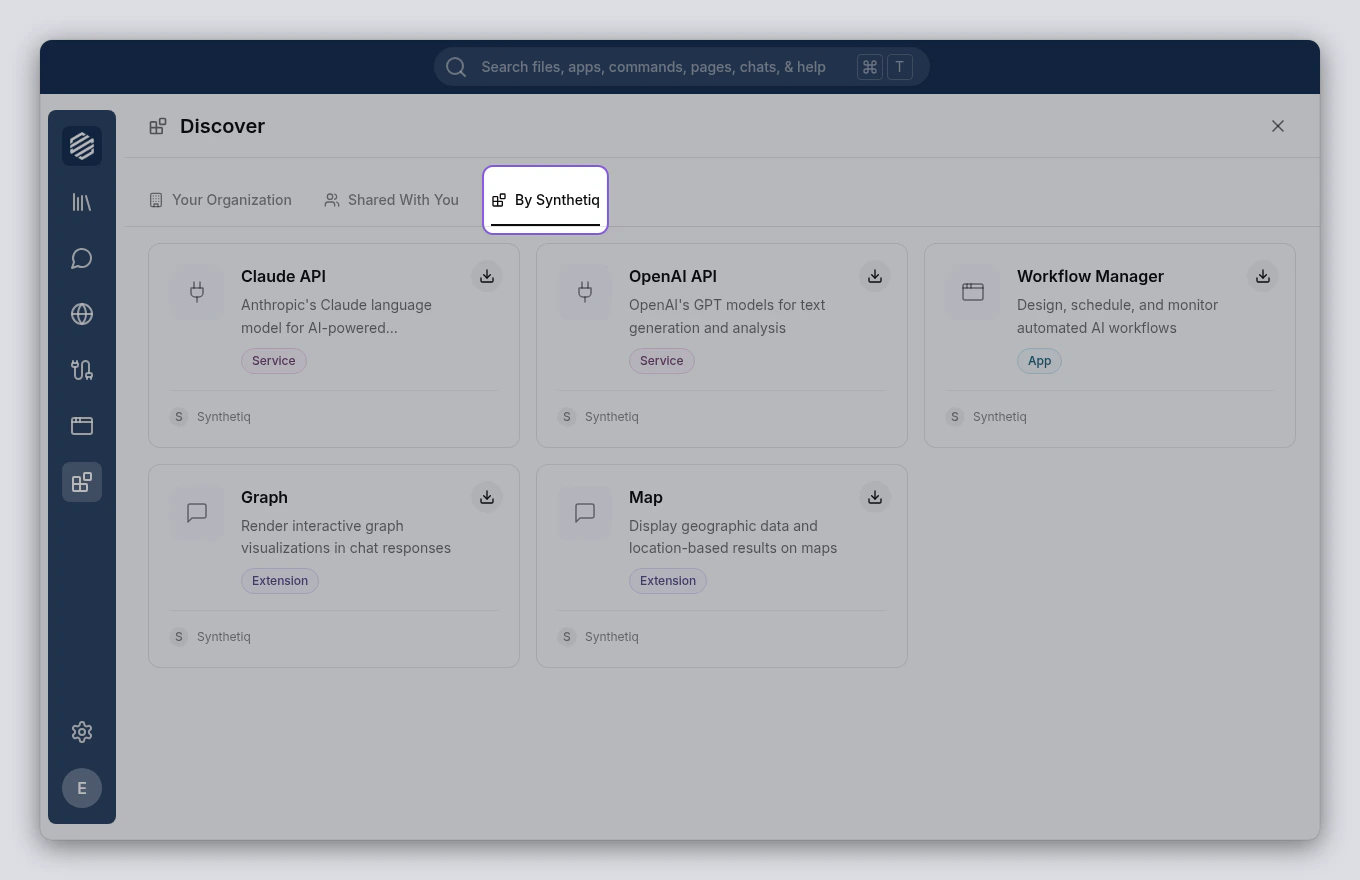
5
Install an app
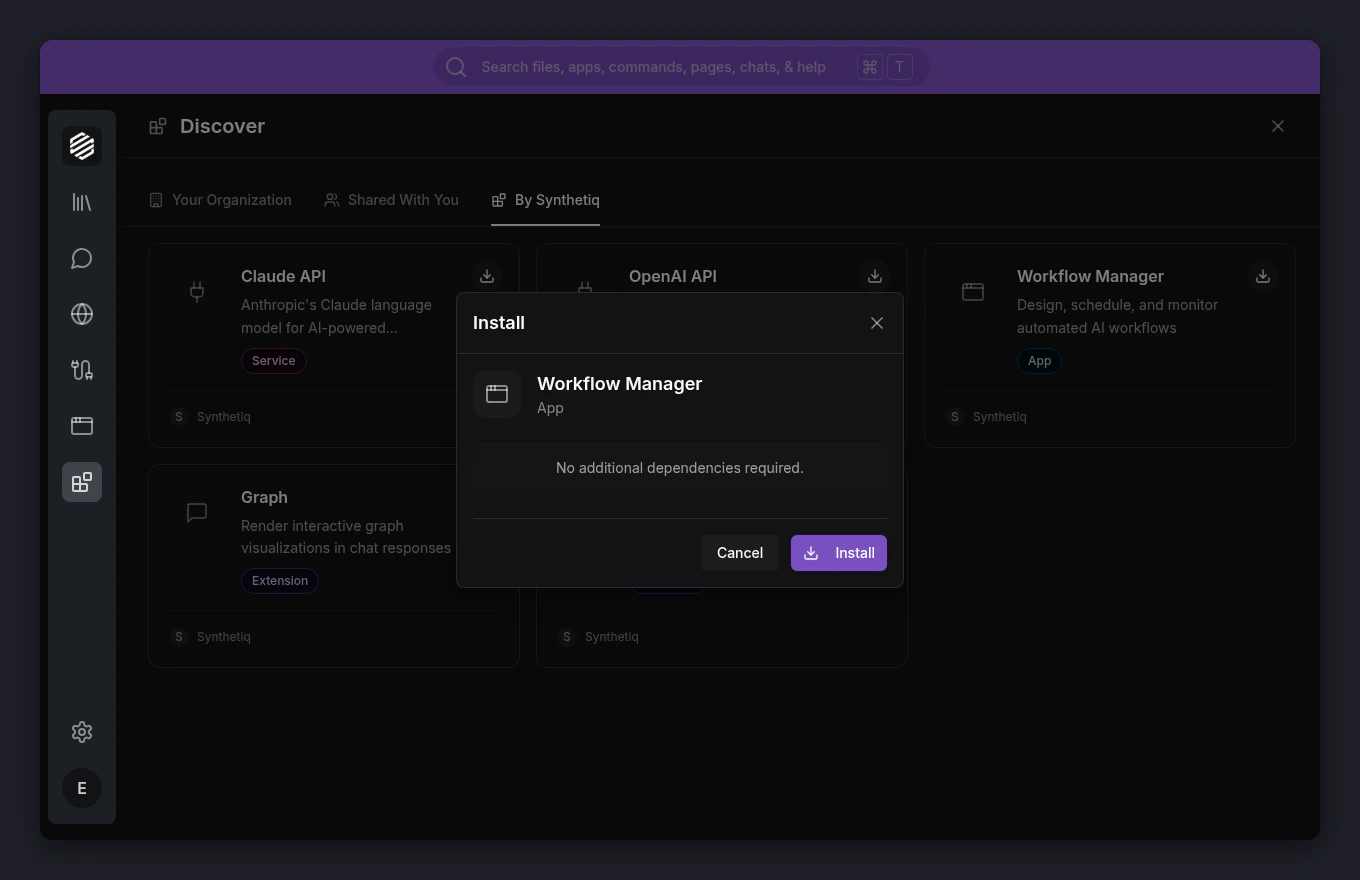
Find the app you want and click the Install button (download icon) on its card. A confirmation dialog shows what will be installed, including any dependencies.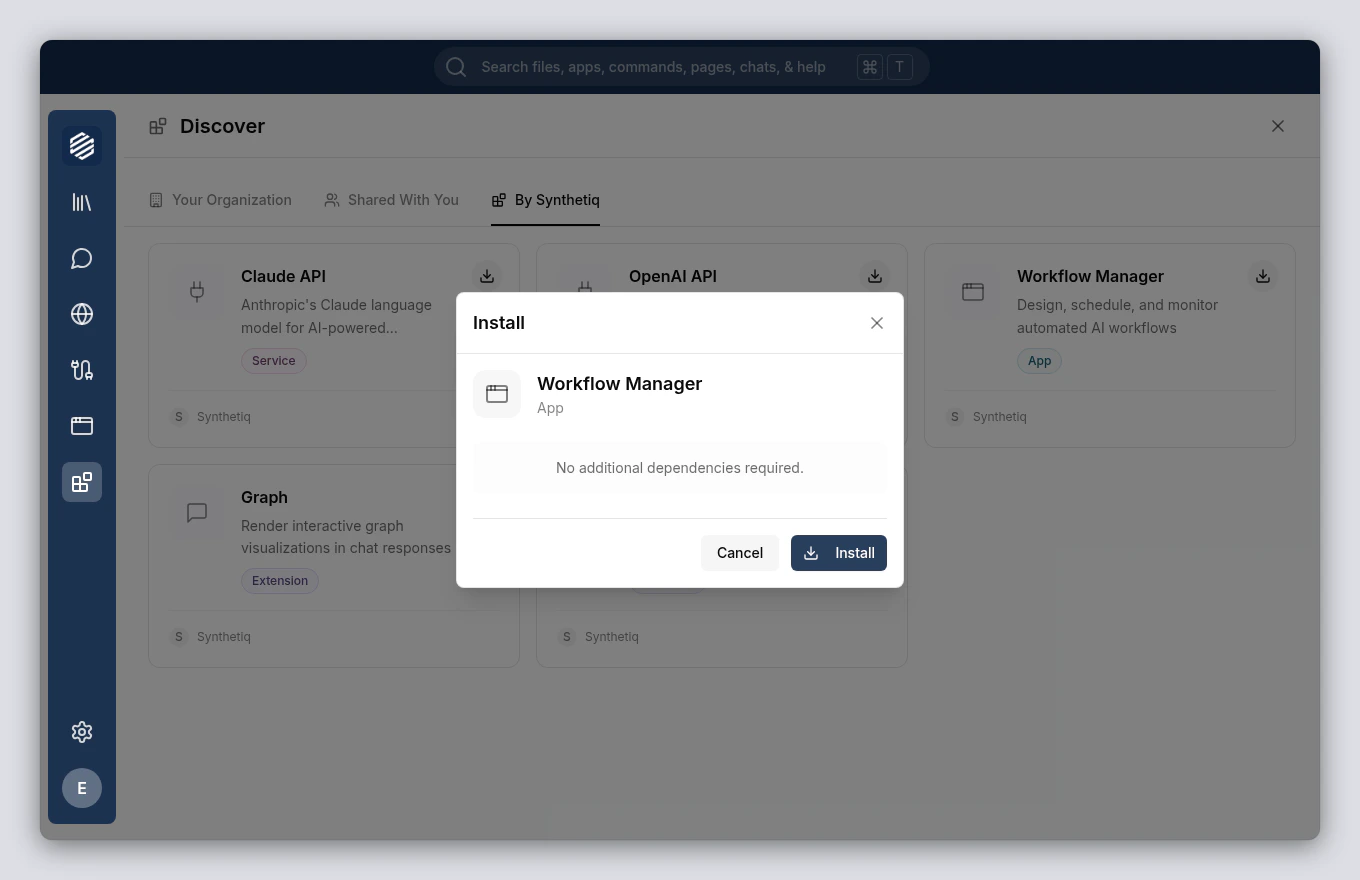
6
Confirm and wait for installation
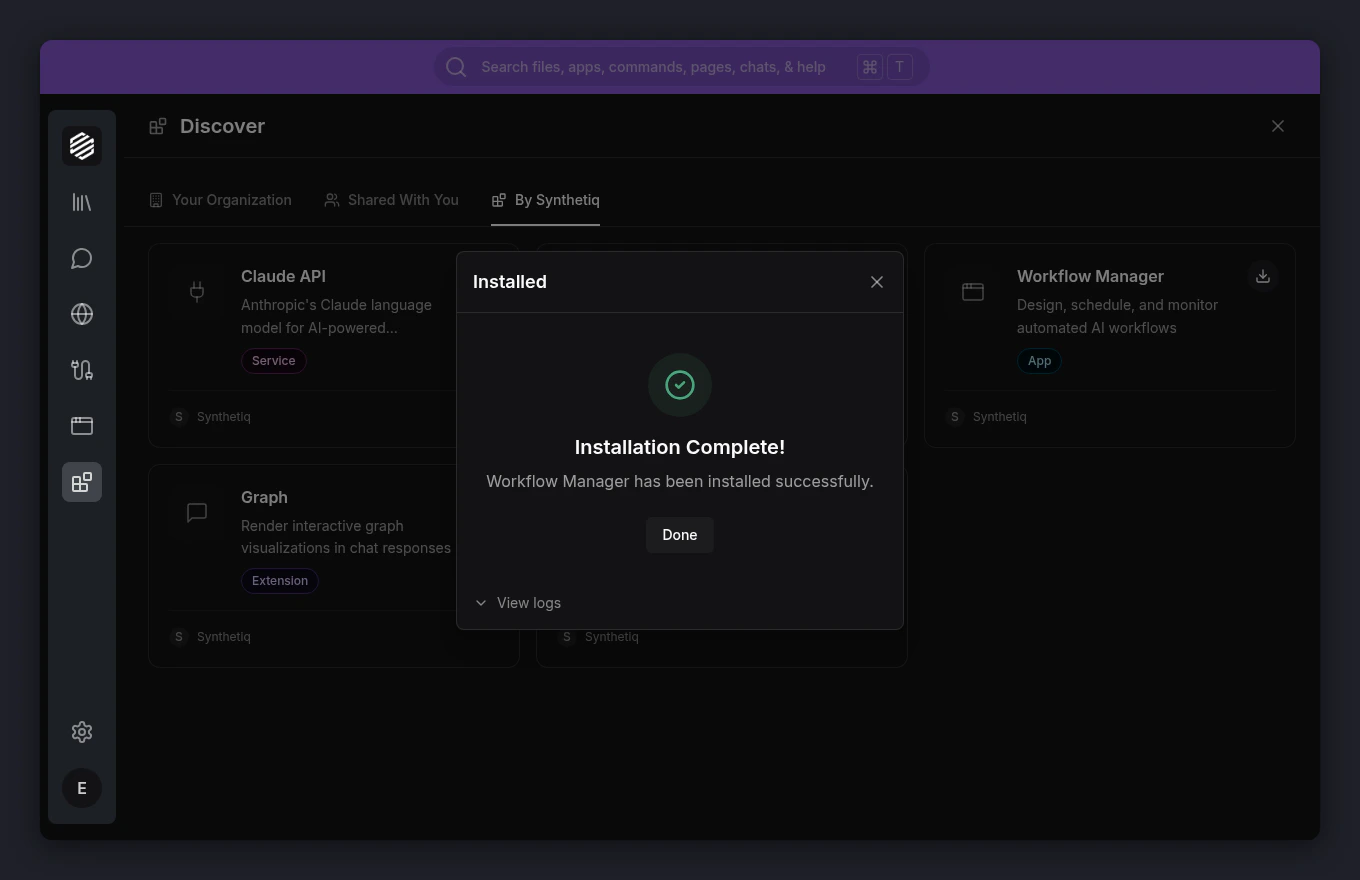
Click Install to begin. A progress panel shows each step as it completes. When finished, you’ll see an “Installation Complete!” message.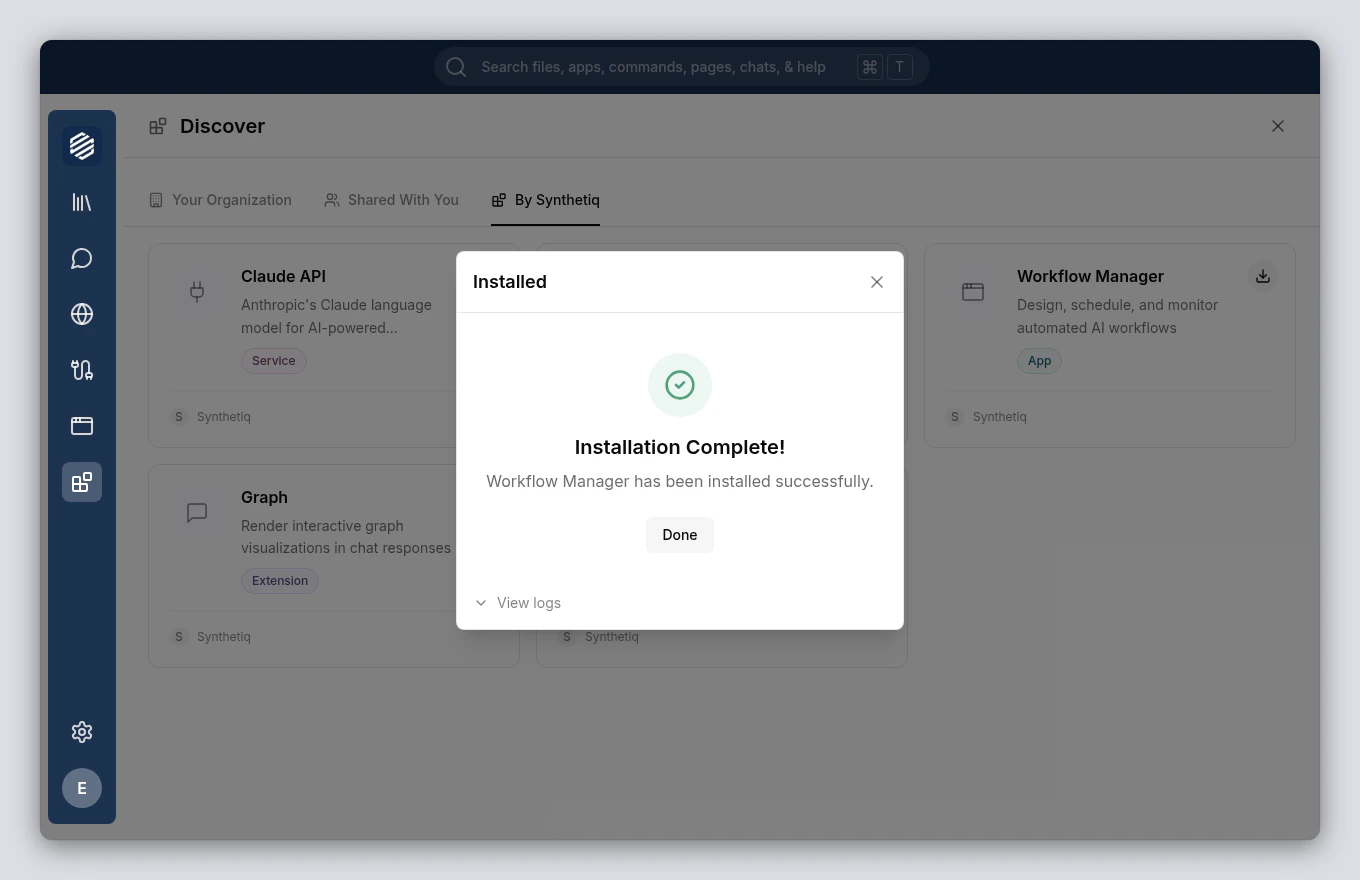
7
Click Done
Click Done to close the modal. The app’s card now shows an Installed badge, and you can start using it right away.