
Prerequisites
- A Synthetiq workspace with at least one app installed (see How to Install Apps)
1
Open the Apps panel
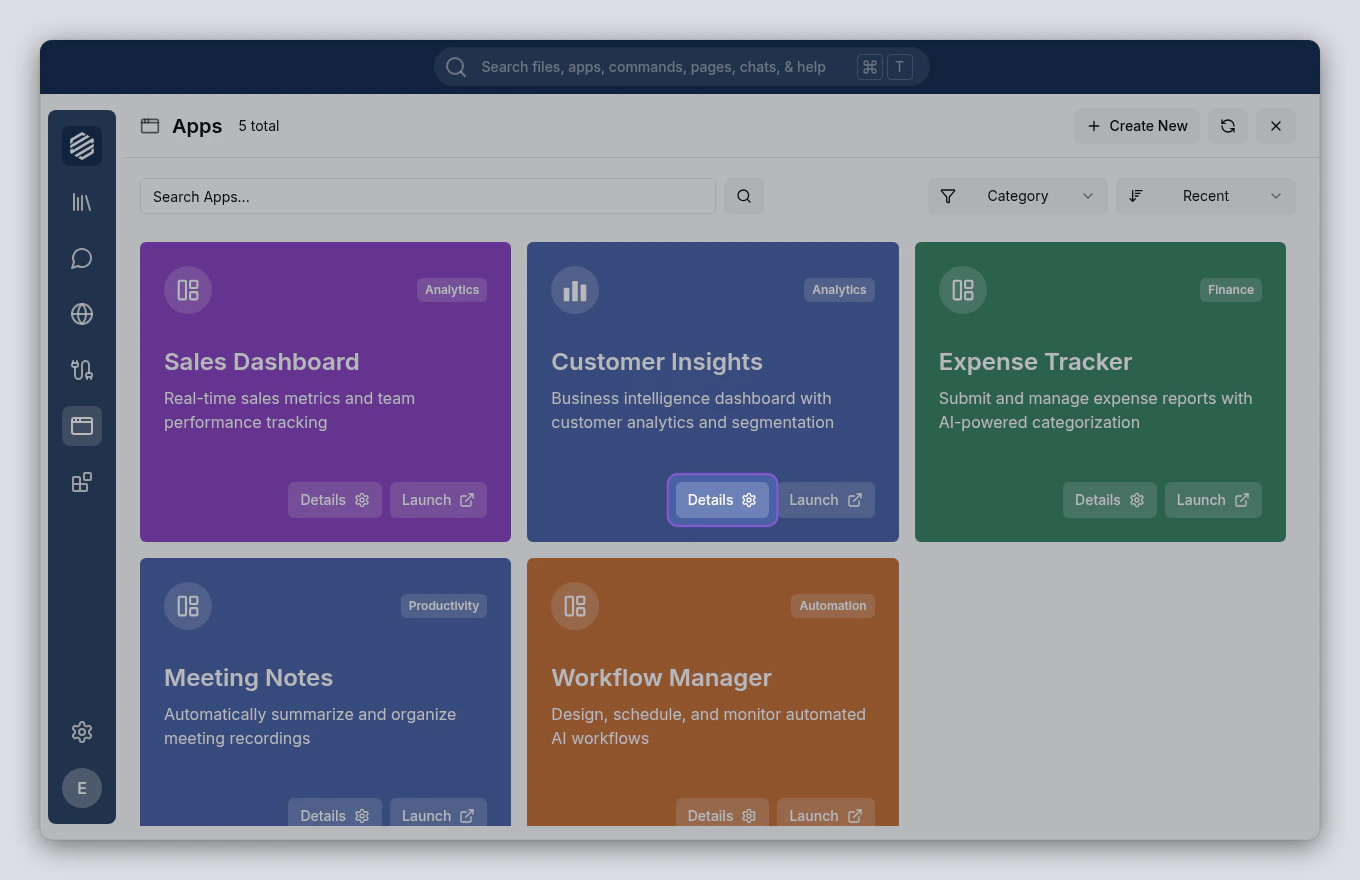
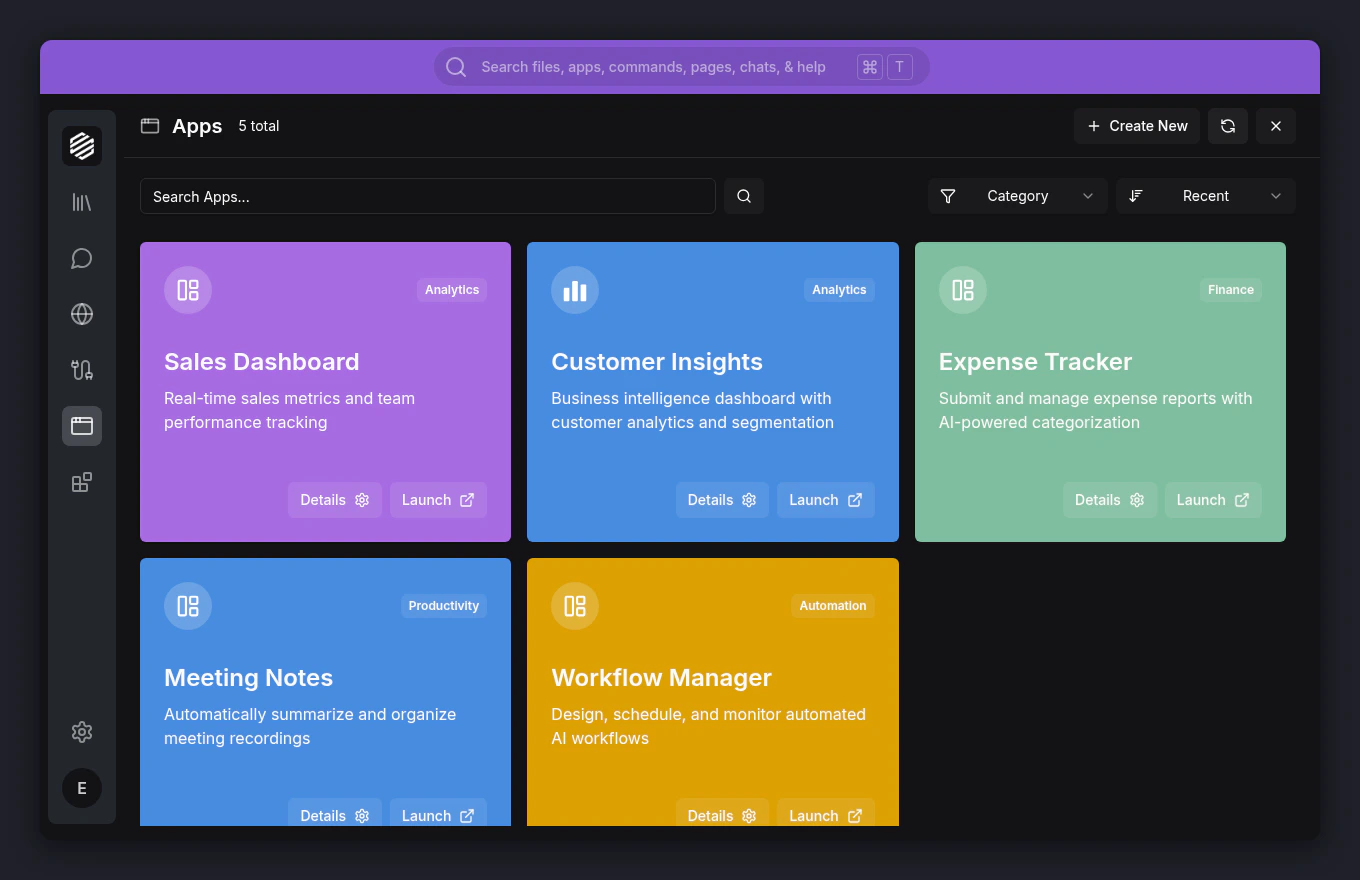
Click the Apps icon in the left menu. The Apps panel slides open as an overlay.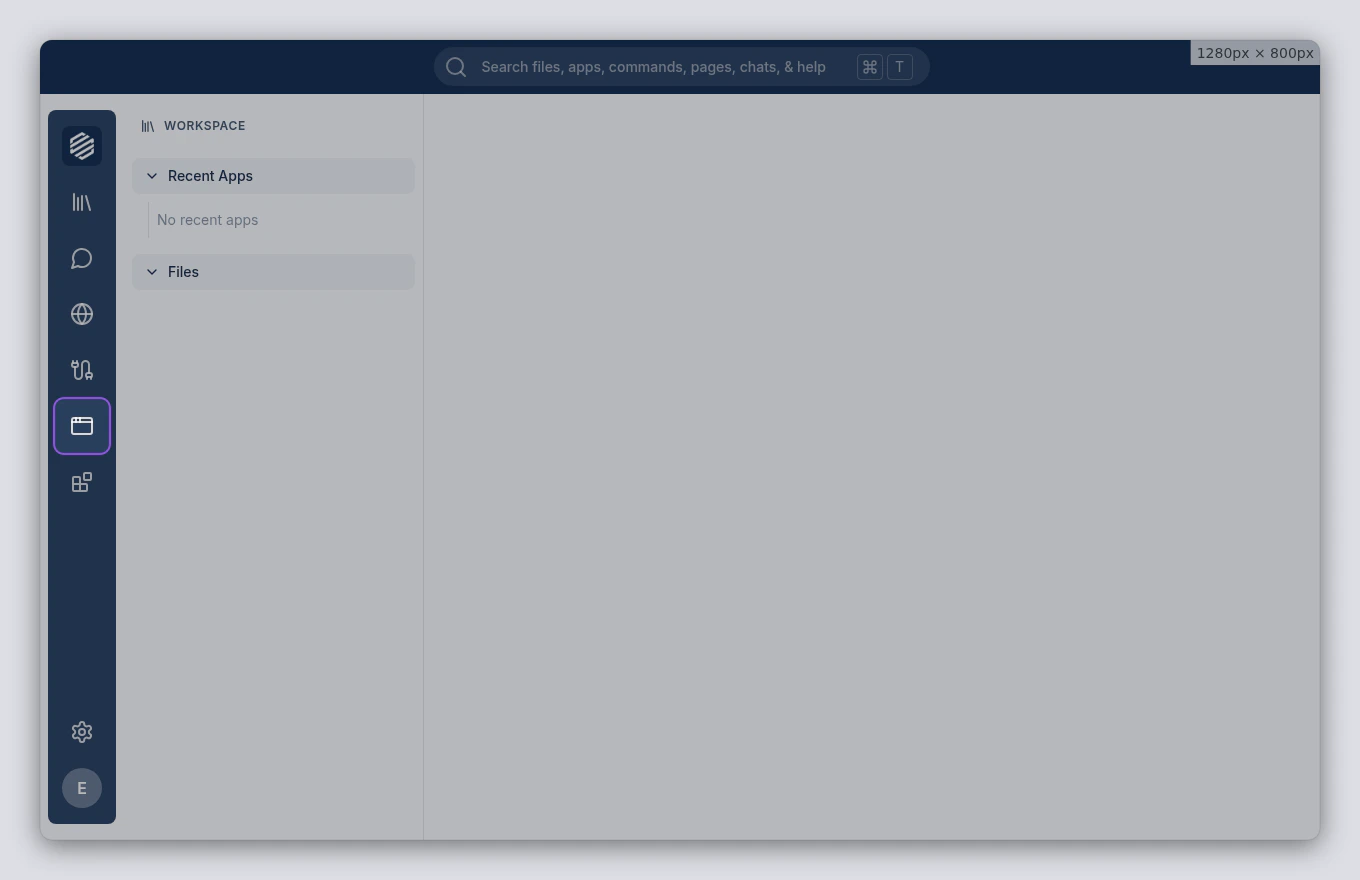
2
Find your app
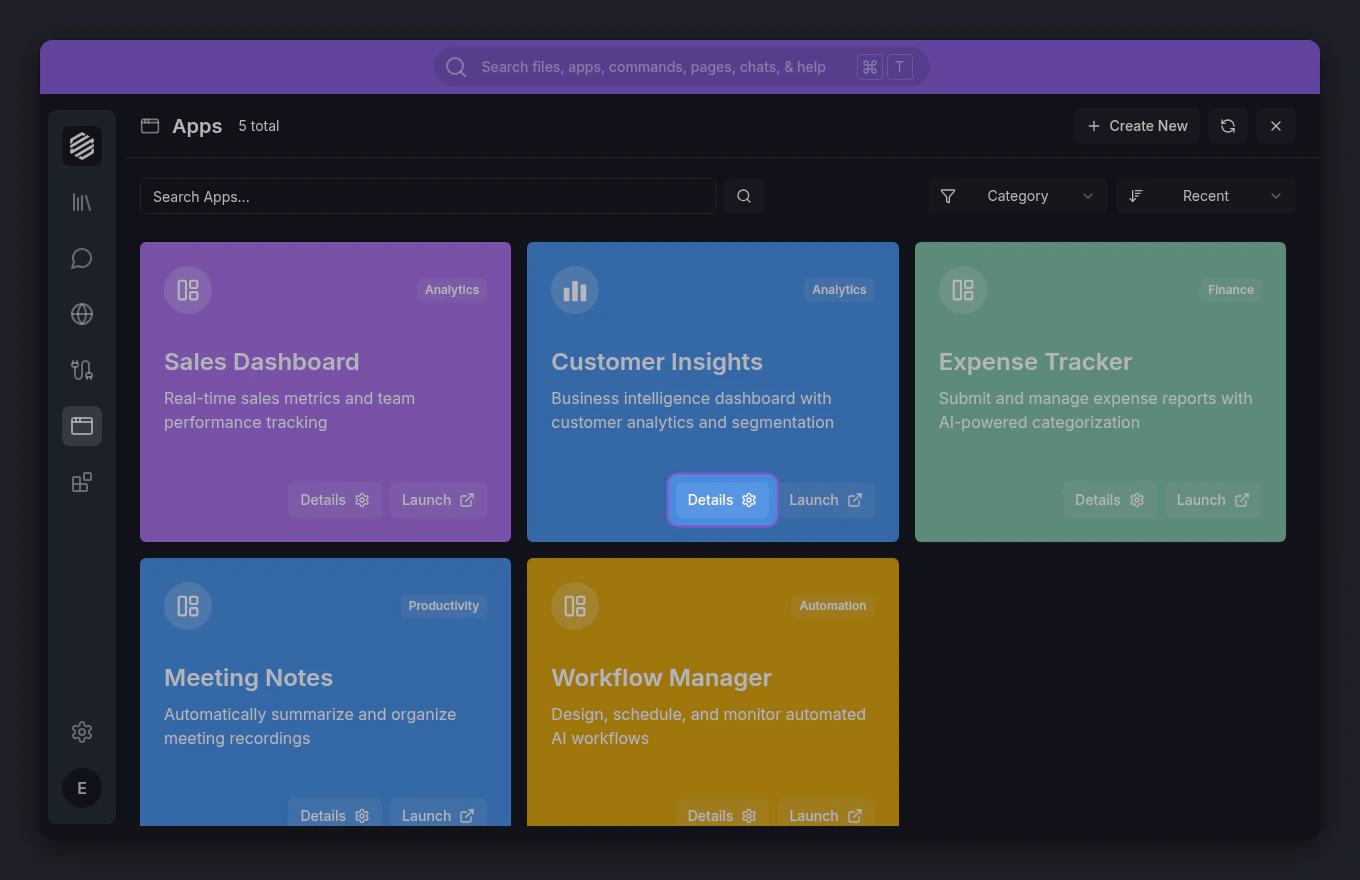
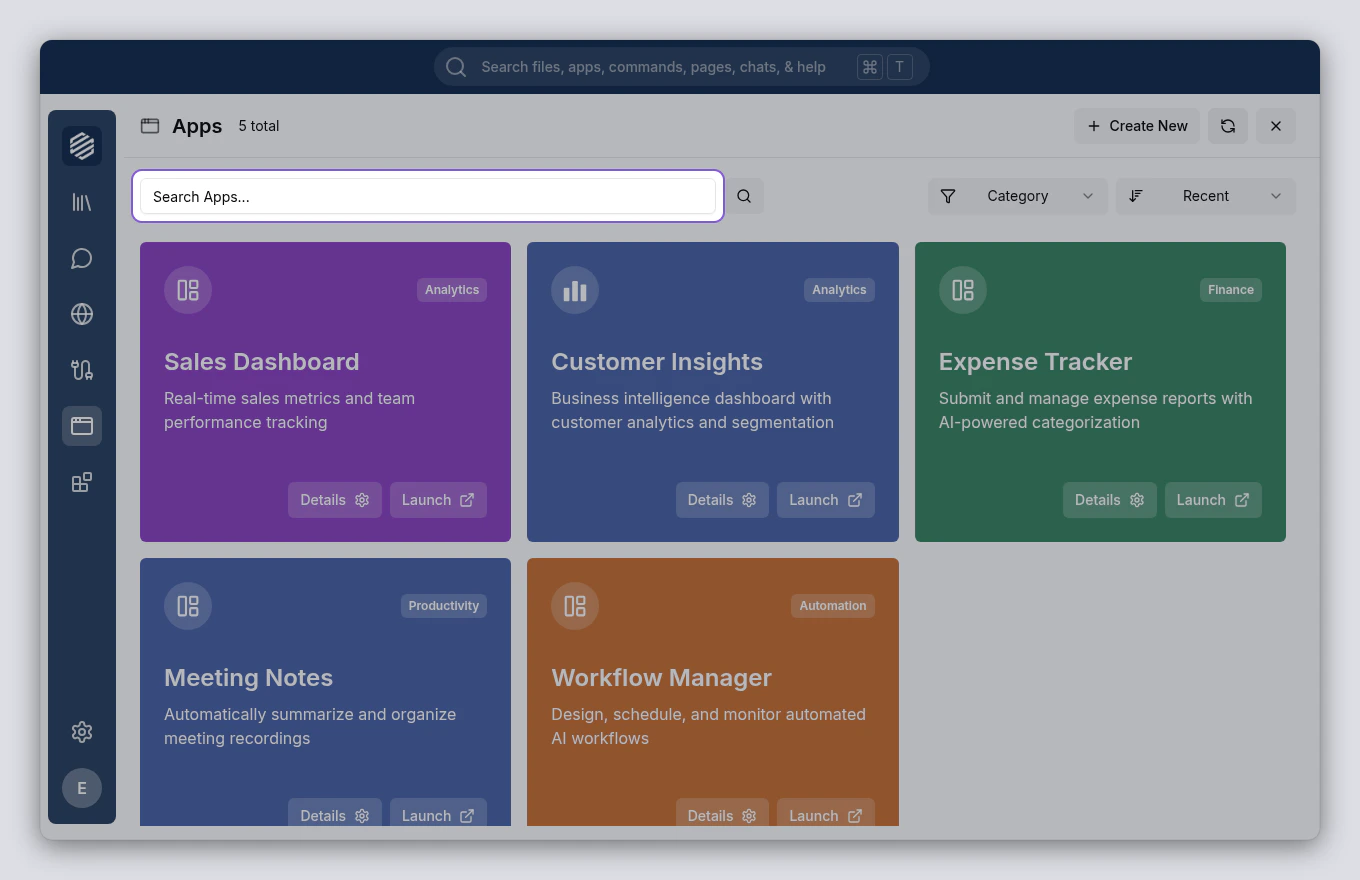
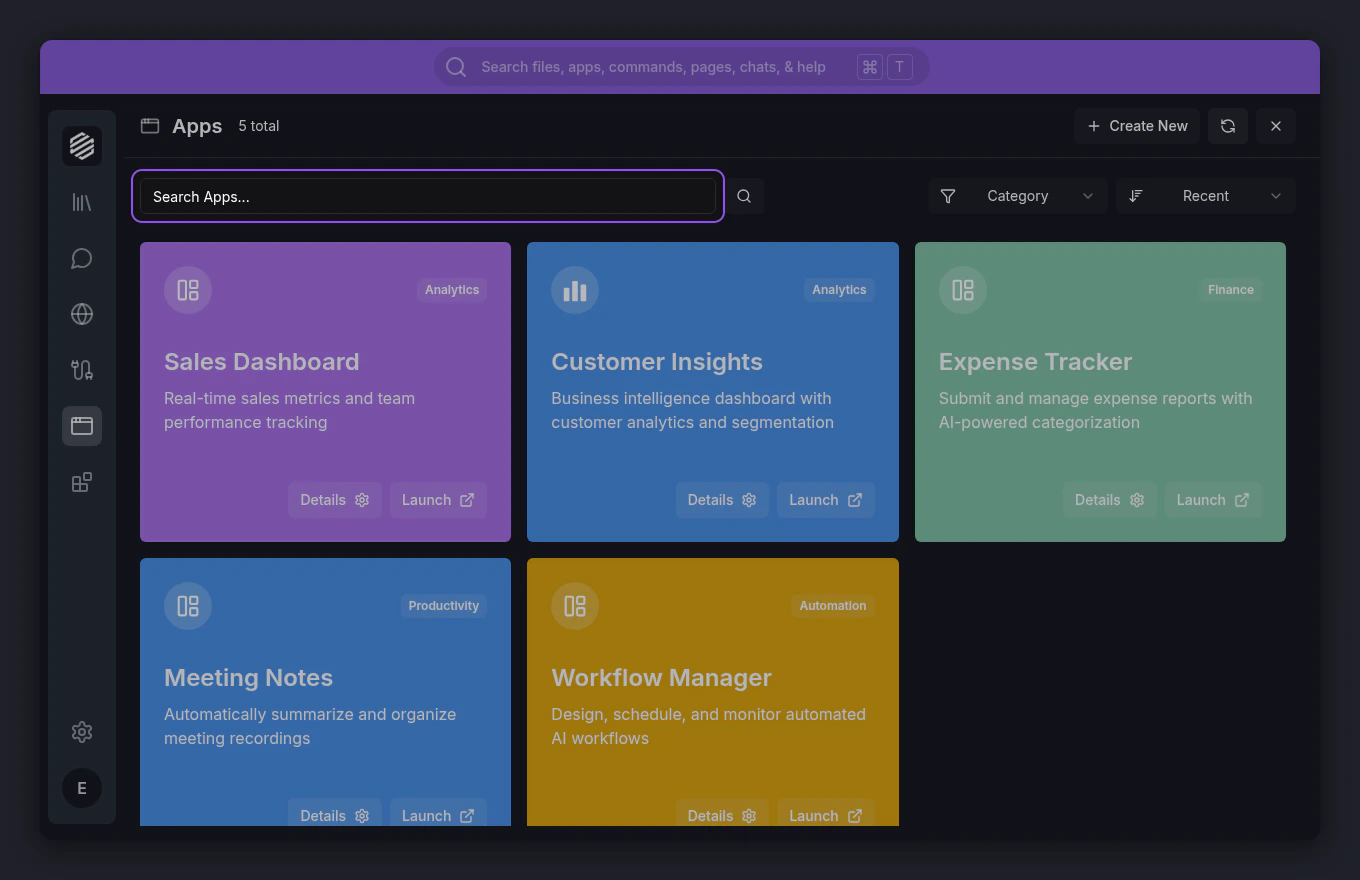
Each card shows the app’s name, description, and category. Use the Search Apps… bar at the top of the panel to filter by name, or use the Category dropdown to browse by type.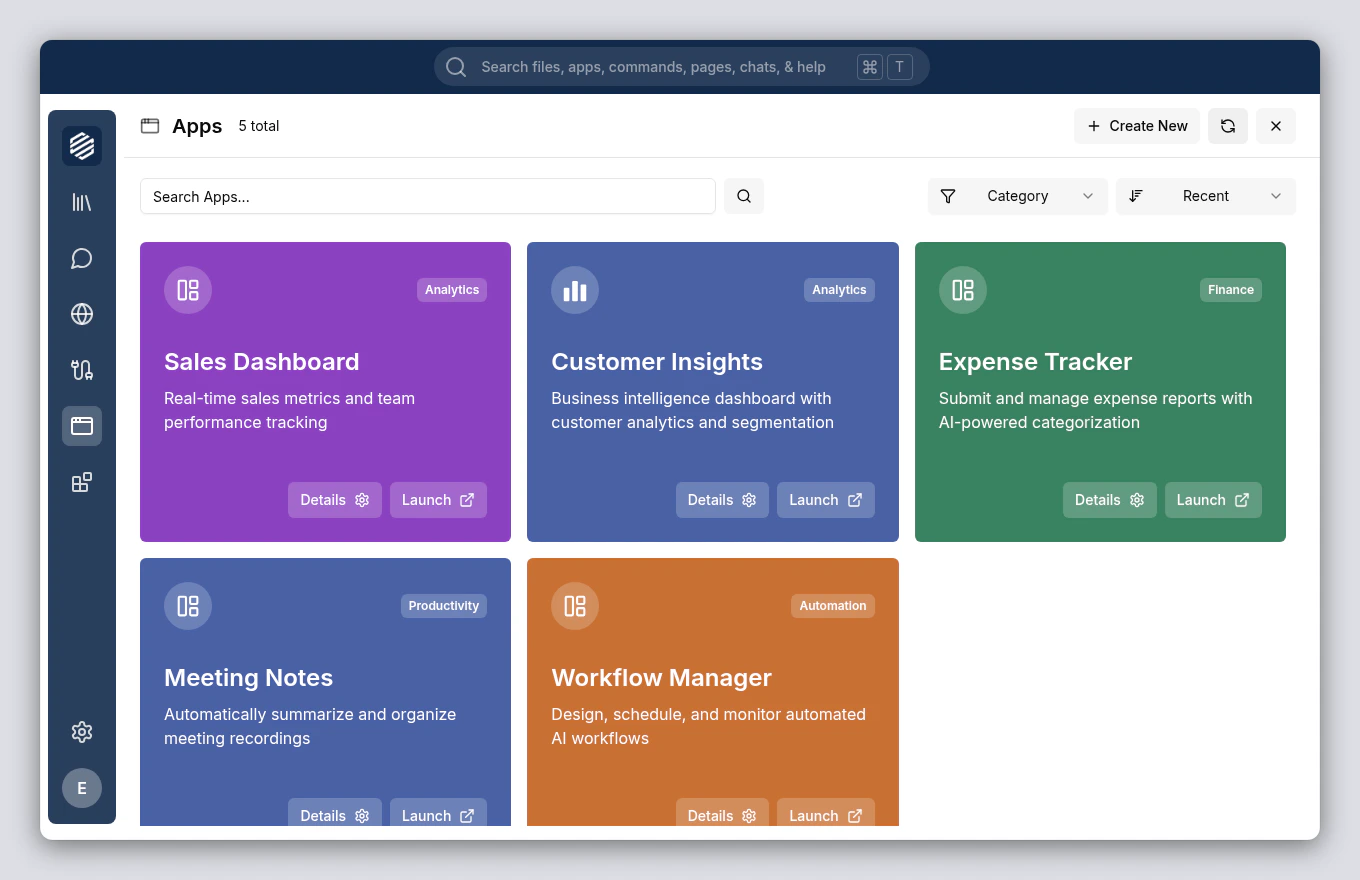
3
Launch the app
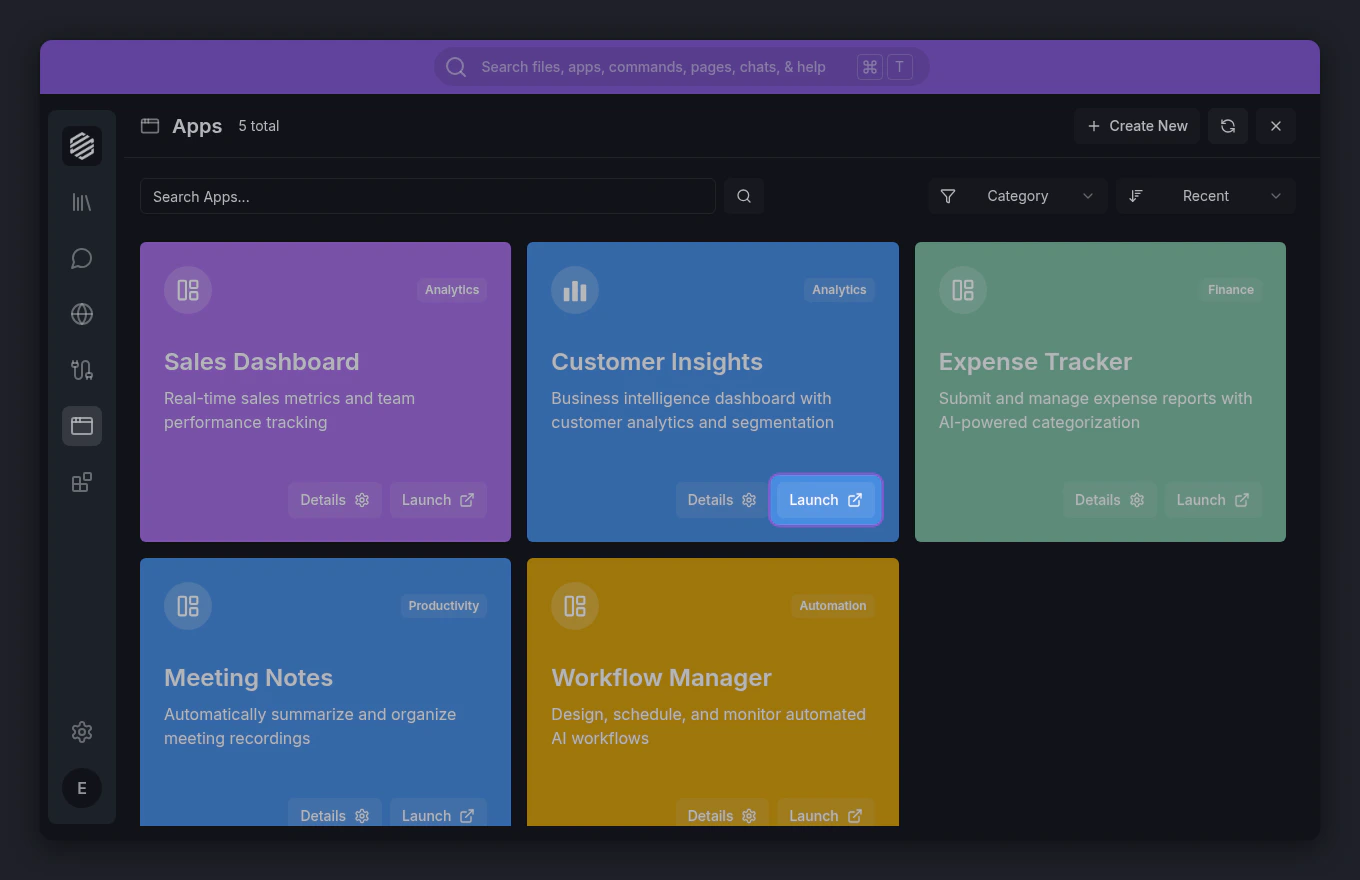
Click Launch on the app’s card. The Apps panel closes and the app opens in a new tab in the content area.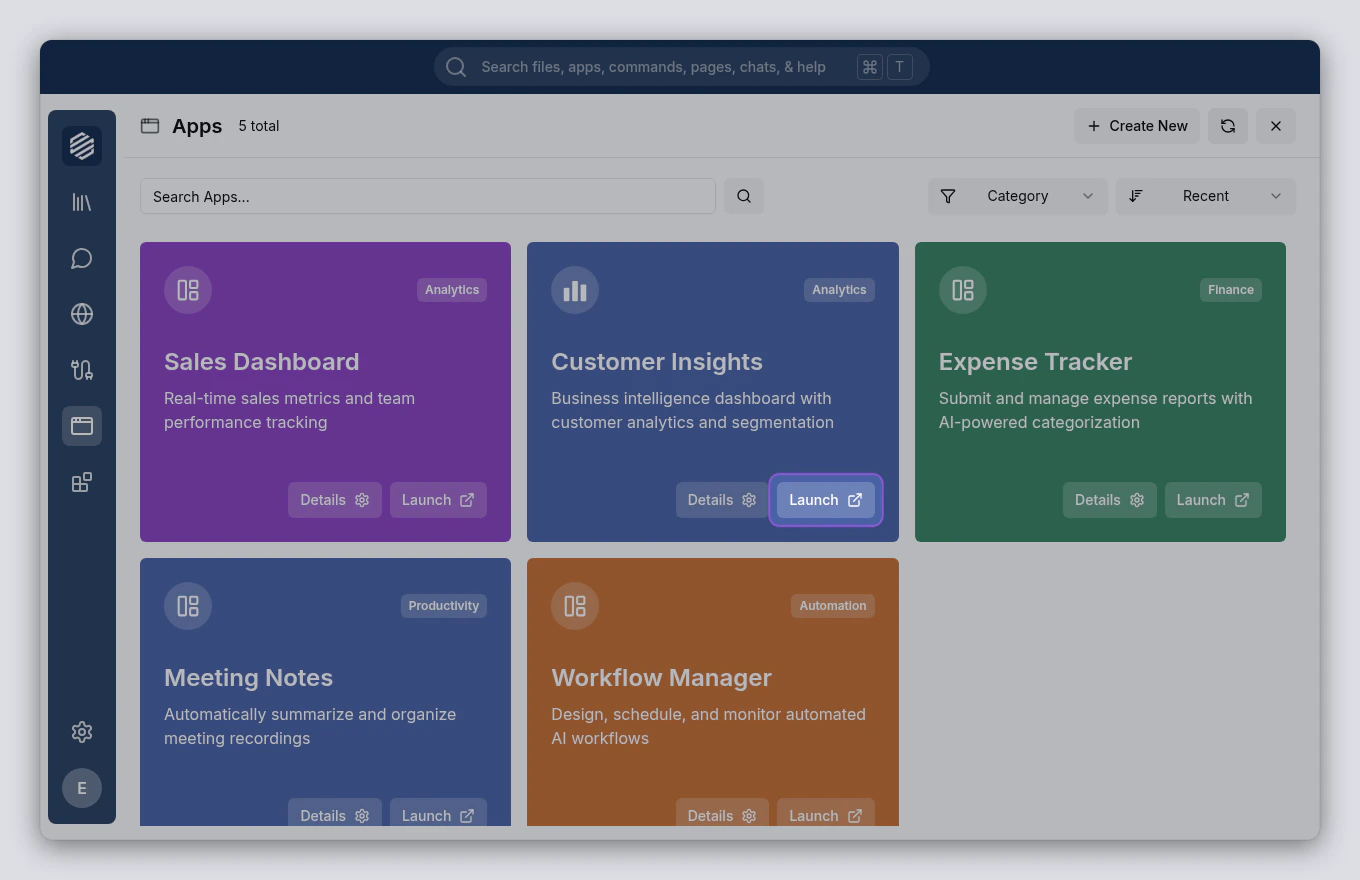
4
Use the app
The app runs directly inside Synthetiq’s built-in browser. A simplified navigation bar appears at the top instead of the full browser toolbar — this gives the app more room. Interact with it just like any web app: click buttons, fill in forms, navigate between pages.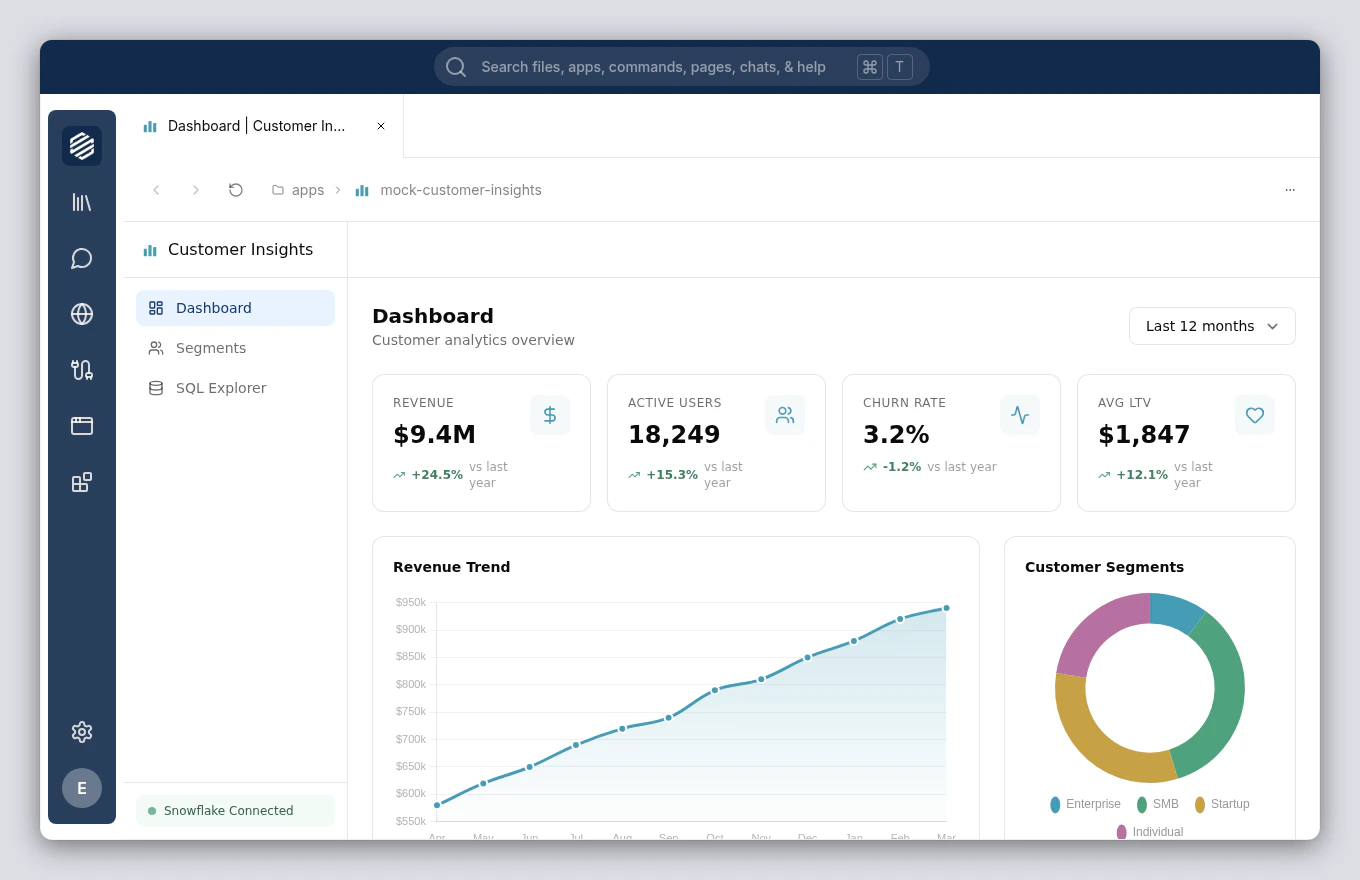
5
Ask the Workspace agent for help
If you’re not sure how to do something in the app, ask the Workspace agent. Open the chat panel with ⌘], then type your question. The agent knows about your installed apps and can guide you through tasks.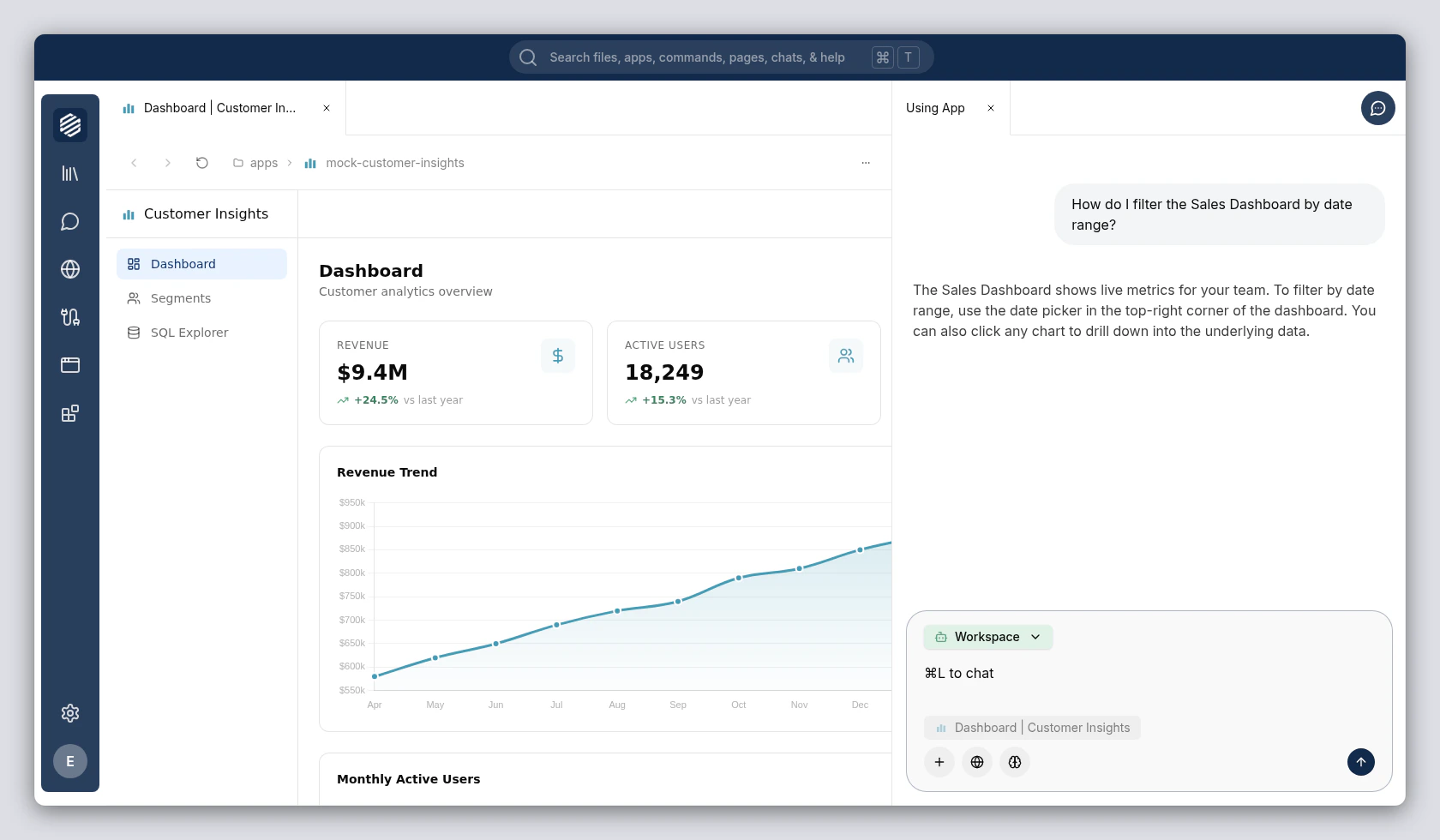
6
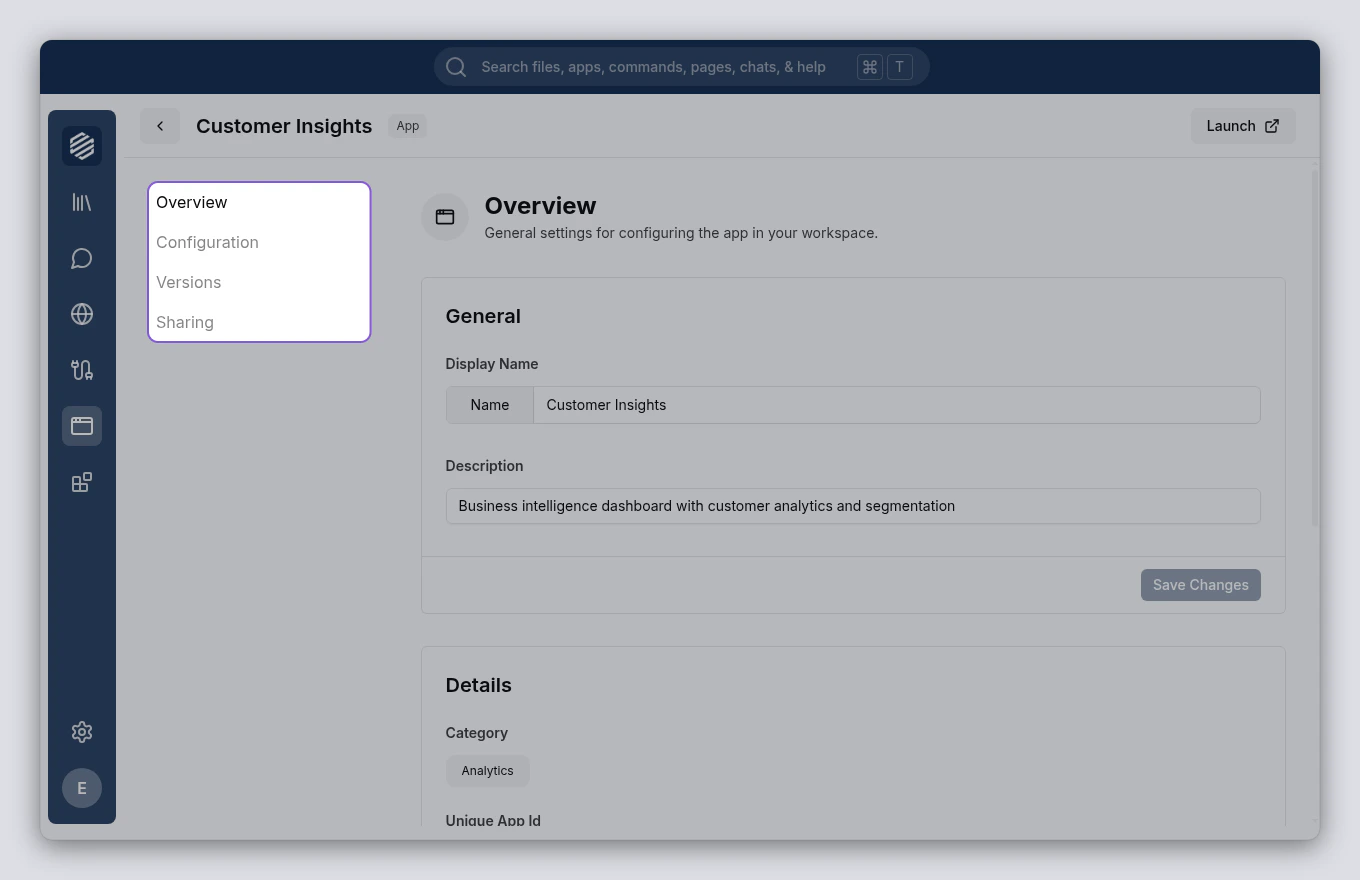
Open the app's details
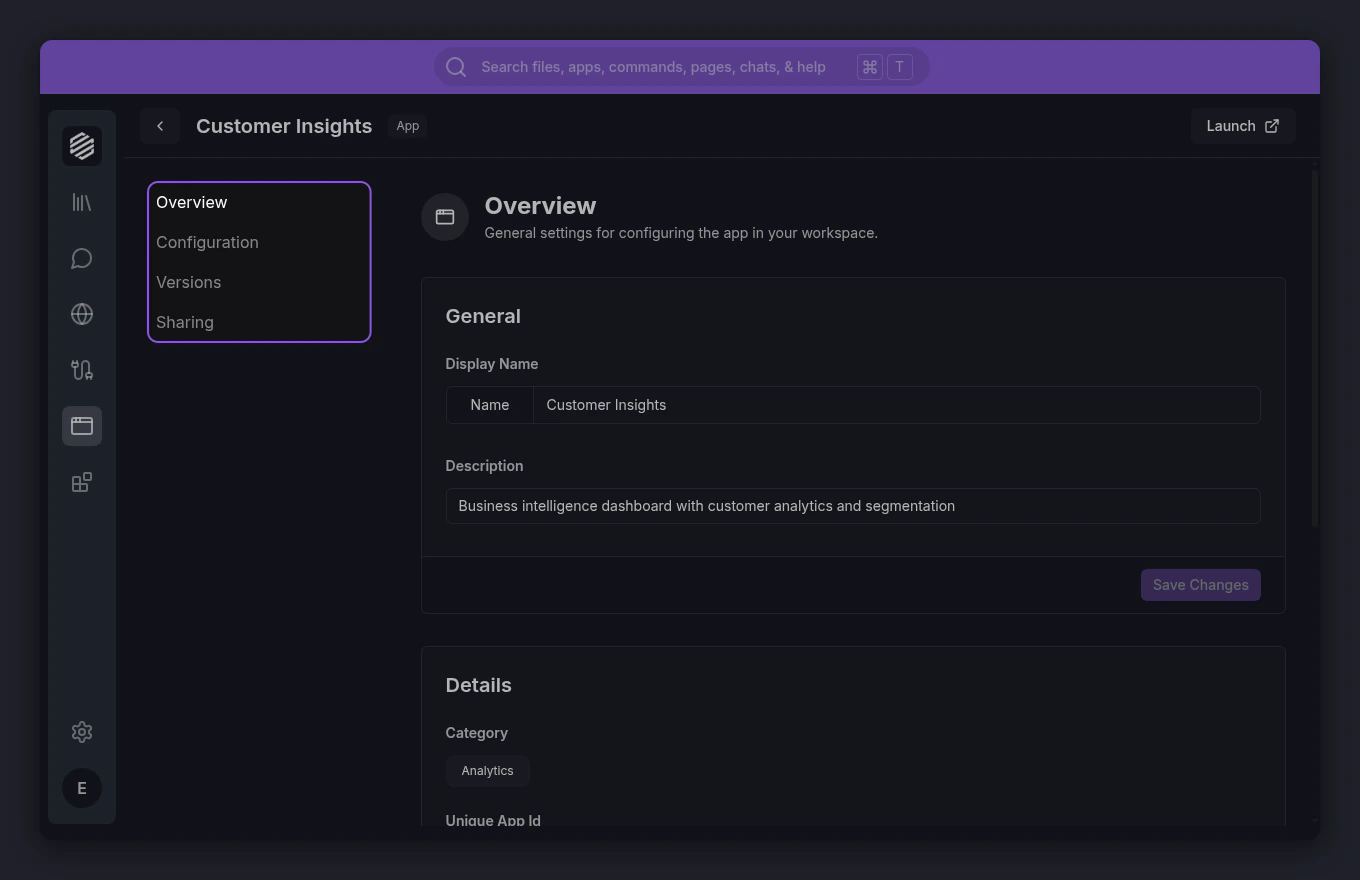
If you want to see the app’s configuration or other information, go back to the Apps panel and click Details on the app’s card. This opens the app details view with four sections: Overview, Configuration, Versions, and Sharing.