

Prerequisites
- A Synthetiq workspace with at least one app you own
- The app must be published before you can share it — if it hasn’t been published yet, see How to Publish an App first
Organization sharing and individual sharing are independent. You can share with your organization, share with specific people, or both — complete whichever steps apply.
1
Open the Apps panel
Click the Apps icon in the left sidebar. The Apps panel slides open showing your apps.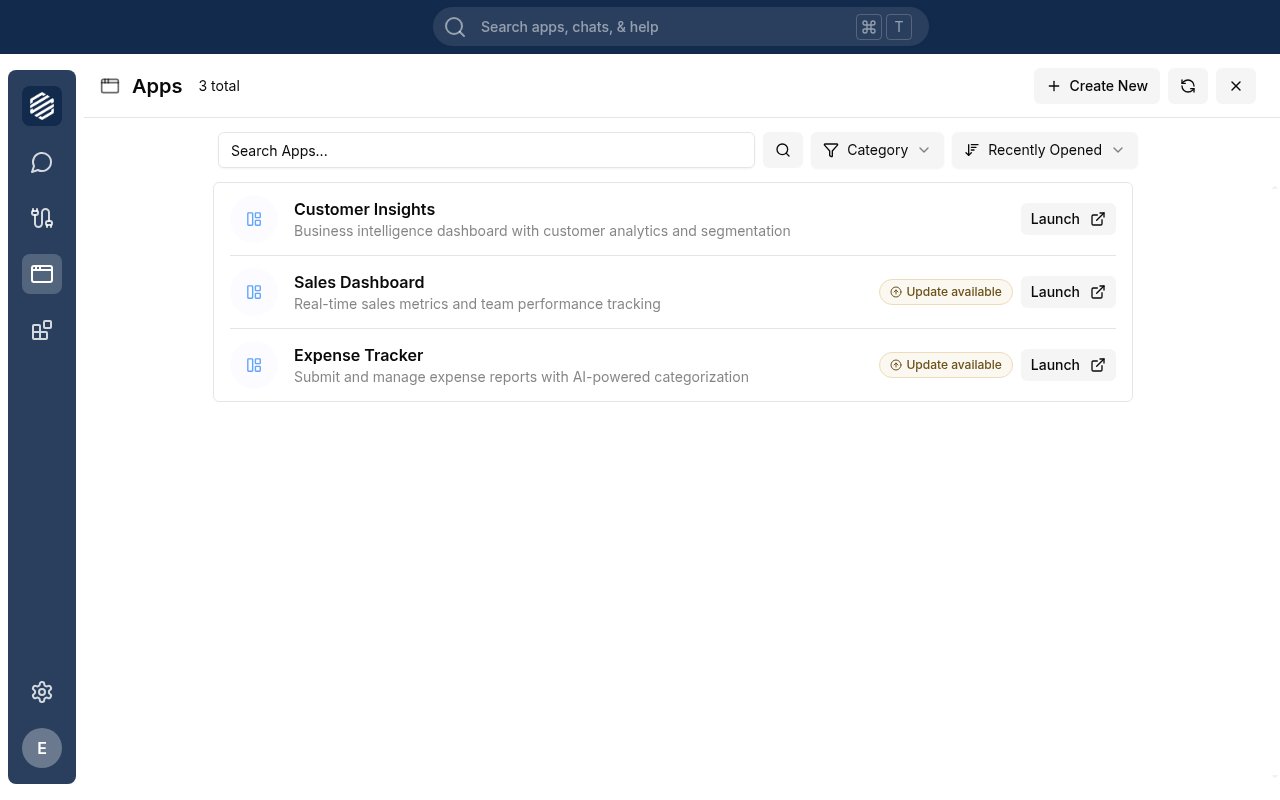
2
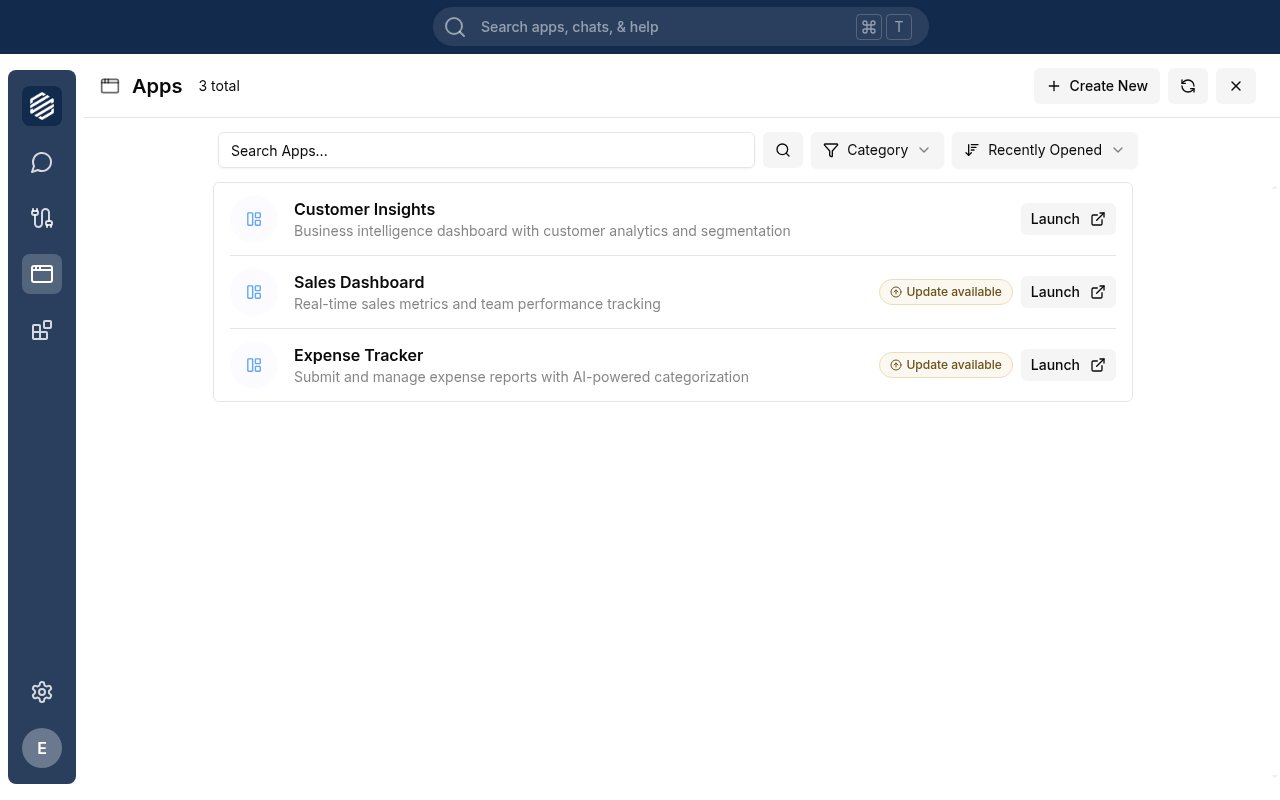
Open the app's details
Find the app you want to share and click its name. The app details view opens with a sidebar showing Overview, Configuration, Versions, and Sharing.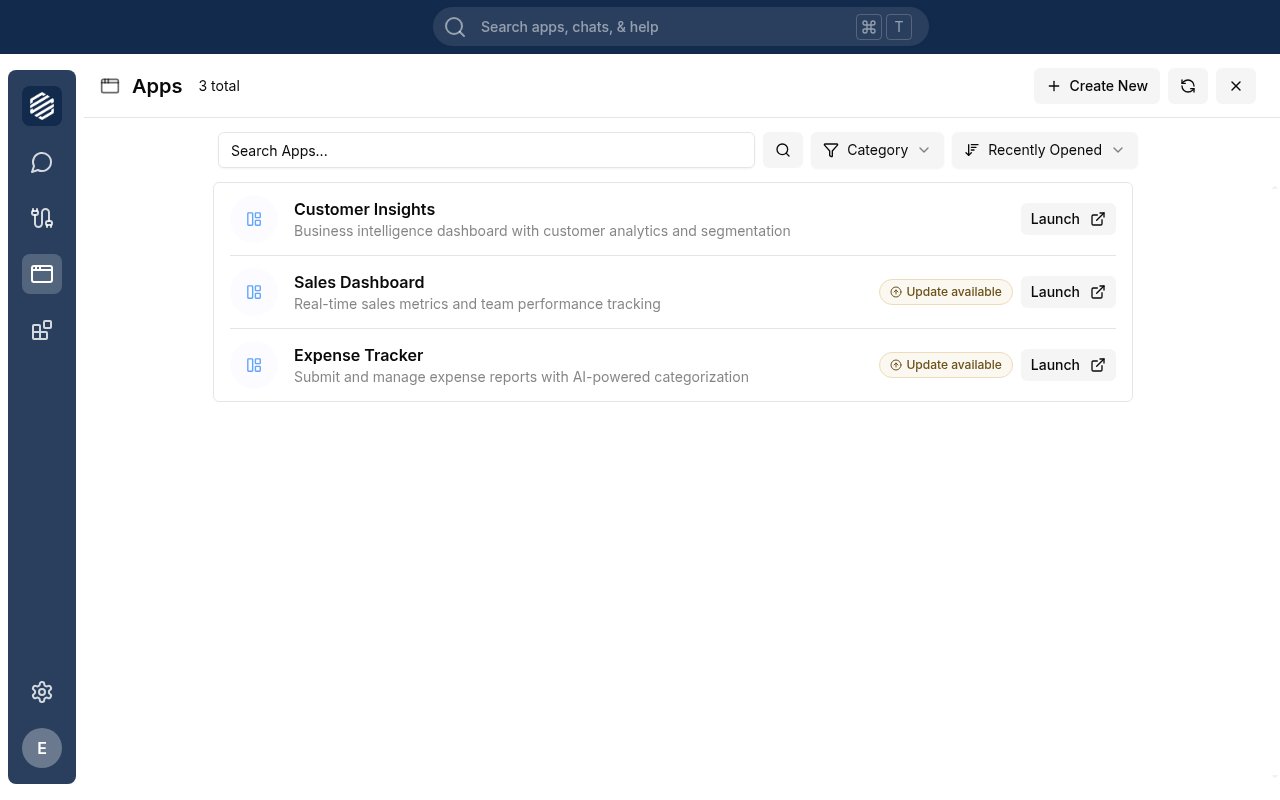
3
Go to the Sharing tab
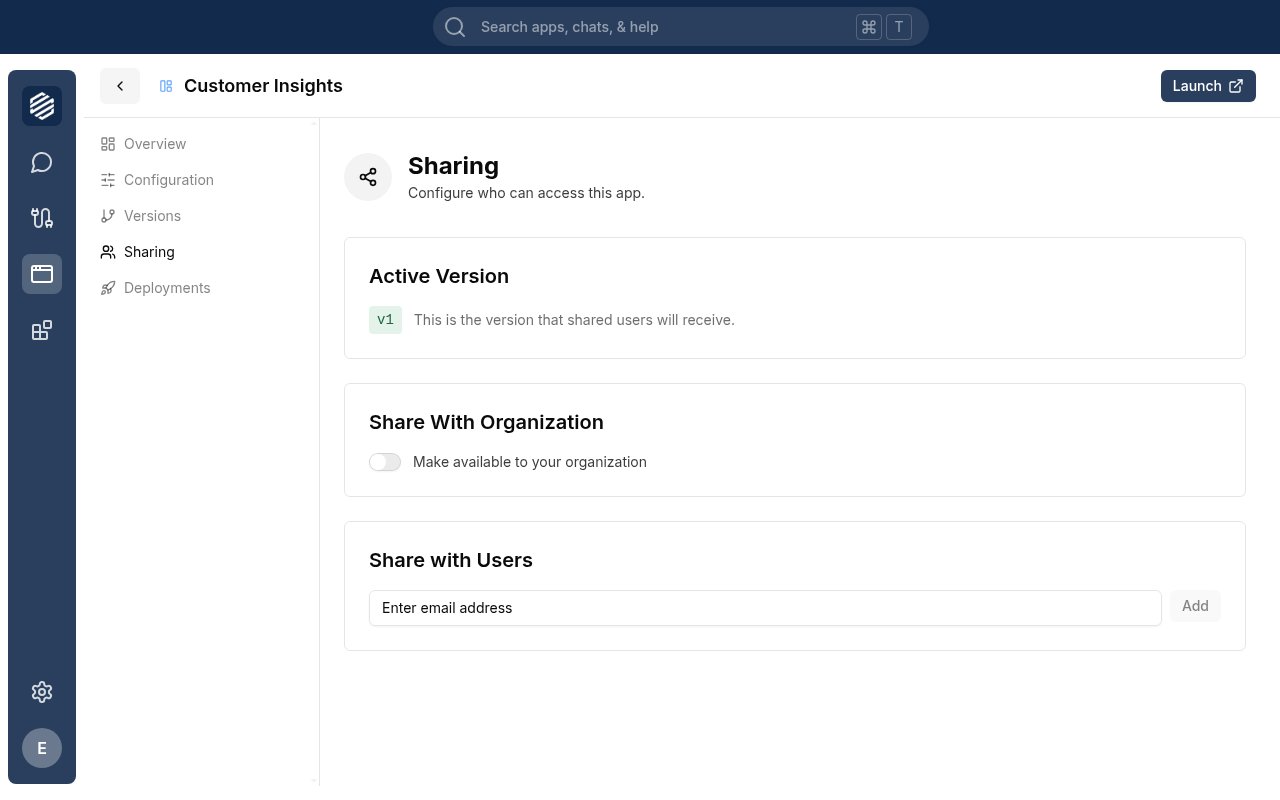
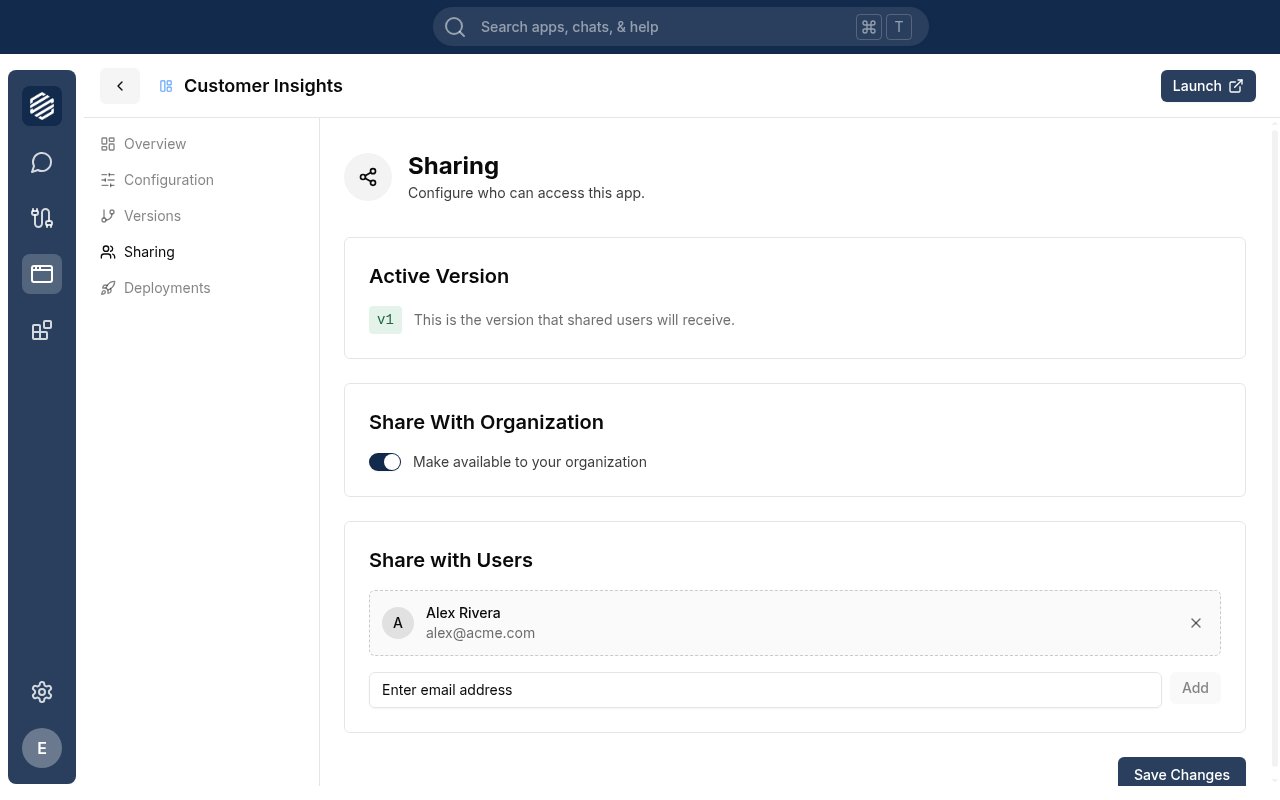
Click Sharing in the app details sidebar. The sharing panel opens with two sections: Share With Organization and Share with Users.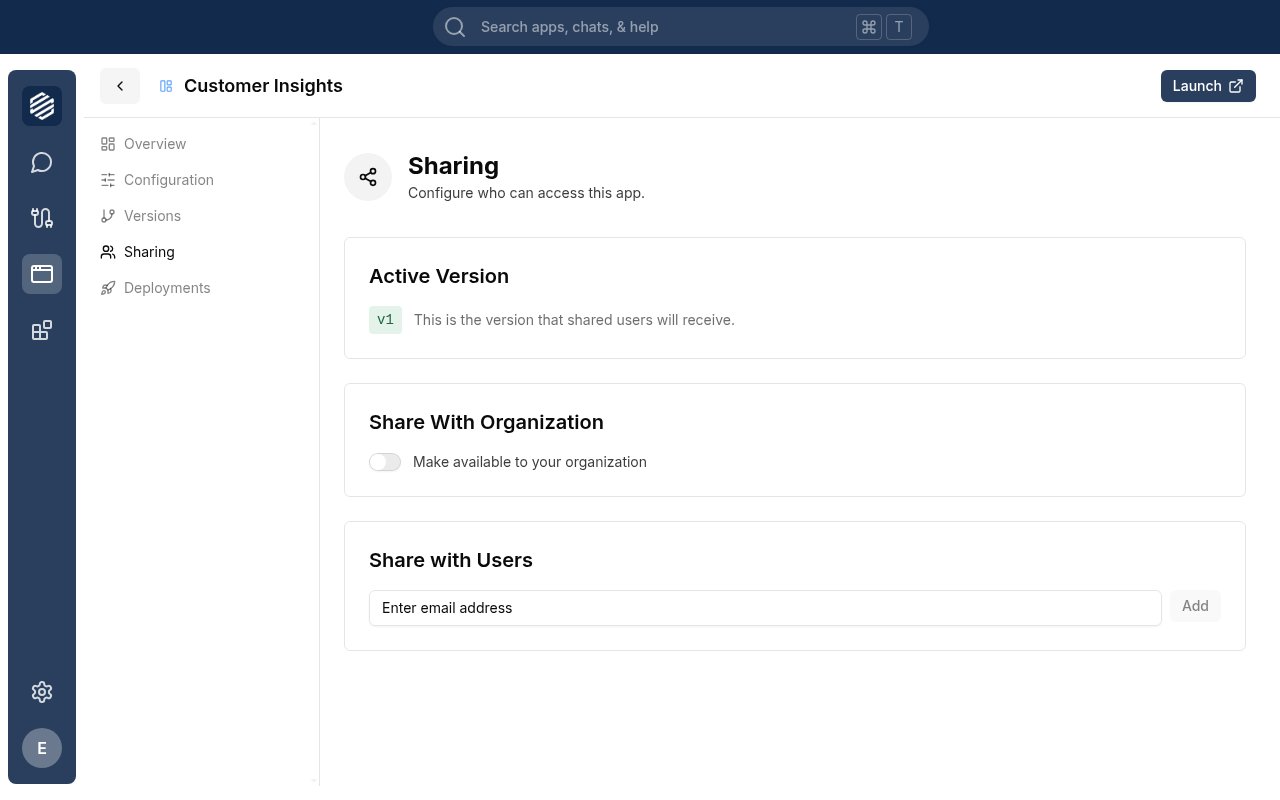
4
Share with your organization (optional)
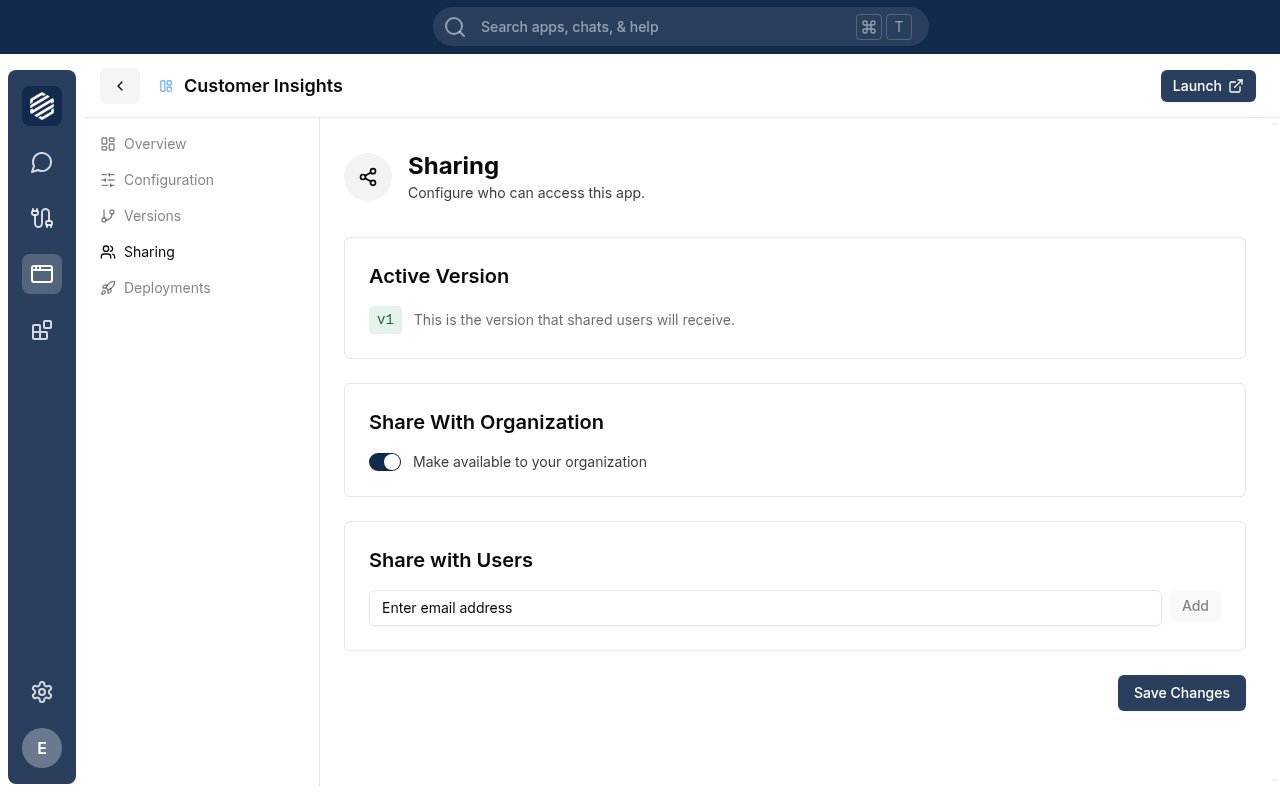
In the Share With Organization section, toggle on Make available to your organization. This adds the app to your organization’s store so any teammate can find and install it.If your organization has a public store, you’ll also see an Also make publicly available checkbox — check this to let anyone outside your organization discover and install the app.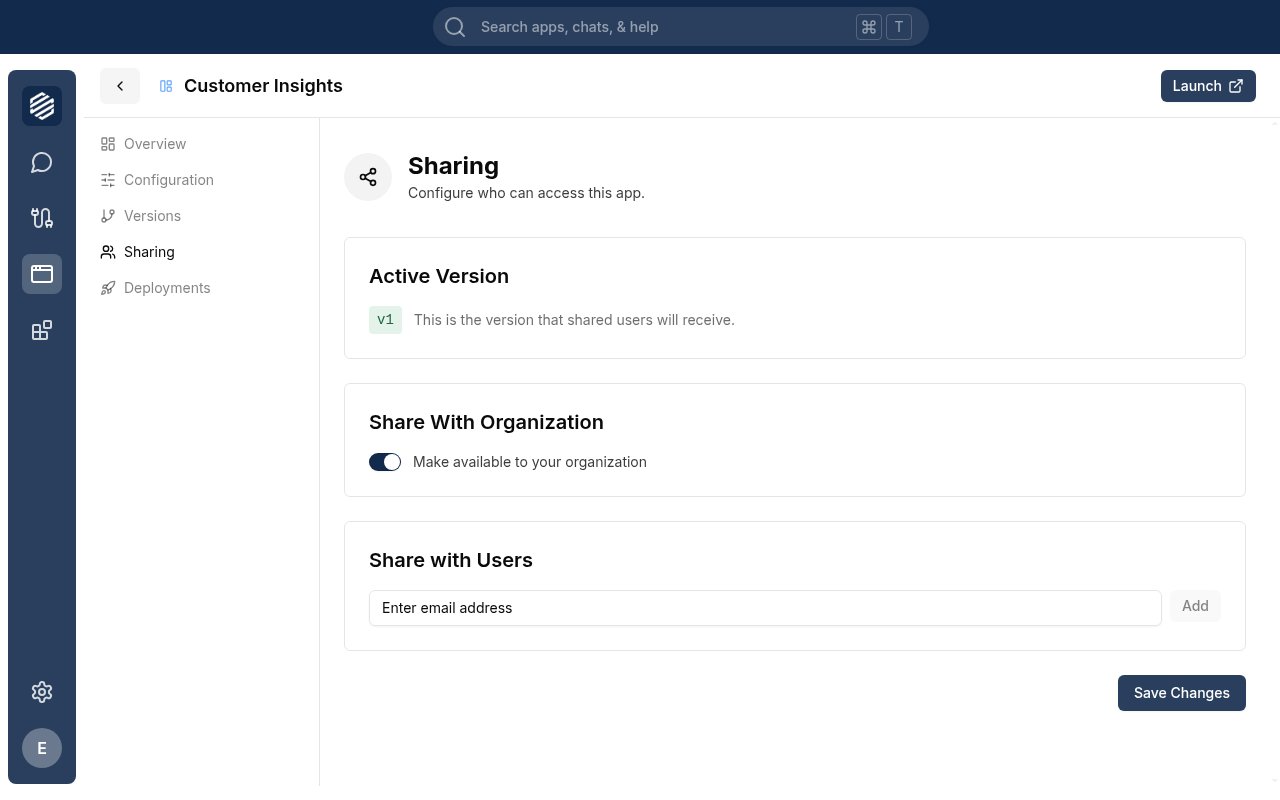
5
Share with specific people (optional)
In the Share with Users section, type a teammate’s email address into the Enter email address field and click Add. Repeat for each person you want to share with.For each person you add, choose their permission level from the dropdown: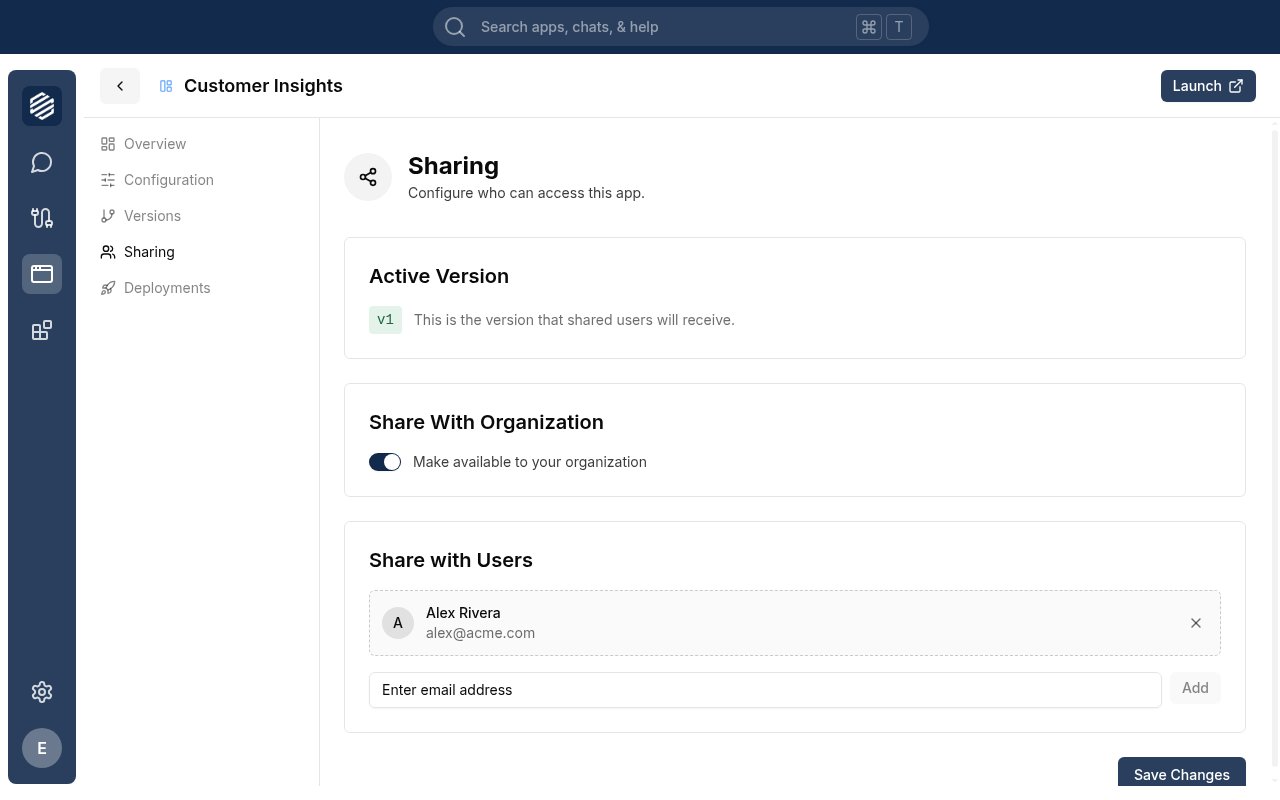
- Can install — they can install and use the app
- Can install & publish — they can also push new versions
6
Save your changes
Click Save Changes. Synthetiq applies all your changes at once. People you shared with directly will see the app in their Discover store under Shared With You. Teammates in your organization will see it under Your Organization.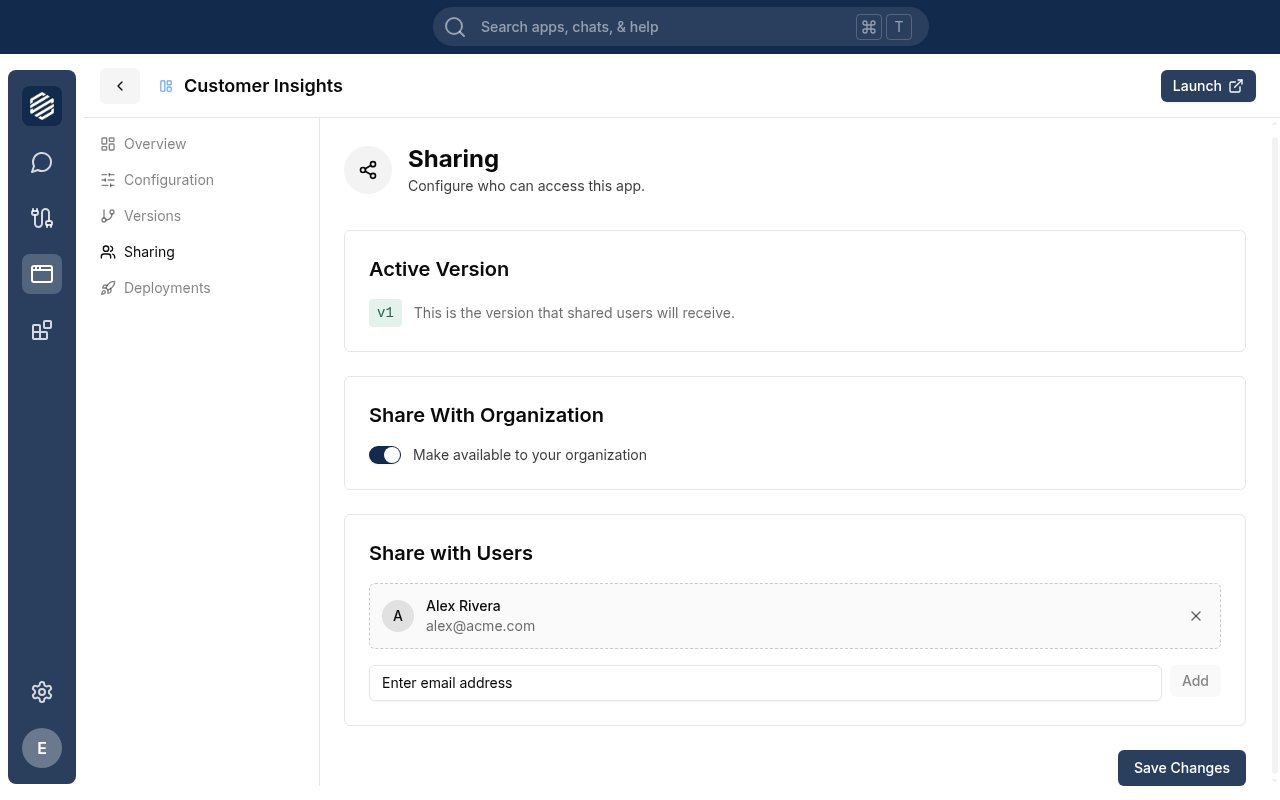
What’s next
How to Discover and Install Apps
Browse and install apps your team has shared with you.
How to Use an Installed App
Open and interact with an app once it’s installed.